
Stream-Play with VMTI
Play ISR shows real-time feedback of Moving Target Indication (VMTI) data which allows you to view and monitor selected targets directly atop the video-view.
To enable VMTI visualization:
Once your stream is playing, click the Overlay icon
 in the control bar to open the VMTI Overlay options.
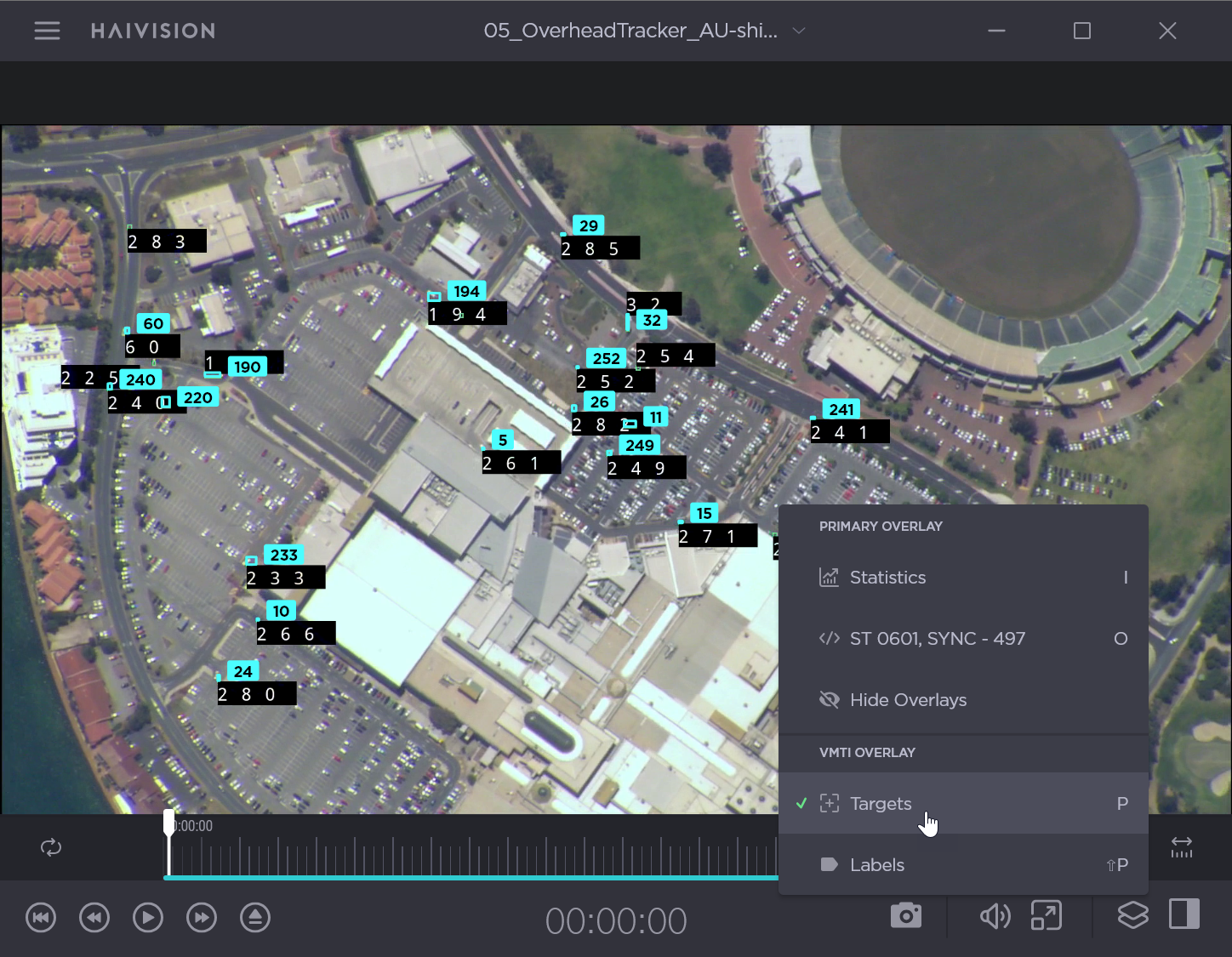
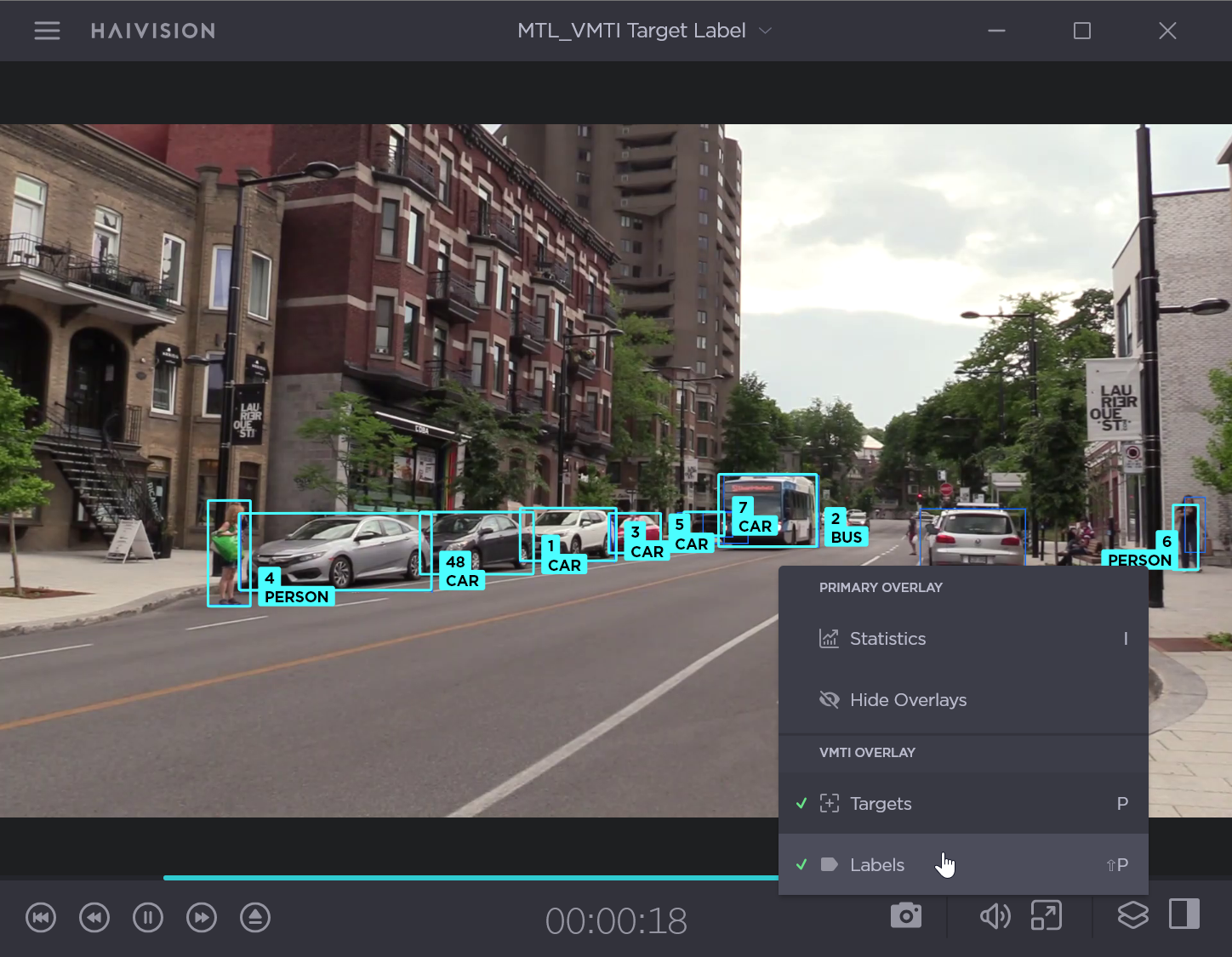
To call-out labels, click Labels. This will provide names for each identified target (e.g. car, person).

Note
In order to enable Labels, Targets must be enabled first.
Additionally, Statistics overlays and VMTI overlays can be enabled at the same time.
Click anywhere to dismiss the Overlay list.
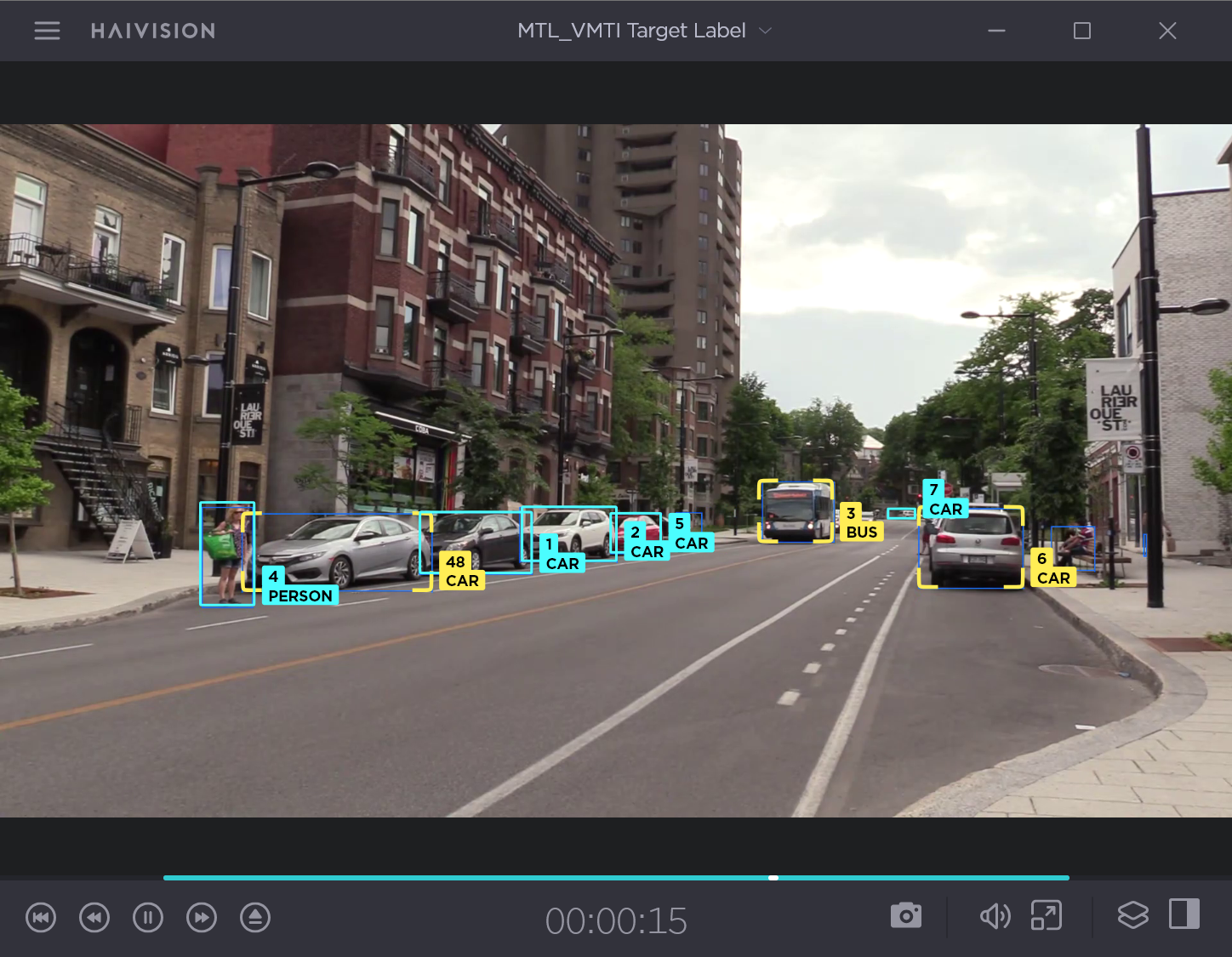
To easily keep track of specific targets, click the target boxes. This changes the bounding box color (as seen in yellow in the following example) to keep these targets in focus in crowded or fast pace environments. For details on changing the Target or Focus box colors, see VMTI Settings.

Tip
From the Play ISR settings, you can also configure snapshots to capture VMTI data. For details, see Play ISR Settings > Snapshot.
To access the target location, right-click on any identified target.
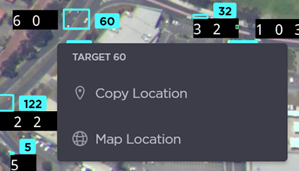
Click Copy Location to save the location as a set of coordinates.
Click Map Location to view the target on a map. This will open a map in your default browser, with the target location pinned.
Tip
You can also view the target coordinates at any time from the VMTI List View. See Monitoring VMTI Metadata.