
Configuring a Wi-Fi Access Point
By default, the Wi-Fi network is disabled. Enable it first as described in Enabling/Disabling the Wi-Fi Interface.
When configured in Wi-Fi access point mode, the unit can be controlled remotely from a smartphone, tablet or laptop.
See the sections below to configure the Wi-Fi access point.
Unit Panel
Use the wheel to select
 > Wi-Fi > Mode > Access Point.
Select
 .
.Define the Wi-Fi settings:
Network Name: (automatically formatted as follows: "Air_" followed by the unit hardware ID.)
Frequency Band: 2.4GHz or 5.0GHz.
Channel: Select the channel used (dynamic list according to the frequency band).
2.4GHz: channel 1 to 11.
5.0GHz: channel 36, 40, 44 and 48.
Password: By default: Password.

Note
In Access Point mode, 5GHz band is not available for Armenia, Belarus, Kazakhstan, Kyrgyzstan and Russia.
Use the wheel to select ADVANCED+.
Define IP settings (IP Address, Netmask, and DNS Server Address).
Select
 .
.
An icon indicates that the Wi-Fi Access Point is configured:
 A Wi-Fi Access Point is configured
 At least one client is connected to the Access Point
Web Interface
On the dashboard in the Networks section, click
 in the Wi-Fi line.
In the Mode section, select Access Point.
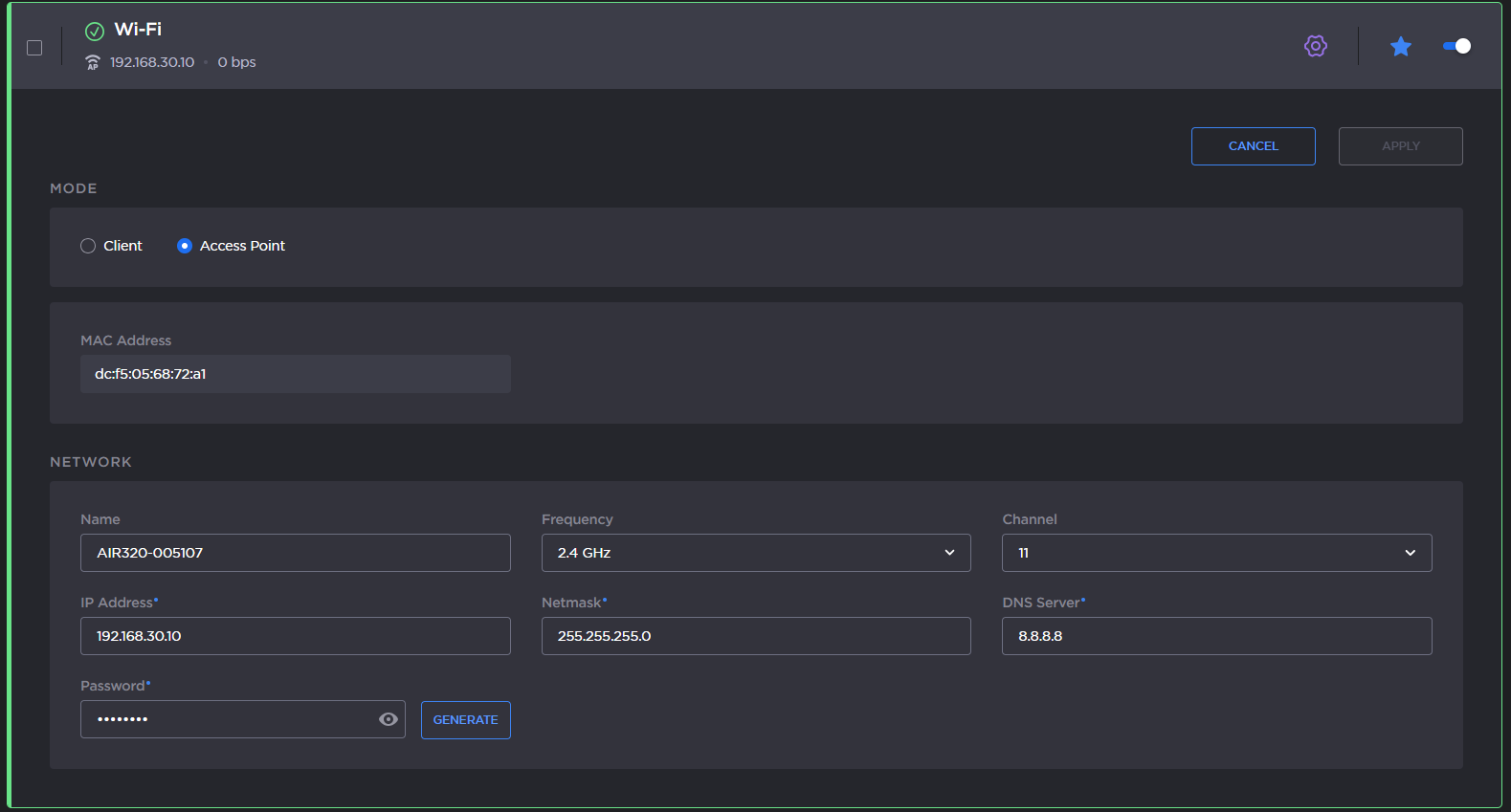
Define the Wi-Fi settings in the Network section.
Name: (automatically formatted as follows: "ProductSeries_" followed by the unit hardware ID)
Frequency Band: 2.4GHz or 5.0GHz.
Channel: Select the channel used (dynamic list according to the selected frequency band).
2.4GHz: channel 1 to 11.
5.0GHz: channel 36, 40, 44 and 48.
Enter the IP Address, the Netmask, and the DNS Server Address.
Password: By default: Password.
Click the Generate button to create a new random password.
Click the
 icon to show the generated password.
Note
In Access Point mode, 5GHz band is not available for Armenia, Belarus, Kazakhstan, Kyrgyzstan and Russia.
Above these parameters, the MAC address assigned to the device's interface is indicated:

Click the Apply button.