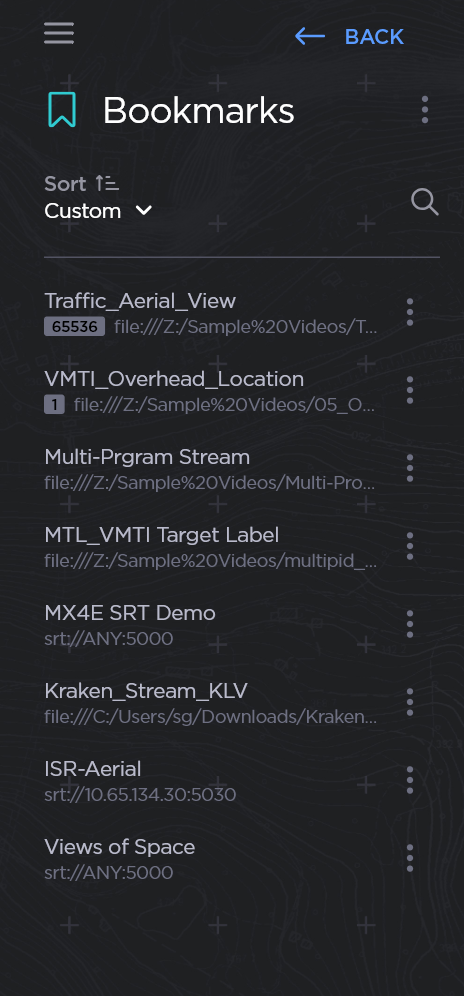
You can access a list of your bookmarked streams and files from the side bar.
To manage recent streams:
From the home page, click to access the side bar. You will see a preview of your Bookmarked streams and files.
Click Bookmarks to access the full list.
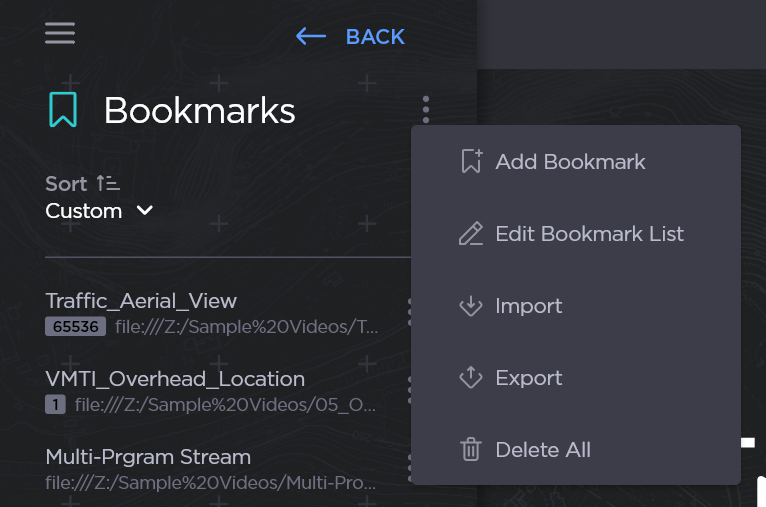
The original URL is shown under the bookmark title. Hover over long URLs to view them in full.
Click the More Options menu in the header toAdd Bookmark,Edit Bookmark List (change list order or delete individual bookmarks), Import,Export (export the full list), orDelete All streams. For additional details, seeImporting and Exporting Bookmarks.
After clickingDelete All, a warning will appear asking for your confirmation to delete all streams. Click Delete All to confirm, or click Cancel to cancel this action.
Manage individual streams my clicking the More Optionsmenu next to the stream name. From this menu:
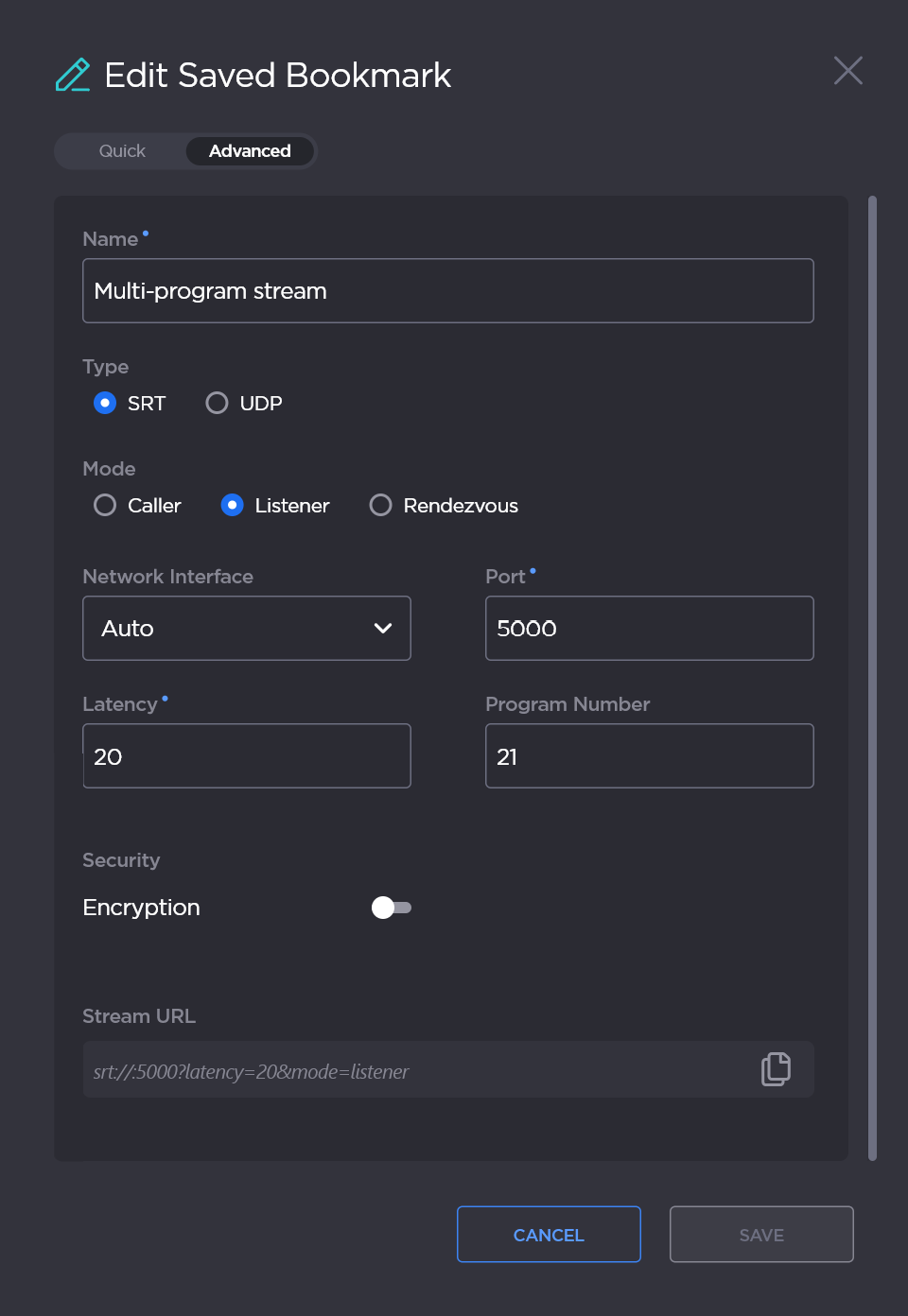
Click Edit to open the Edit Saved Bookmark panel and toggle to Advanced to make changes to the stream configuration. For configuration options, seeStream-Play Settings.
Click Duplicate to immediately add a copy of the stream to the Bookmarks list.
Click Export to export the individual bookmark to your device.
Click Delete to delete the bookmark.
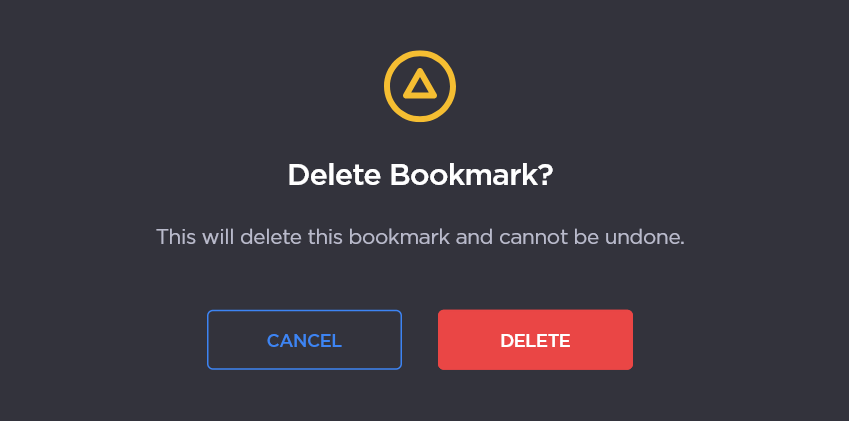
A warning will appear to confirm that you would like to delete the bookmark. To confirm, click Delete again.
JavaScript errors detected
Please note, these errors can depend on your browser setup.
If this problem persists, please contact our support.

 to access the side bar.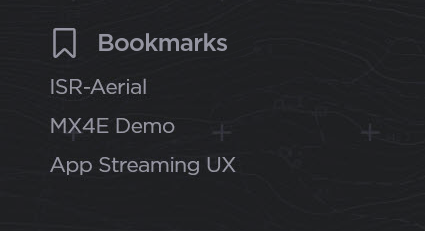


 Edit Bookmark List (change list order or delete individual bookmarks),