
Importing and Exporting Bookmarks
To import bookmarks that have been exported from Play ISR:
From the home page, click
 to access the side bar.
Click Bookmarks to access the bookmarks list.
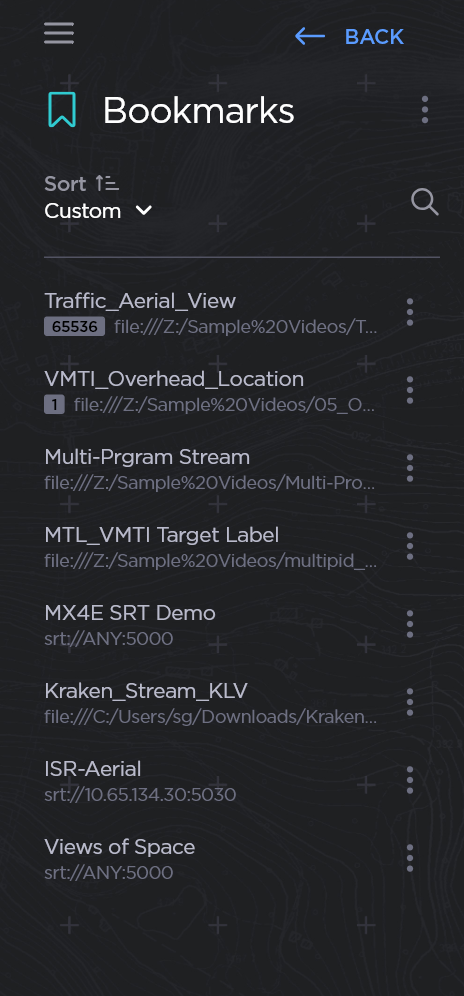
Click the More Options
 menu in the header, and click
 Import.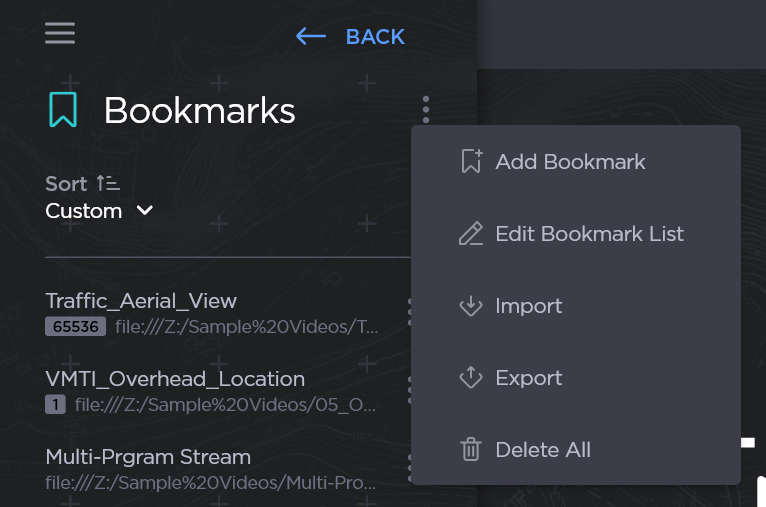
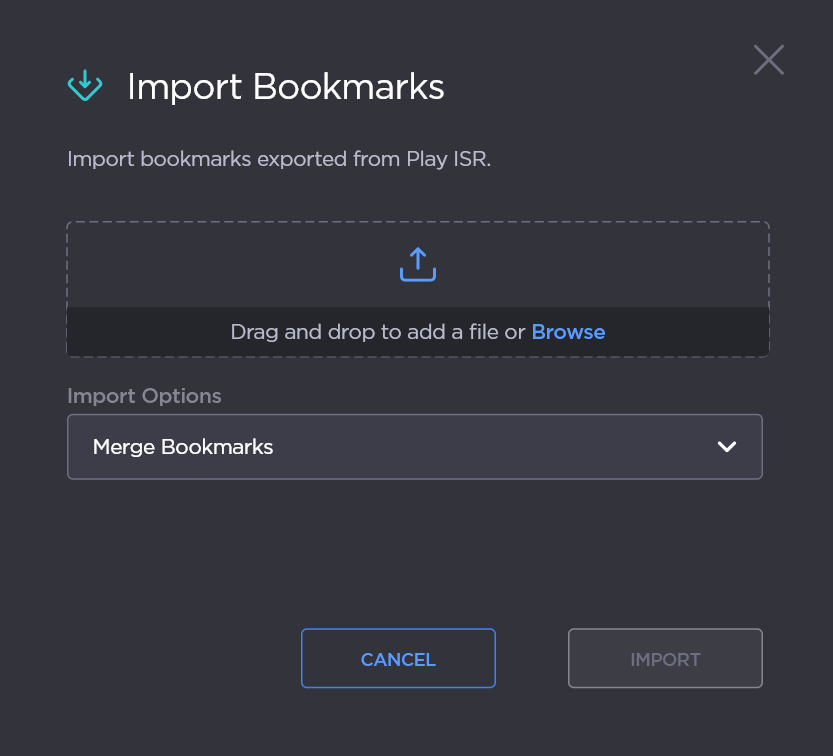
From the Import Streams panel, drag and drop or click Browse to select a file.

Note
To import bookmarks, the file format must be .playisr.
If you are manually creating your list of bookmarks to be imported, only the name and URL are required within the file. For details, seePlay ISR Bookmark List Formatting.
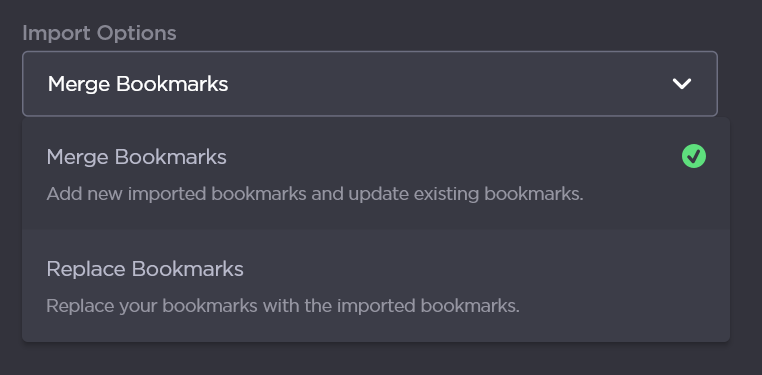
Select either Merge Bookmarks or Replace Bookmarks as the Import Option.
Note
If you select Replace Bookmarks, all current bookmarks you have saved on Play ISR will be removed and replaced with the imported bookmarks.
Click Import.
To export bookmarks from Play ISR:
From the home page, click
to access the side bar.Click Bookmarks to access the bookmarked streams list.
To export all bookmarks click the More Options
menu in the header, and click Export All.
To export individual bookmarks click the More Options
menu next to a listed bookmark, and click Export.
The export will open to your downloads folder.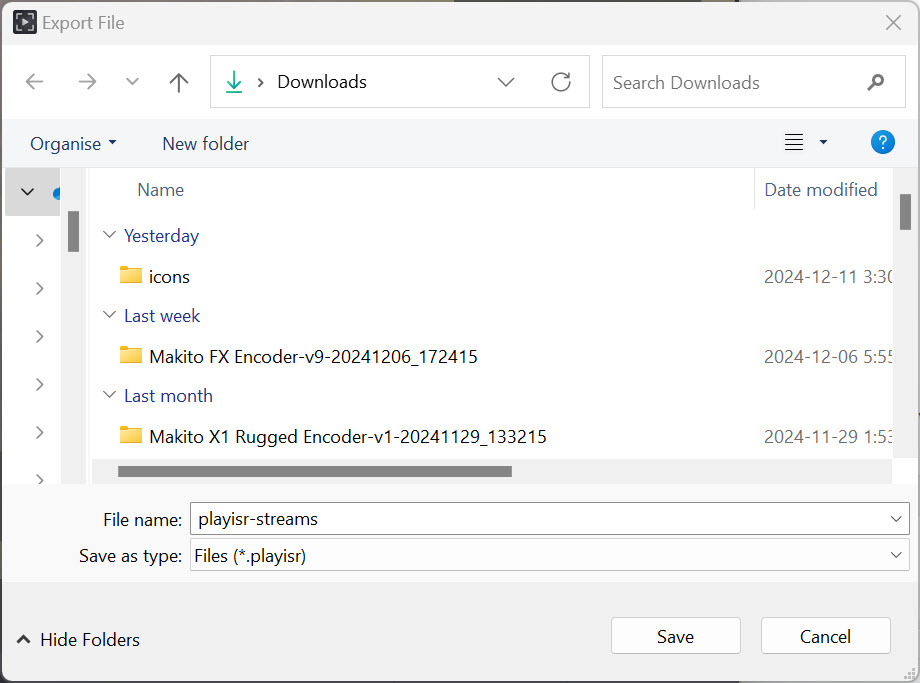
From here, you can rename the file and select where to save it.
Note
Exports will be saved as
.playisrfiles.By default, export file names will use the bookmark names, and exports of all bookmarks will be saved as 'playisr-streams'.