
Manage Media Playback
Once your media file is uploaded, the player will display the running video on the main page. From here, you can use the control bar to manage playback, as shown in the following diagram.
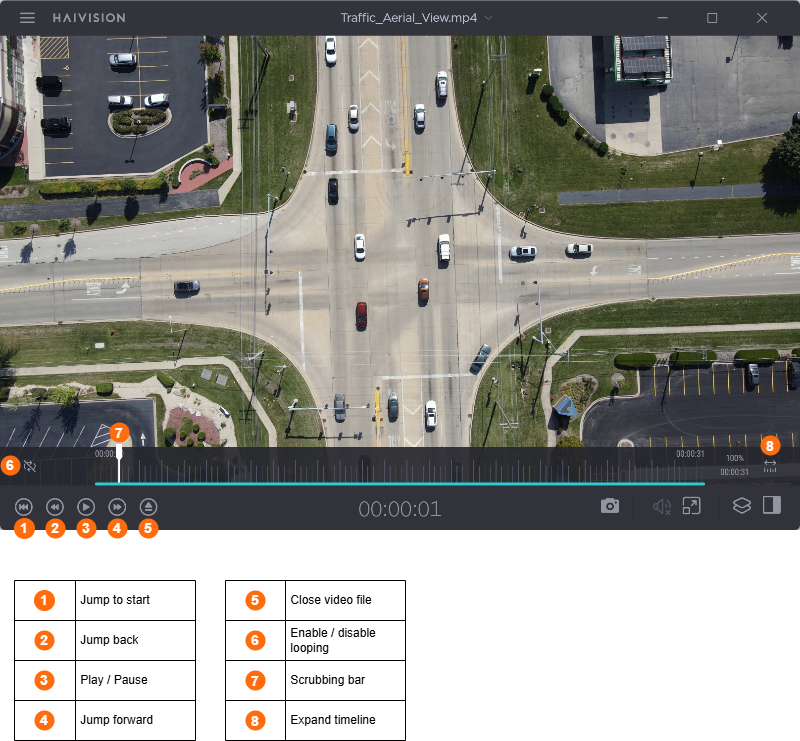
When playing video files you can also:
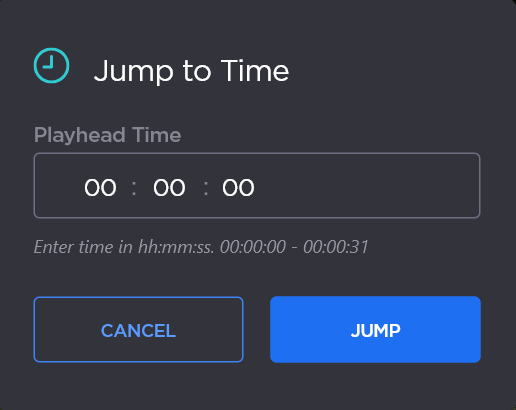
Jump to a specified time in the video by typing J, entering the target time in the pop-up, and then clicking Jump.
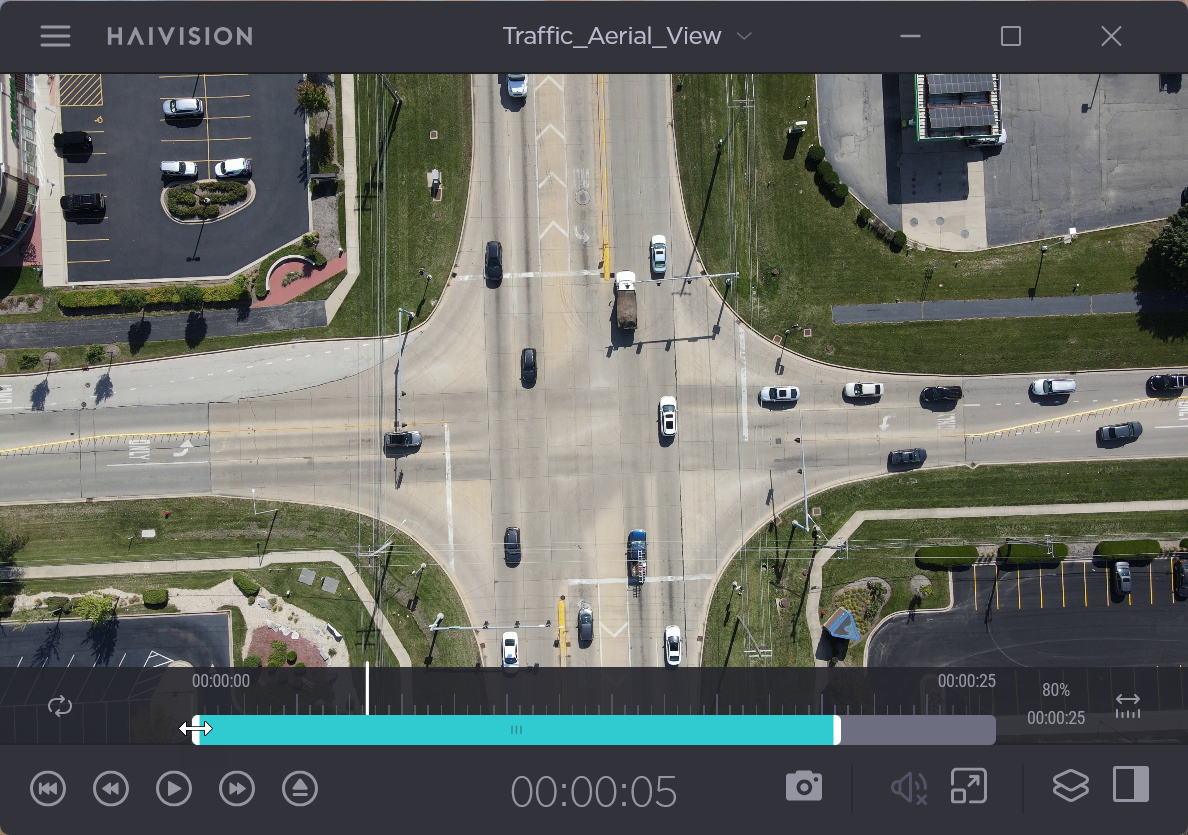
Hover over the time bar and drag either end of the teal bar to play only a specified interval of the video. To revert back to the full video, click the Expand Timeline icon.
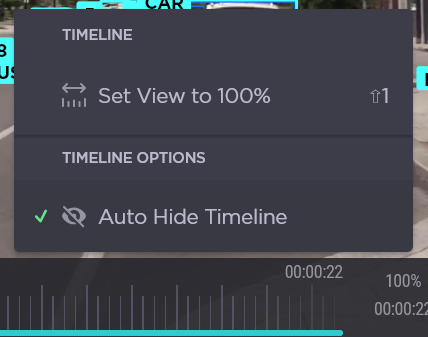
Right-click the time bar to open the timeline options menu. From here you can Auto Hide the timeline, or set the timeline view to 100%.
Use the player’s control bar functions to access the video’s statistics and metadata (when available), enable overlays, adjust volume, take snapshots, or expand the player.
Use the player’s Title bar functions to open the Side Bar, change the video Program, or view your Action options.
For further player control details, seeManage Stream-Play.