
Playing Back .MP4 Recordings
From the Recordings page, you can select and play back .MP4 recordings once a segment of the recording has completed. Clicking a thumbnail of a recording launches it in a default player.

Note
If you have a removable storage drive, you can play back either .MP4 or .TS files on a PC. See Viewing Recordings from a Removable Drive on a Computer.
To play back .MP4 recordings:
On the Recordings page, click the thumbnail (anywhere except the name or time) of the recording to play in the Recordings list.
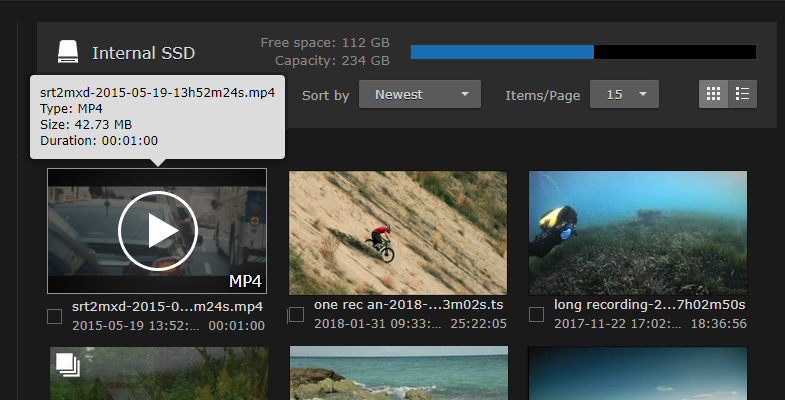
MP4 selected on Recordings Page
Click the arrow in the player to start playback.

The Recording opens and starts to play in the player (as shown in the following example).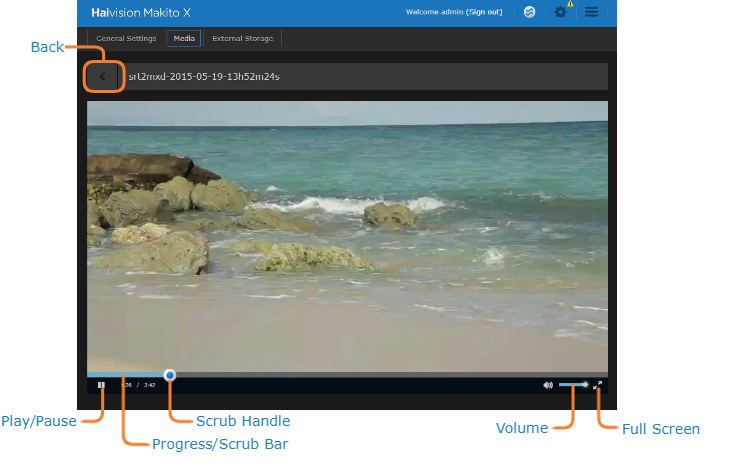
From here you can pause and restart playback and adjust the volume.
To move forward or backward through the video, drag the scrub handle along the progress/scrub bar.
To switch to full-screen mode (i.e., to fill your entire screen and remove the player controls), mouse over the viewer and click
 (in the bottom right corner). To exit full-screen mode, press ESC or click again.
To return to the Recordings list, click the
 icon.
icon.