
Troubleshooting Streaming to Facebook
If you are streaming to Facebook, but are not seeing output on the Facebook side, try the following:

Note
Follow these troubleshooting steps even if you are see green lights in the KB encoder interface.
Verify you are using the correct Server URL and Stream Keys found on the Facebook page:
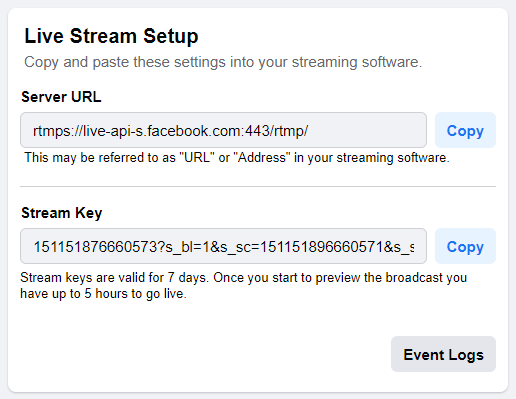
Facebook now supports Primary and Backup stream keys. If you have recently switched to using both, be aware that the persistent keys may have updated in the process.
Though very similar, there are subtle differences between one Facebook Server URL and another. For example:
rtmps://live-api-s.facebook.com:80/rtmp/rtmps://rtmp-api.facebook.com:80/rtmp/
The stream key can appear in two places in the KB channel output. Ensure the stream key is correct on both tabs.
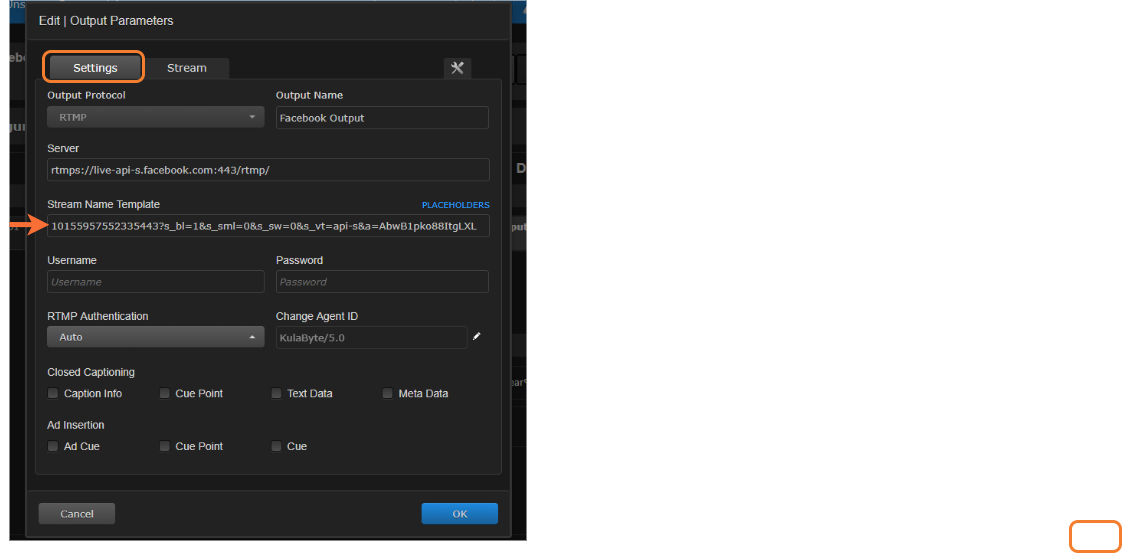
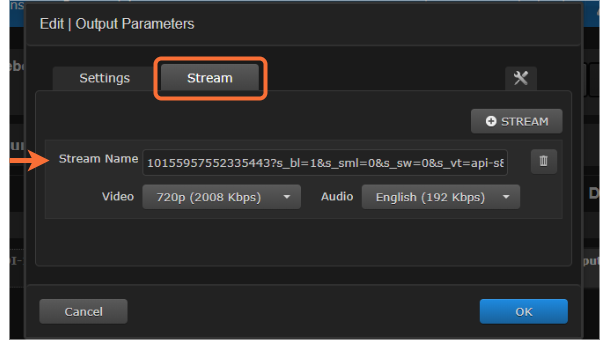
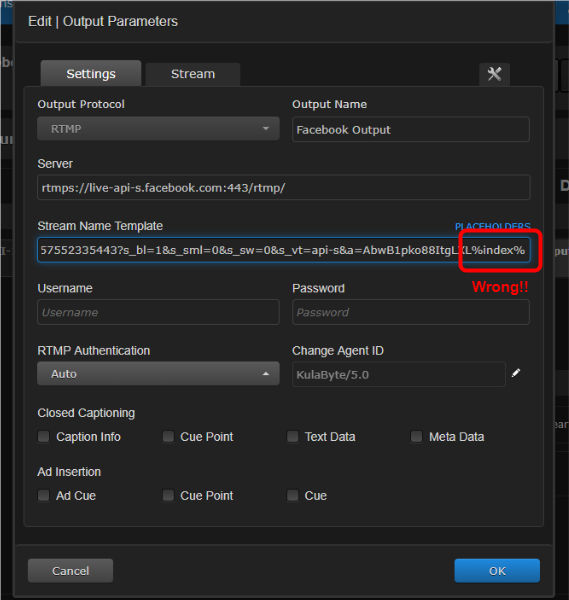
Verify the stream key is not using placeholders (such as %index% or %total_bitrate%).
Verify you are sending an RTMP stream to Facebook.
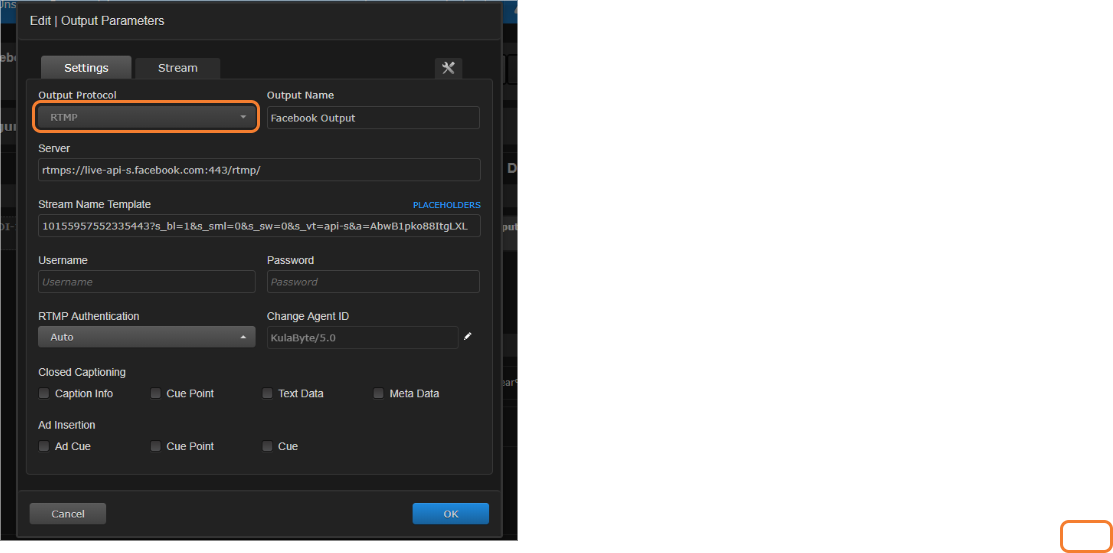
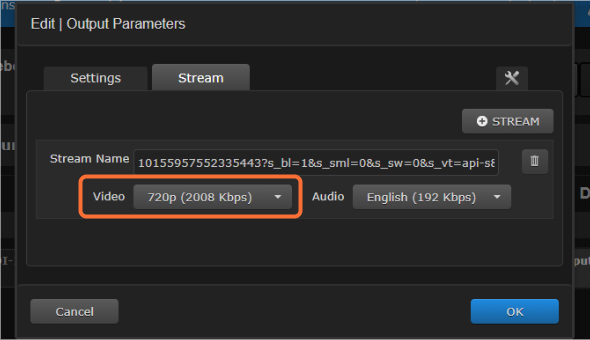
Verify you are sending a single 720p (or smaller) 30fps video to Facebook.
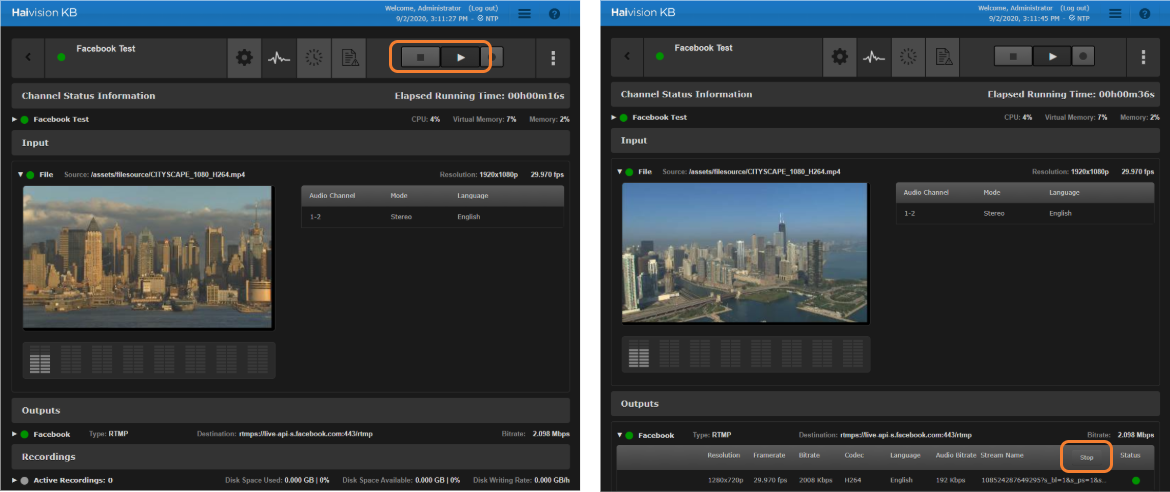
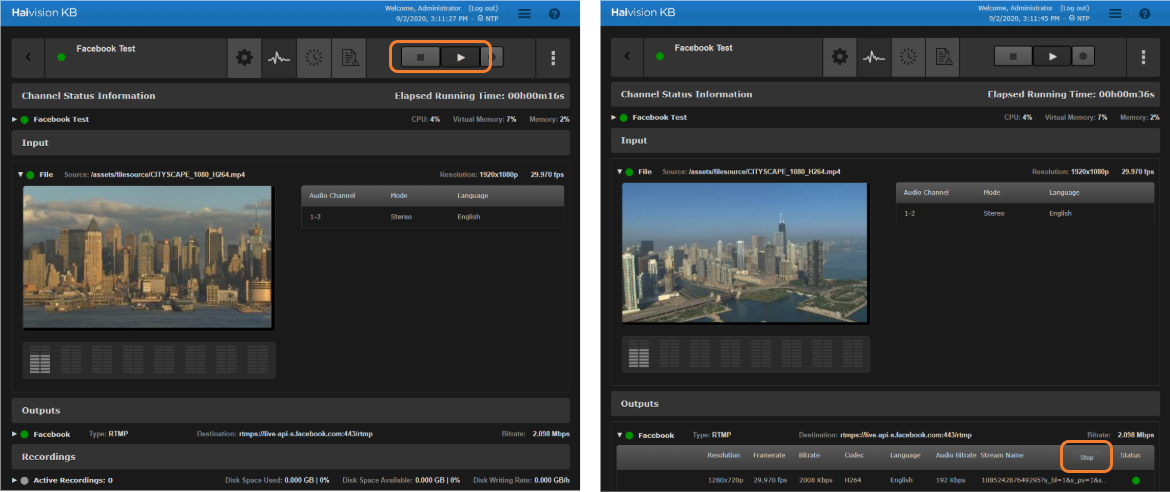
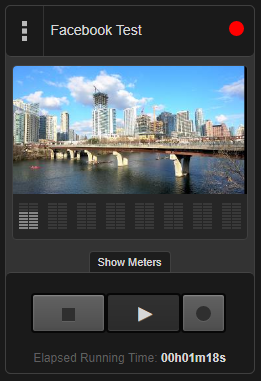
Try stopping and starting the KB channel (all KB 5.x) or the stream inside the channel (KB 5.3+).
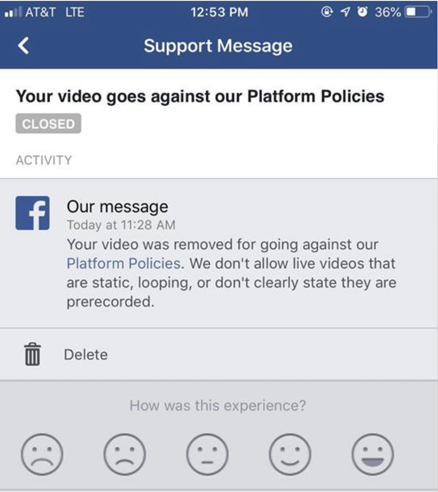
Verify that your video isn’t in violation of Facebook’s policies.
Facebook does not "allow live videos that are static, looping, or don’t clearly state they are prerecorded."
Facebook advises: "Don't put third-party video ads in your live video. For example, don't include bumpers, pre-roll, mid-roll or post-roll. Ensure any pre-recorded content is clearly distinguishable from live content."
If using a persistent stream key:
Try switching from a persistent key to a "standard" stream key, and then back to persistent key. Switching back and forth does not reset the persistent key; it should stay the same.
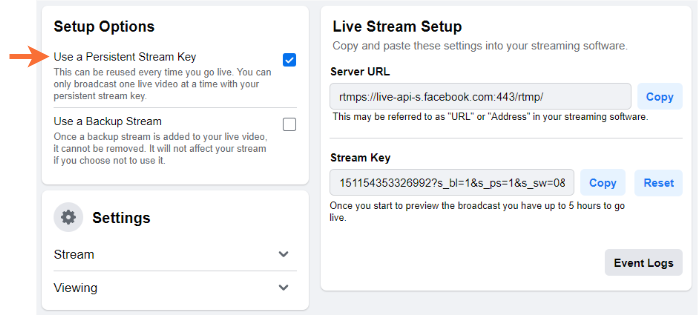
Try switching to a new persistent key. Update your KB with the new key. Restart the channel after updating the key in the channel’s settings.
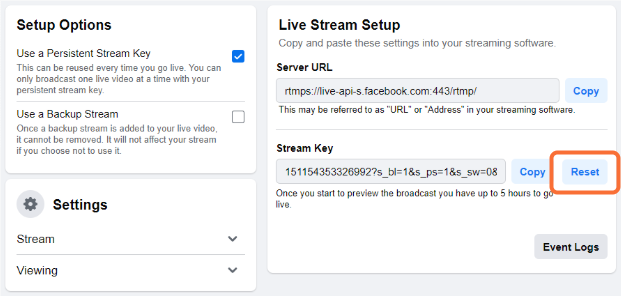
If using a non-persistent stream key, these keys are only valid for seven days. After you can view the video in Facebook’s preview, you have five hours to go live on your page.
Close all Facebook pages and browser sessions. After that, open a single "Live" Facebook page to receive the preview of the stream (and where the "Go Live" button is located).
Note
Having multiple "Go Live" Facebook pages open can make the "Go Live" process unpredictable.
If you see the video on the Facebook Live page, but not on your Facebook Feed, make sure you have clicked the "Go Live” button or are within your Scheduled Broadcast window.
Note
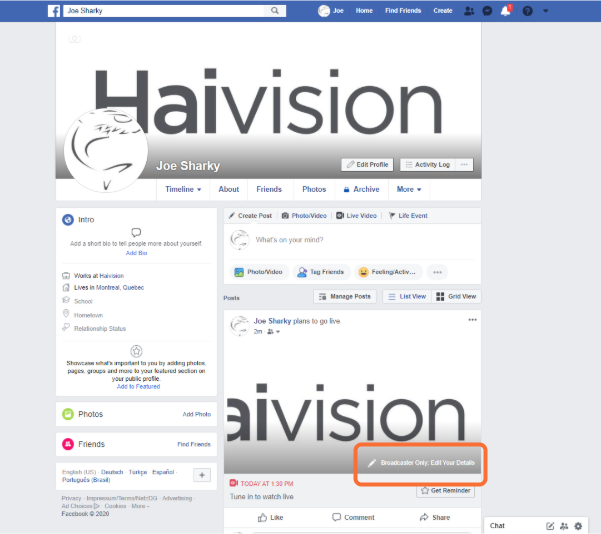
If you have scheduled the stream to go live on your Facebook page, you might not see a video preview if you create a new Live Video. To edit the details of the scheduled video, click Broadcaster Only: Edit Your Details in the post on your timeline.
Verify your local network firewall is not blocking RTMP (TCP port 1935).
If you are sending a stream to Facebook and your audience can see it, but they are experiencing intermittent issues, try the following:
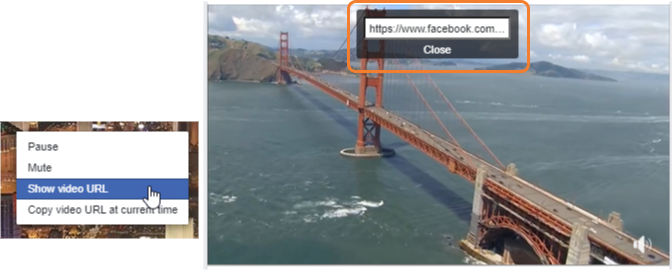
Note the Facebook video URL. This can be used later to make an inquiry to Facebook. Right-click the video on your Facebook Page and select Show video URL. Copy the value shown in the popup window.
Try stopping and re-starting the KB channel (KB 5.x) or the Facebook stream inside the channel (KB 5.3+).
Verify you have adequate bandwidth, with clear overhead to support all your outbound streams. Recommended bandwidth is 1.5x your total streaming bitrates. It is also recommended that the bandwidth be dedicated to the KB exclusively and not shared with other devices or users.
Check your aggregate outbound streaming bitrate using the meters at the top of the KB’s Channel Control Center.


Caution
Running a speed test on your network (for example, testing with http://speedof.me) while you have live streams running may negatively impact your streaming.
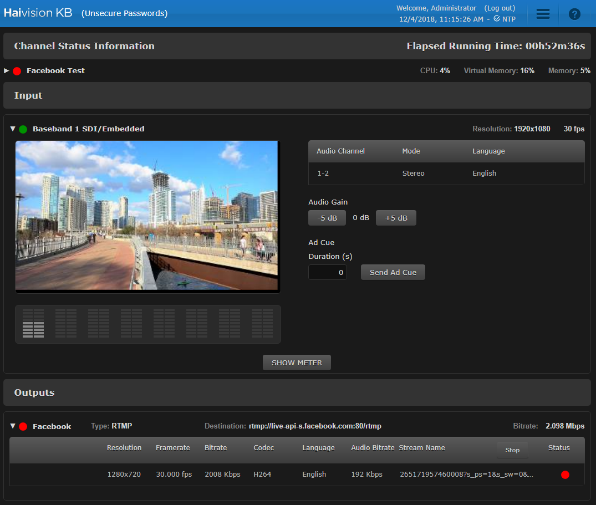
Watch the encoder for periodic red lights which may indicate network issues or other issues. Red lights have been observed when the KB continues to stream after the live broadcast has ended on the Facebook side.
 |  |