Scheduling a YouTube Live Stream
An event appears on your YouTube channel based on a schedule. You must manually manage the availability of the live video broadcast, within the event, to your audience.
To create an event:
Go to your YouTube Live Dashboard.
Verify that Events (under Live Streaming) is selected on the left.
Click Schedule a new event.
In the Basic Info tab:
Enter an event title.
Enter start and end times.
Select Custom type.
Verify the settings under Advanced settings.
Click Create Event.
Select "Single-use stream key" or "Reusable stream key". For reusable stream keys, create a new stream (or select a pre-made stream configuration).
For a new stream:
Name the stream.
Select the maximum sustained bitrate based on your planned.
Select "Enable 60fps" based on your planned stream.
Save changes.
Under Select your encoder select Other encoders.
Make note of the Stream Name and Primary Server URL (for use later in the KB encoder).
If you plan to send a backup stream, make note of the Backup Server URL. Send the same content on both primary and backup streams to ensure smooth fail-overs between streams. If using two encoders, ensure their system clocks are synced to an NTP server.

Note
If you have the required bandwidth from your venue, use of a backup stream is highly recommended.
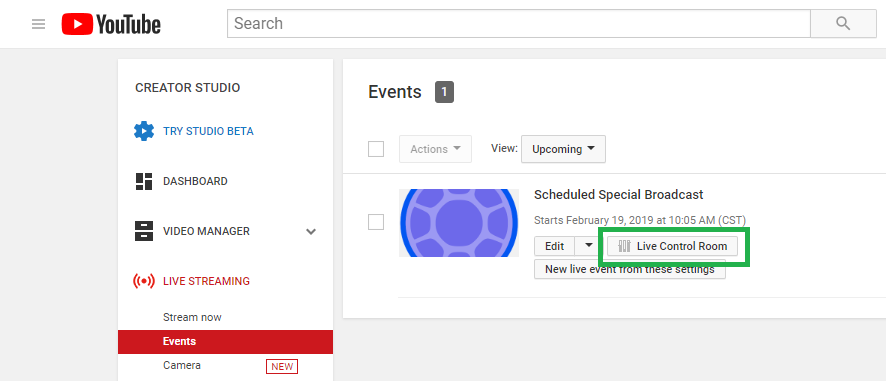
Make note of the Live Control Room link, which is specific to the event. This link is also available under Live Streaming > Events.
Select the captions setting. If you plan to send captions from the KB encoder, select "Embedded 608/708" and configure the KB accordingly.
Note
You need a Closed Captions generator embedding the data into the stream before it reaches the KB Encoder.
Note
The Watch Page button at the top redirects your browser to the video’s specific page and is useful to have bookmarked for later.
At this point, you should see a notice on your channel page with the event and it’s scheduled start time. If the scheduled start time of the event passes, and the stream is not started in the Live Control Room (see below), a "Waiting for ___" message appears over the watch video window.
After the KB encoder’s channel is activated and streaming, in the YouTube Live Control Room you should see a Good stream status appear.
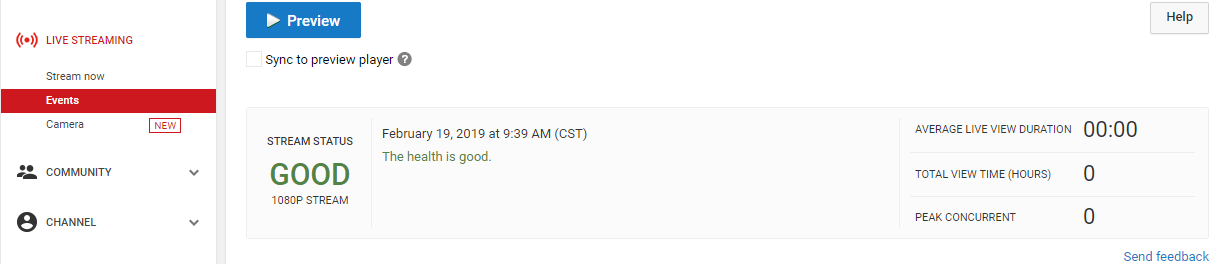
Click the Preview button and click OK. This allows the stream to be seen in the preview window in the Live Control Room.
Click Start Streaming when you are ready for the live stream to be made available to your audience on your channel and watch pages. You can start your stream before (or after) the scheduled start time of the event. After the stream starts, it appears live on your channel and video watch pages.
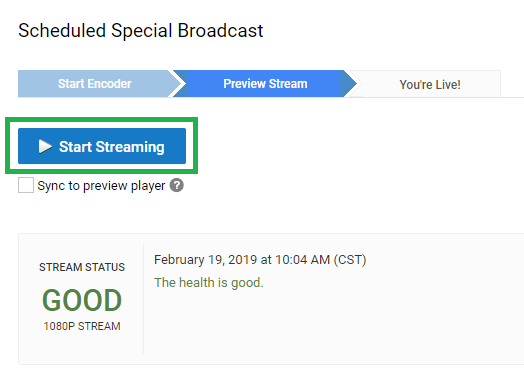
Click OK and wait until the page says You’re Live!. The live stream now appears on your channel and watch pages.
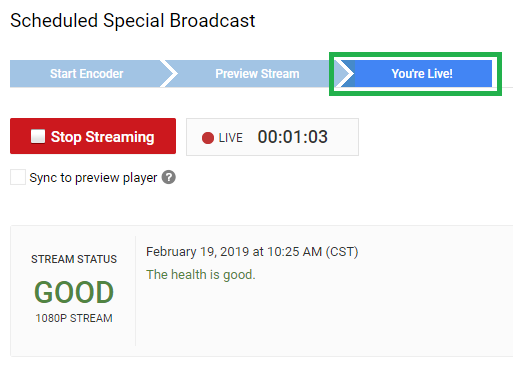
After the stream is started from the Live Control Room, a “Live” notice will appear on your channel page and your audience will be able to watch the stream on the video page.
If your stream is interrupted before the end of the scheduled broadcast, a spinning “loading” icon will appear over your video window on the watch page. When the stream is restored, the video will automatically start playing again at the point the stream was re-connected.
In the Live Control Room, click “Stop Streaming” and then OK to end the broadcast. The stream will remain live on your page until you click “Stop Streaming,” even if you’ve previously designated an end time and have past that time.
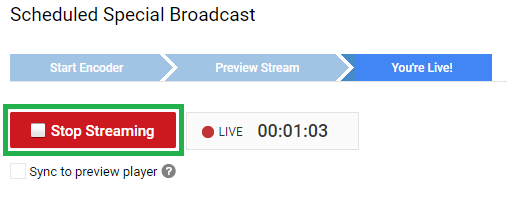
YouTube will record the broadcast and, after the live stream has ended, will make it available on your channel.
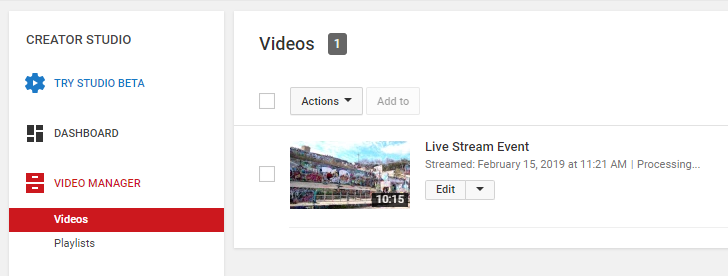
It may take a while before the recording is processed. You can find and manage the recording under Video Manager / Videos. You can download an MP4 of the recording, as well as manage other aspects of the video.