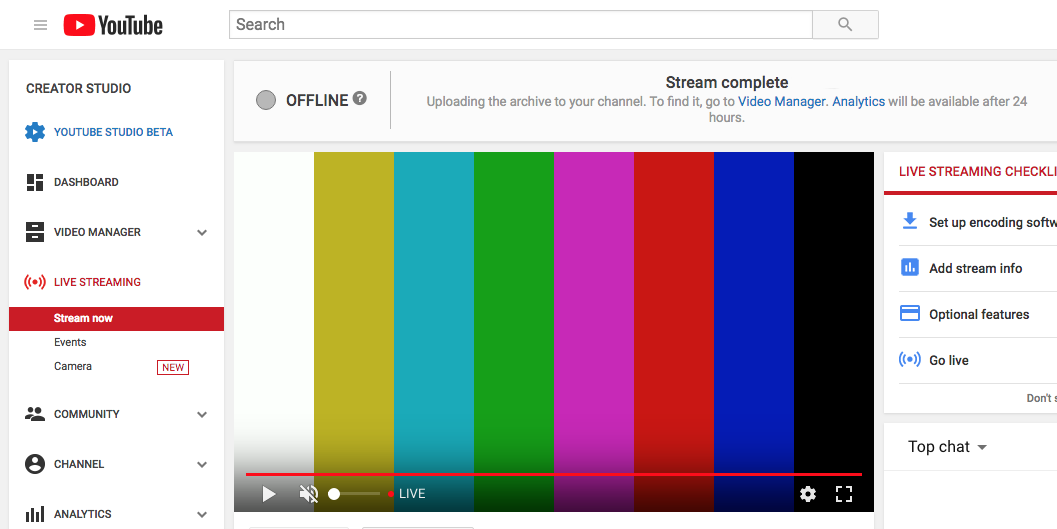
Starting a YouTube Live Stream
Once your YouTube account has been activated for Live Streaming you are ready to go.
To stream to YouTube:
First, perform the steps in the From your Browser tab to acquire the Stream URL and Key from YouTube.
Next, perform the steps in the From the KB Encoder tab to identify the Input Source and enter the YouTube Stream URL and Key in your Output Parameters for the KB Encoder channel.
From your browser:
Log into your YouTube account.
Click your Account avatar, and click Creator Studio.
In the Creator Studio sidebar, click the Live Streaming option and click Stream Now.
In the main pane, choose the Basic Info tab and provide a Title and Description for the live event.
If you want to specify a later start time for the event, click the Schedule Next Stream checkbox.
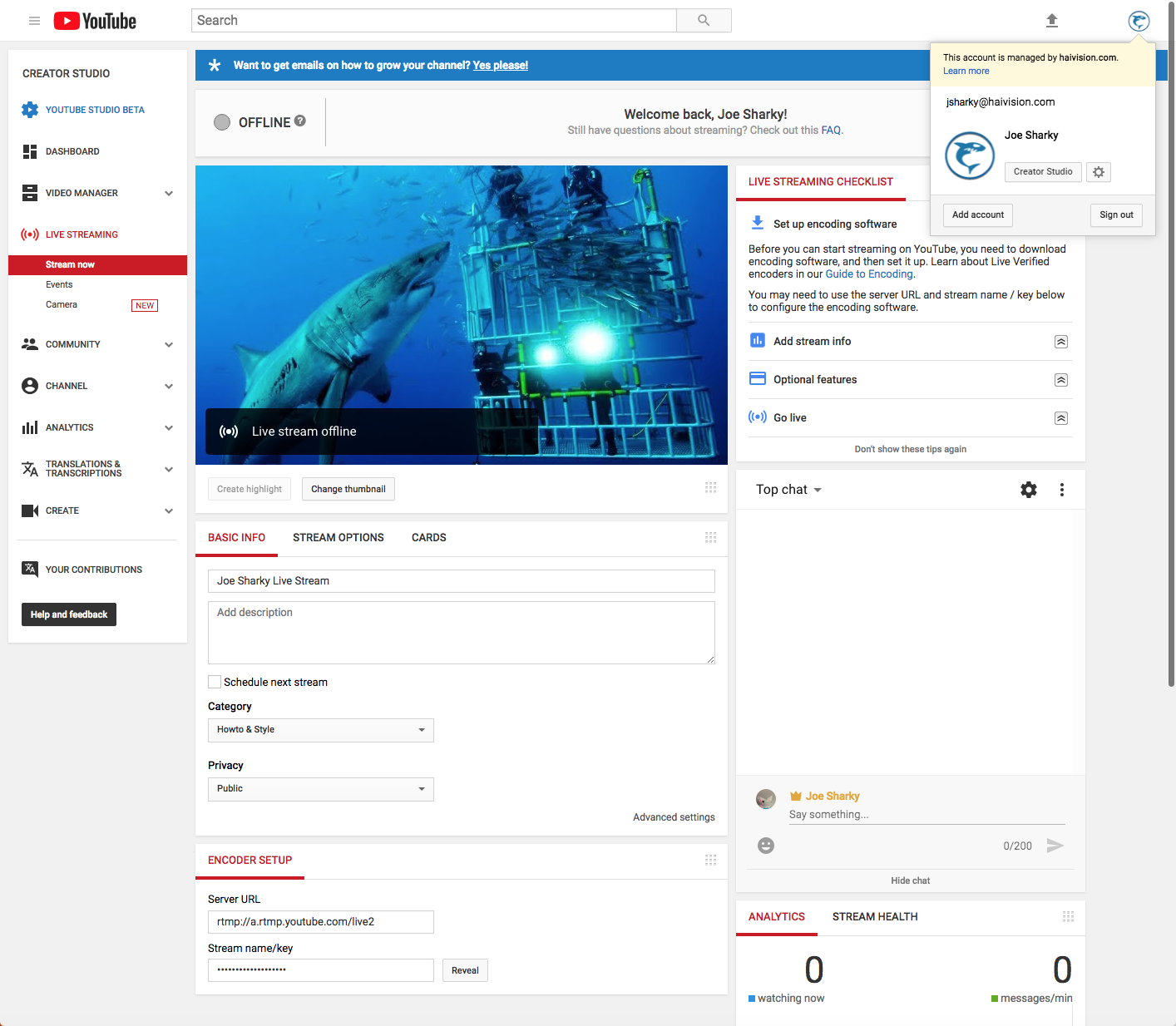
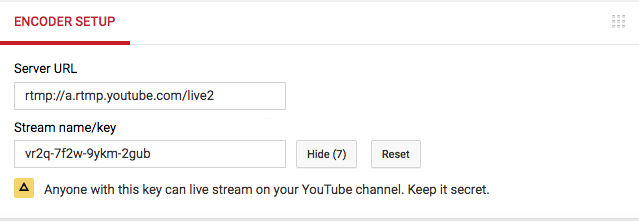
Further down the page is the Encoder Setup section where the Server URL and Stream Name/Key are provided. Click Reveal to show the Stream Name/Key. You will need to copy and paste this information into the KB Encoder software when you create the channel for the stream (Step 4 in the From the KB Encoder section).
From the KB Encoder:
Log into your KB Encoder.
At the Channel Control Center, create a new channel.
When the Create Channel wizard opens, enter a Name for your channel.
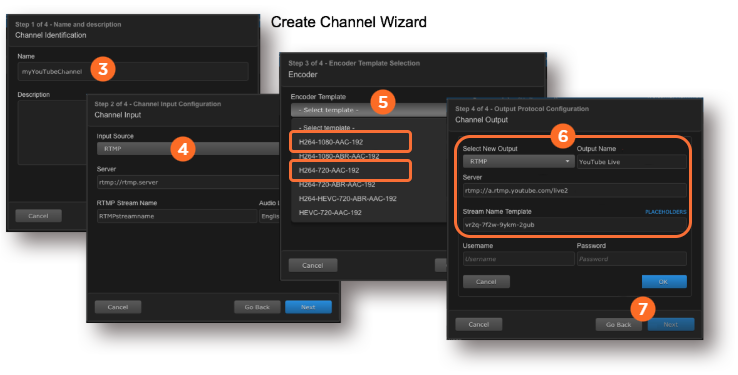
In Step 2 of the wizard, provide the Input Source information.
In Step 3, choose 1080 AAC or 720 AAC for the Encoder Template.

Important
Do not use ABR configuration templates for streaming to YouTube Live.
In Step 4:
In the Select New Output dropdown, select RTMP.
Note: Streaming to YouTube via HLS is not supported.
Enter the desired Output Name. For example, YouTube Live.
In the Server field, paste the name of the server that was supplied from the YouTube Encoder Setup section.
In the Server Name Template field, paste the Stream Name/Key that was supplied from the YouTube Encoder Setup section.
Click OK, click Next, then click Done.
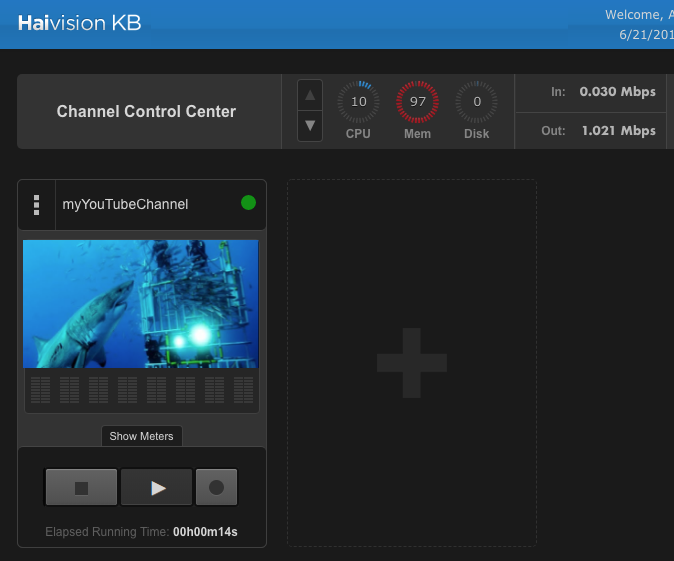
When the channel is created, click the
 button start the KB channel. Starting the channel establishes a connection with YouTube and automatically publishes the video.
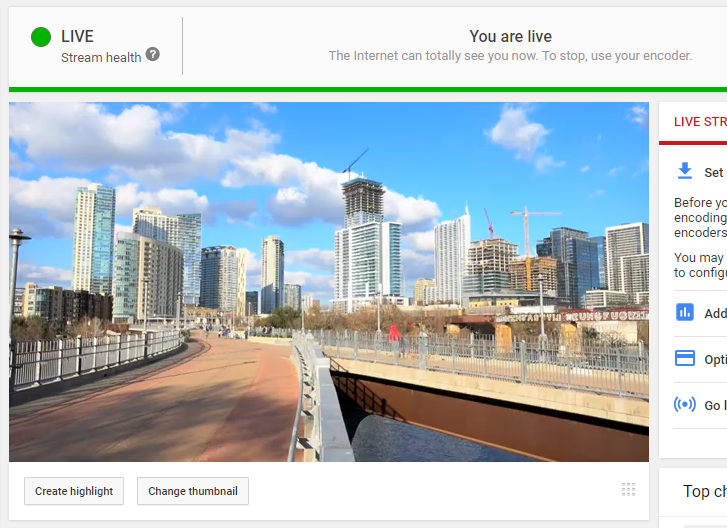
After a few moments, the video appears on your YouTube Live Dashboard:
The video also appears on your YouTube channel page:
To end the video broadcast, click the  button to stop the KB Encoder. The live broadcast disappears from your channel after a few moments. When stopped, YouTube automatically uploads an archive to your channel. You can access it and an analytics report from the links in the Stream Complete message. You can also manage your archives and other aspects of the videos under Video Manager > Videos.

Tip
It may take a while to process the archive.