Applying a Label to a Route, Input, or Output
After you have created a label, to apply it to any appliance:
In the sidebar, click Streaming and click the Routes, Inputs, or Outputs tab.
In the list of routes, inputs, or outputs, find the item you wish to apply the label to and click the
 icon.
icon.In the Labels section, place your cursor in the textbox and click the
 icon next to the desired label. You may also start typing to find the desired label.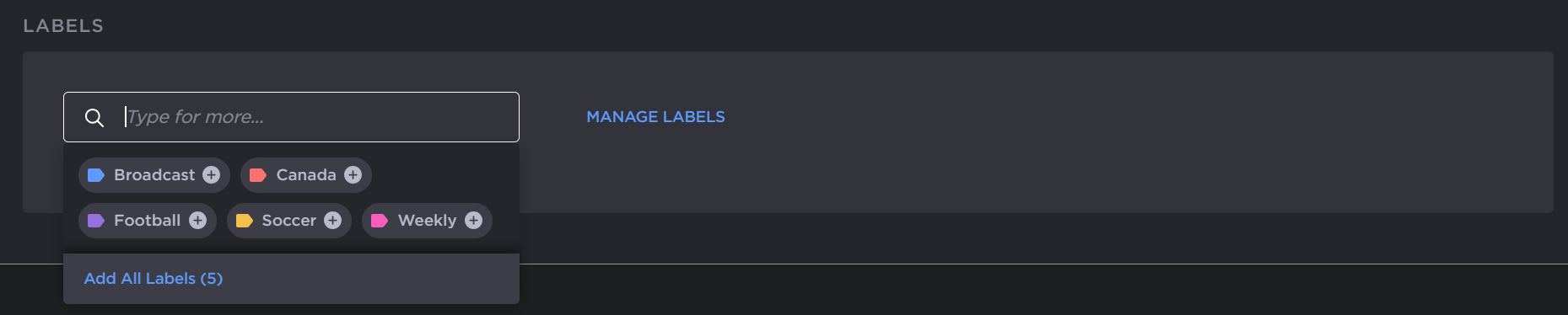
Select Label

Tip
Also, you may add a new label by typing the desired label and pressing the Enter key or clicking the icon next to the new label.
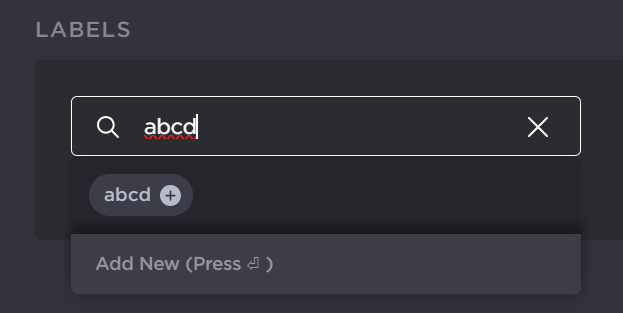
New Label
The labels applied are listed under the textbox.
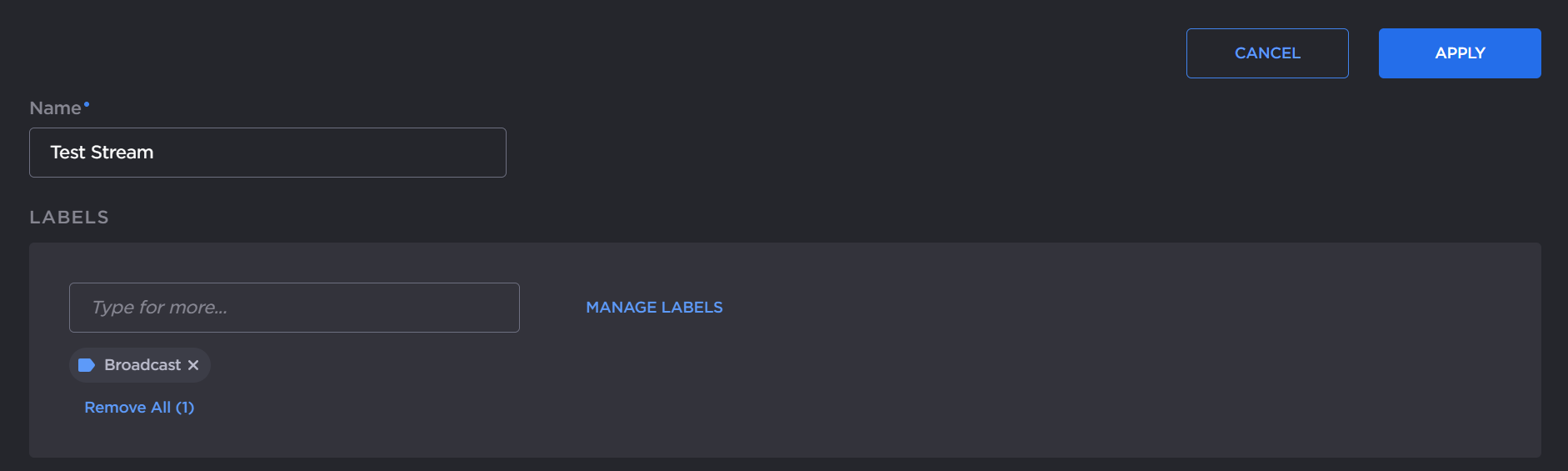
Apply Label
Click the Apply button.
The labels are applied to the selected route, input, or output. Now you can use labels to filter your lists in the Streaming screen. See Streaming Screen for details on how to filter the lists by label.
Tip
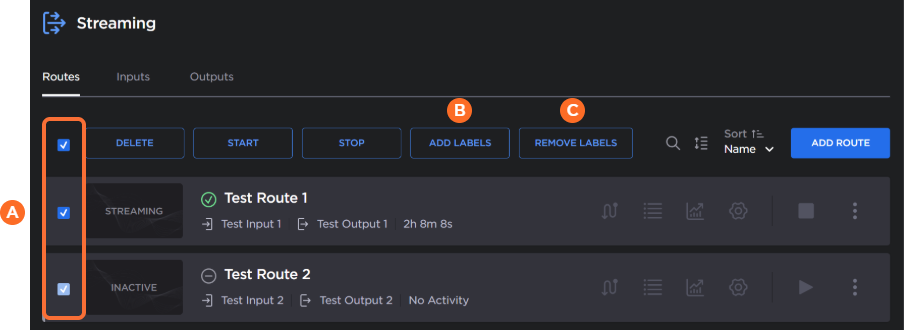
You can also add or removed labels from multiple routes, inputs, or outputs at the same time by using the checkboxes  . Check the checkboxes next to the routes, inputs, or outputs you wish to add or remove labels from, and click the Add Labels
  or Remove Labels
  button.