Set Up License Server
The license server is used to sync multiple CineAgent licenses together. It is not a requirement but is helpful for larger scale deployments. It is typically installed on the Site Manager.
To set up Thinfinity License Server:
In File Explorer, locate the Thinfinity License Server Setup file and click it to launch.
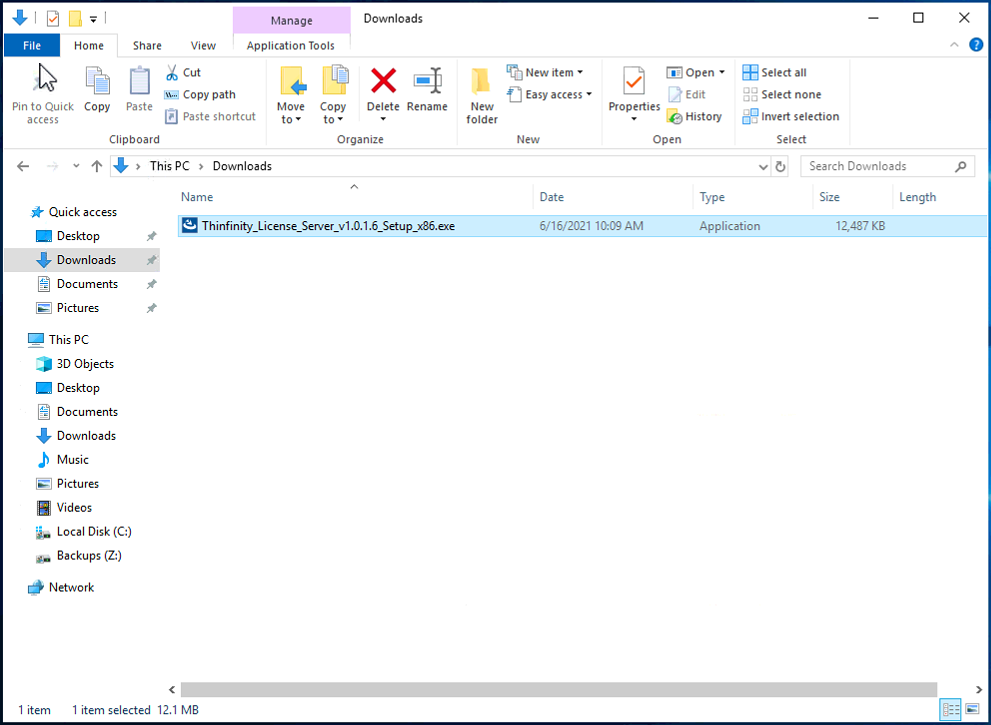
Accept the User License Agreement.
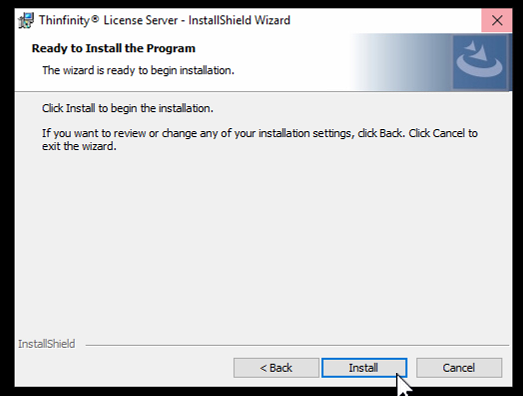
Click Install.
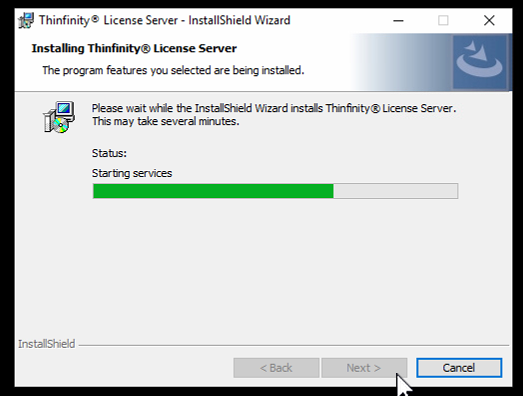
Click Next when available to advance the installation.
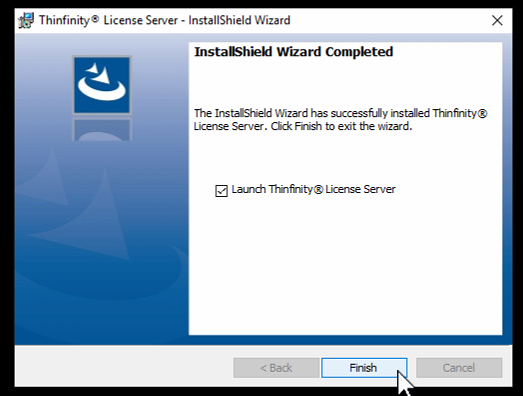
Click Finish to complete the installation.
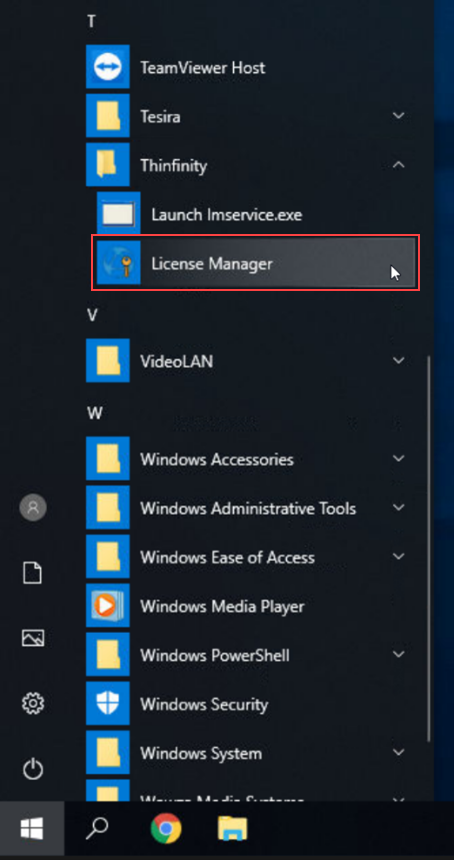
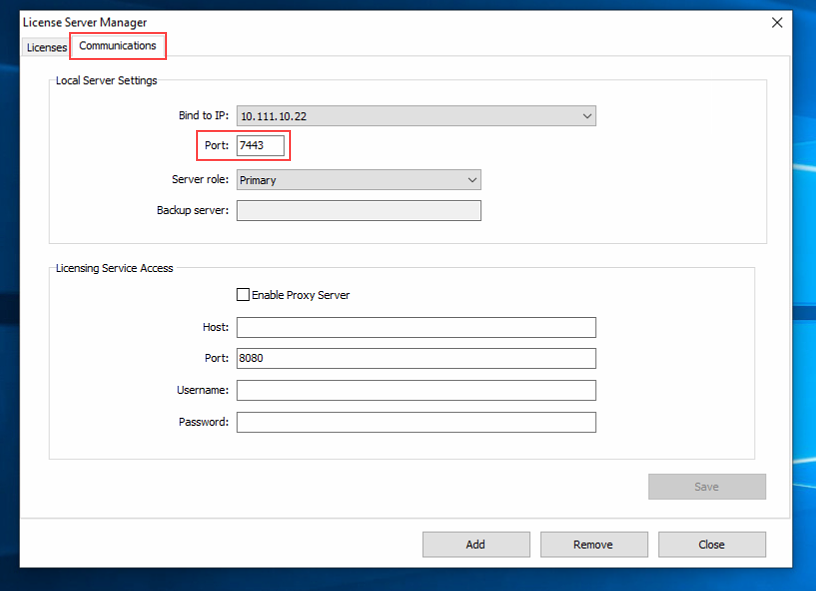
Once installed, launch the Start menu and run the License Manager and bind the manager to the IP address that the CineAgents will use to communicate with the Site Manager.
On the Communications tab, enter 7443 as the port number.
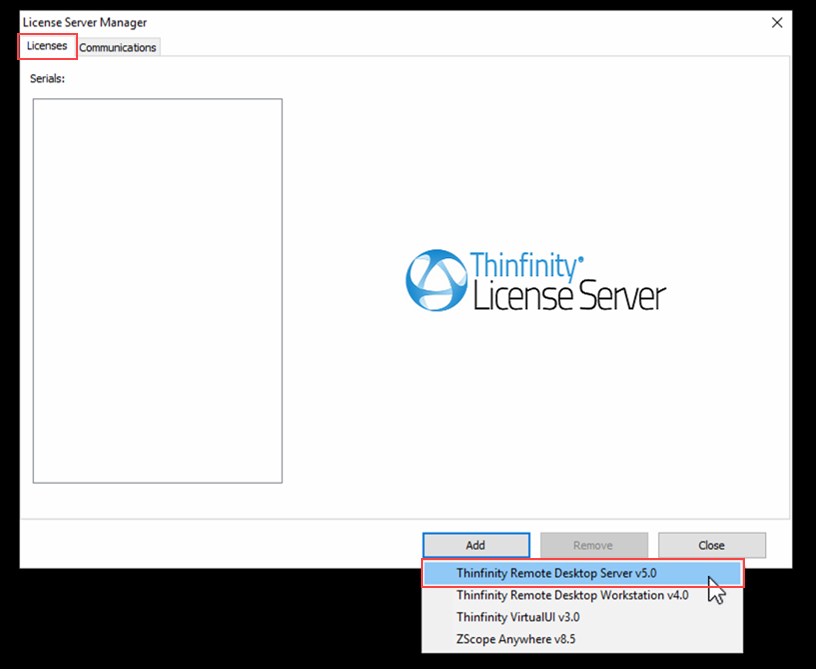
Switch to the Licenses tab, click the Add option, and select the Thinfinity Remote Desktop Server v5.0 license.
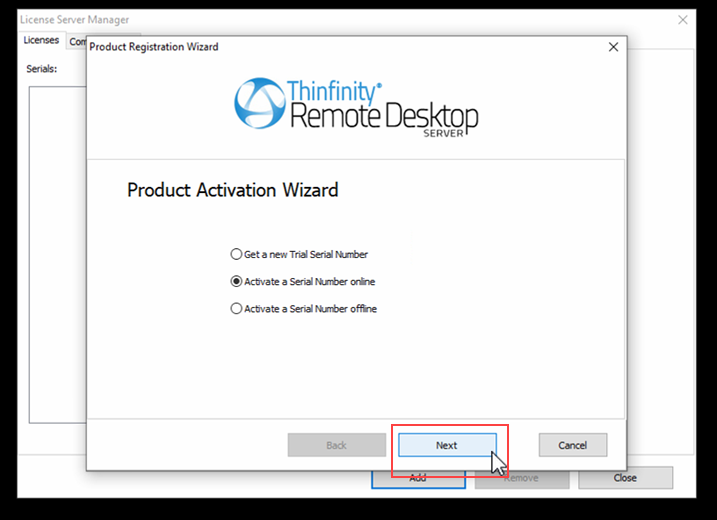
Once the product registration wizard launches, select the appropriate option for online or offline activation (depending on your network status), then click Next.
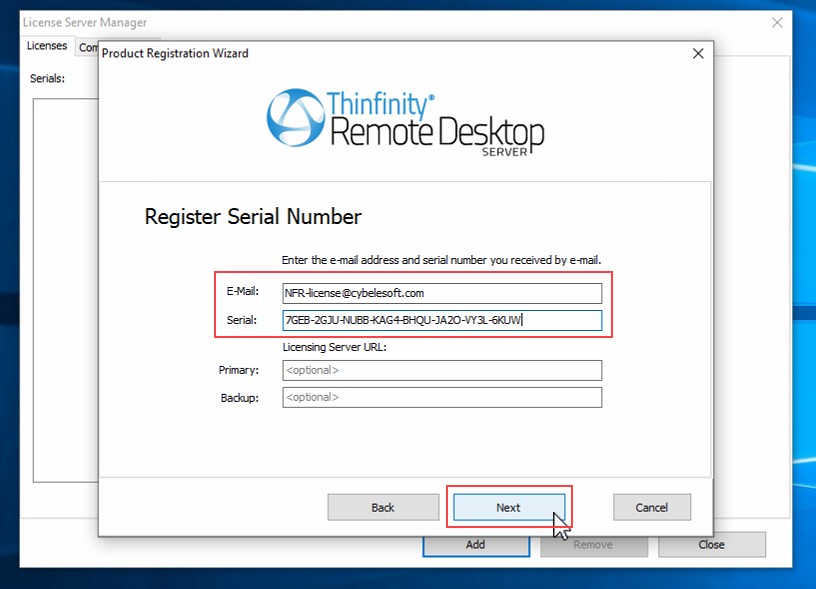
To register the serial number, enter the Email and Serial number of the license and click Next.
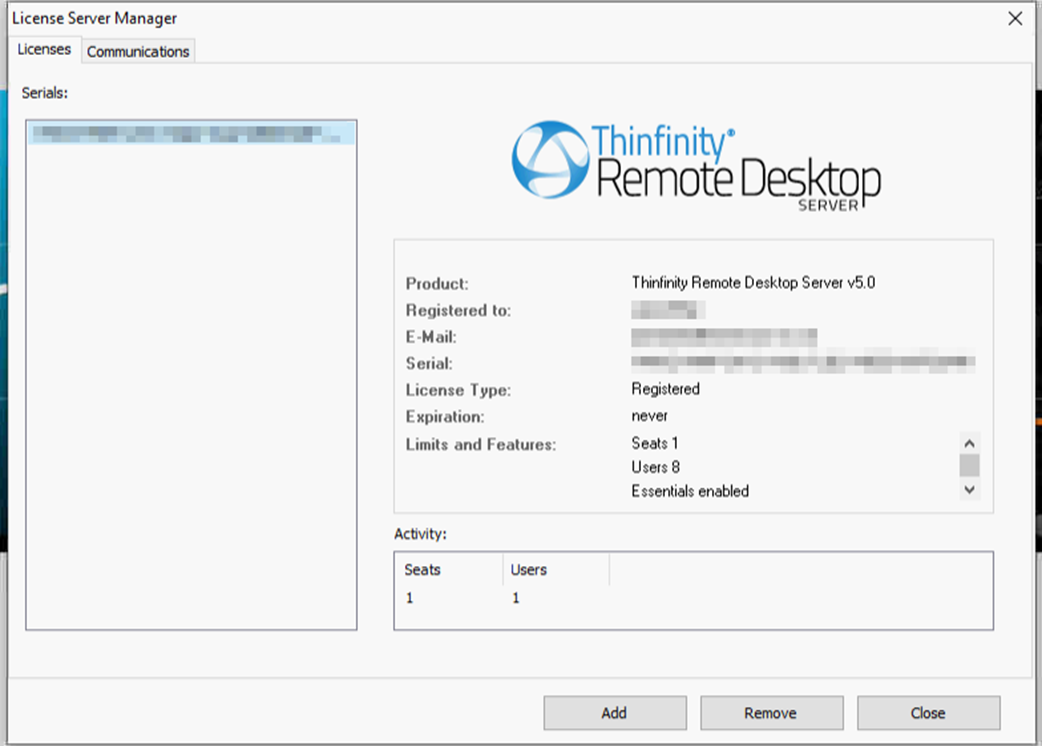
The License Server Manager displays the newly registered product. This completes the setup and registration process.