Initial Thinfinity Setup
After completing Thinfinity Installation, continue with initial setup:
Navigate to the desktop Start Menu and open the Thinfinity Remote Desktop Server Manager.
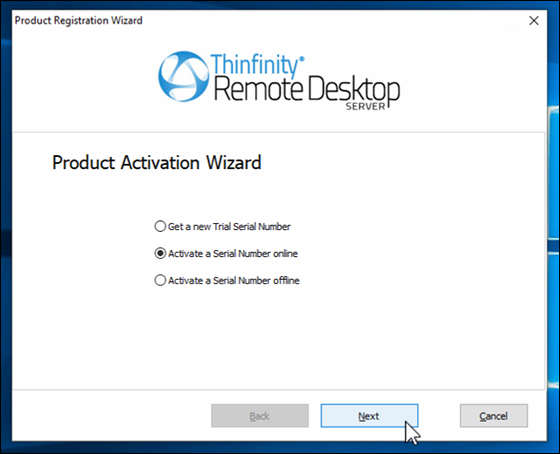
When the Product Activation Wizard launches, choose whether to activate the Serial Number online or offline and click Next.
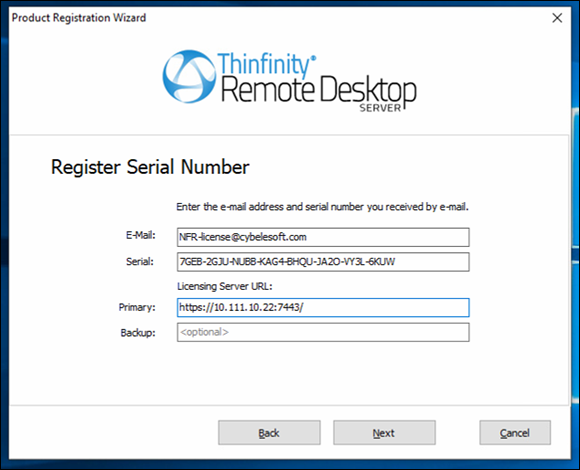
Register the Serial Number with the following information:
Email address
Serial number of the license
Primary Licensing Server URL
Port number of license (if used)
Note
Hostnames will not work for the Licensing Server URL, you must use IP address.
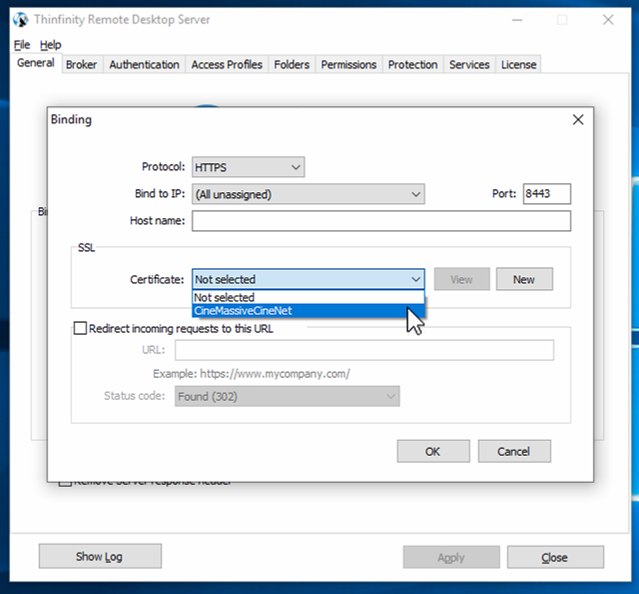
On the General tab, click Edit to change the connection type. By default, Thinfinity is set to listen for HTTP connections on port 8443, but we would rather use HTTPS. To change this, click Edit and select the HTTPS protocol option.
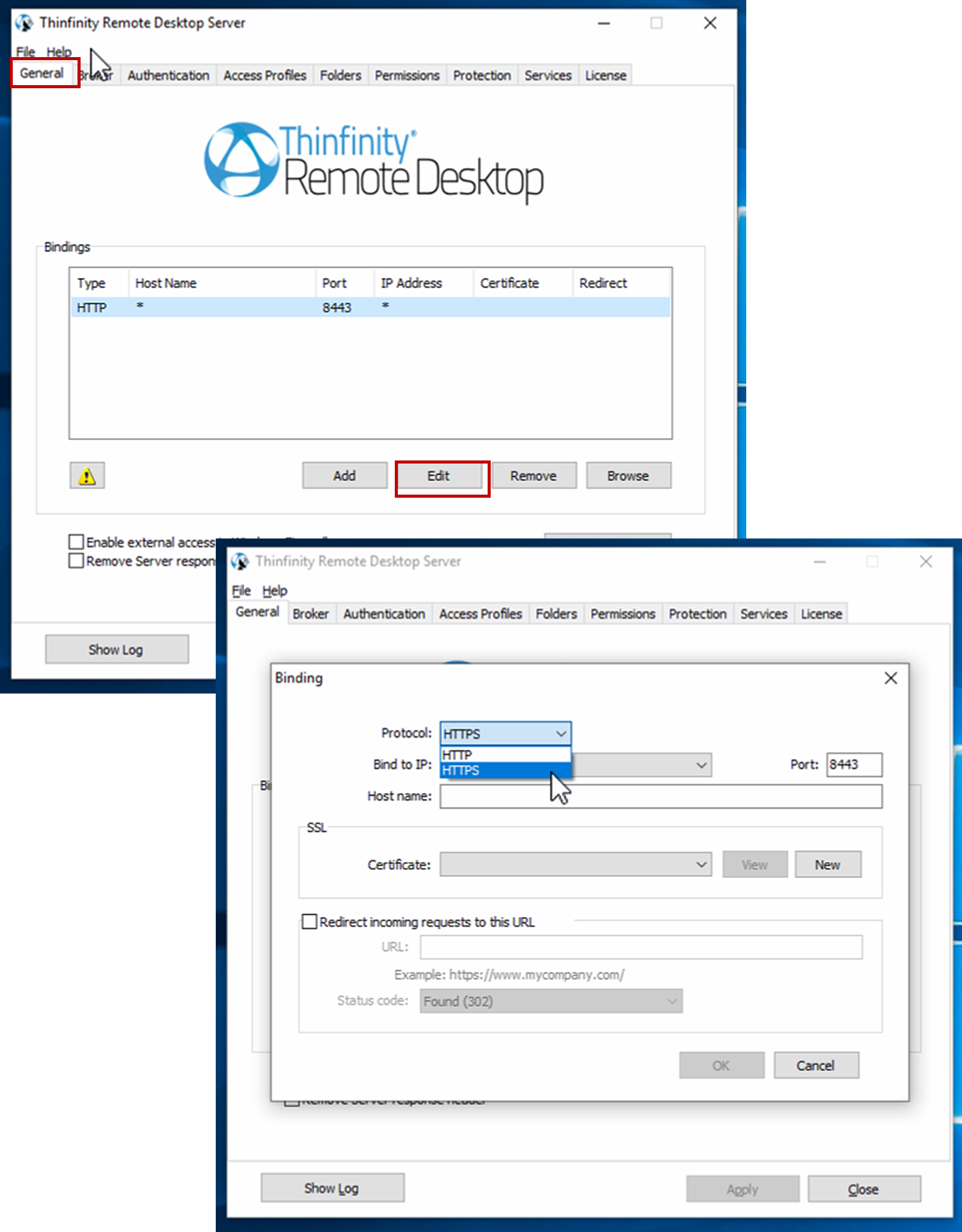
On the General tab, select the same SSL certificate used by CineNet, assuming CineNet is already installed on the machine, then click OK.
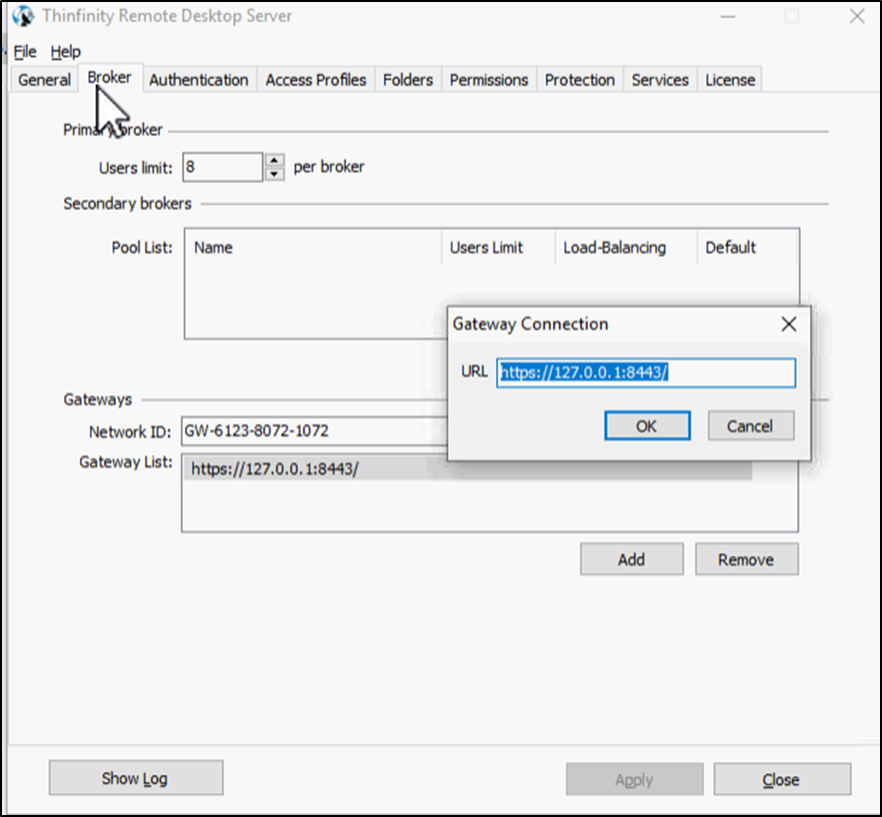
Navigate to the Broker tab and click Add on the gateway box.
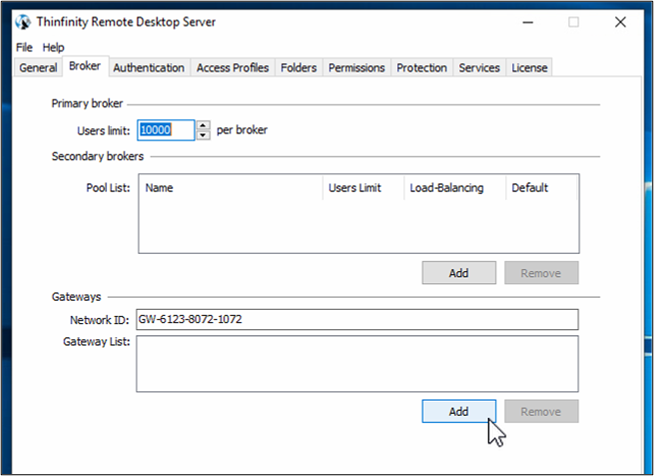
Enter https://127.0.0.1.8443 in the Gateway List box and click OK.