
Adding Activities
After creating an activity, you can edit its name, description, icon, access groups, and asset transitions.
To edit an activity:
Click the user icon in the top right corner and click Admin > Resources.
Click Rooms on the left navigation pane.
Click the underscored Room Name in which to add the activity.
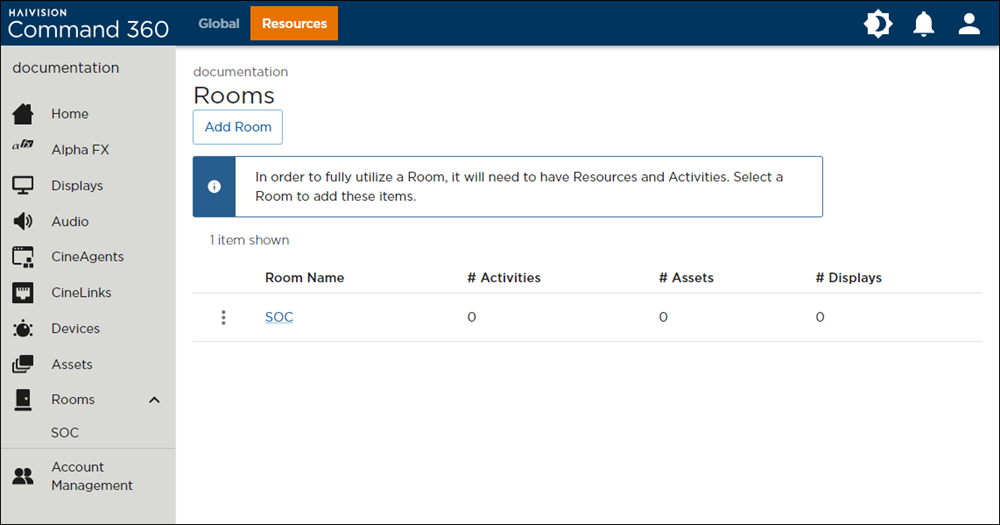
In the room summary page, click the Activities tab (highlighted with orange bar indicator).
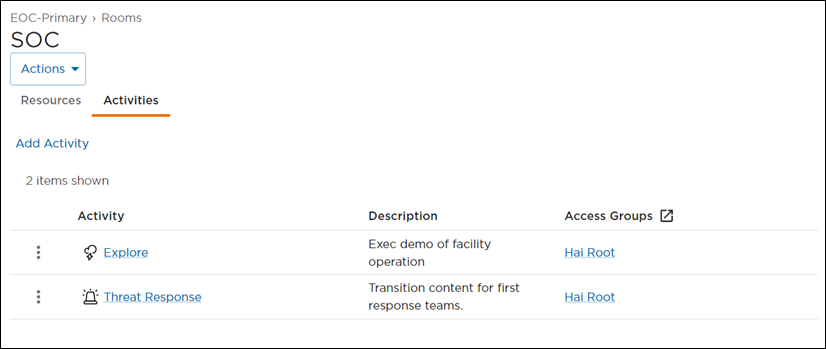
Click Add Activity on the activity summary page.
A fly-out window titled Edit Activity opens on the right.
Enter a unique Activity Name.
Enter an optional Description.
Select a new icon.
Select the Access Groups with permission to view the activity.
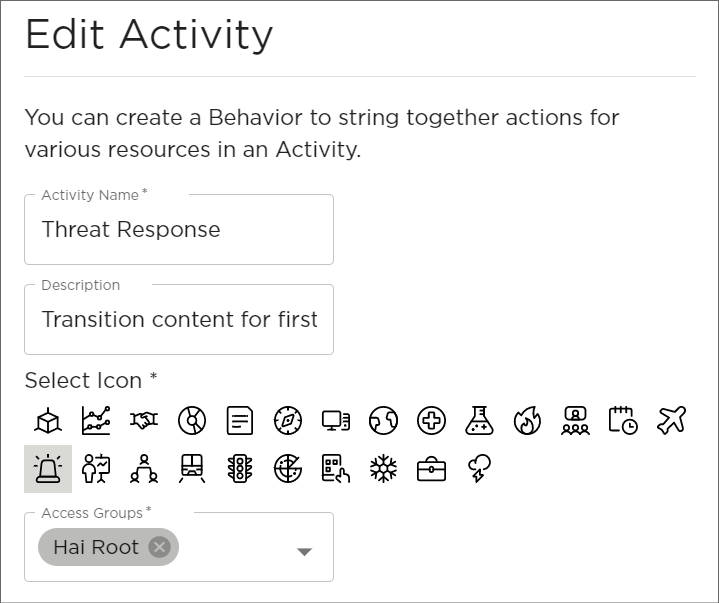
Edit Activity
Use the Asset Transition In and Asset Transition Out drop-downs to change how the assets appear or leave the display for this activity.
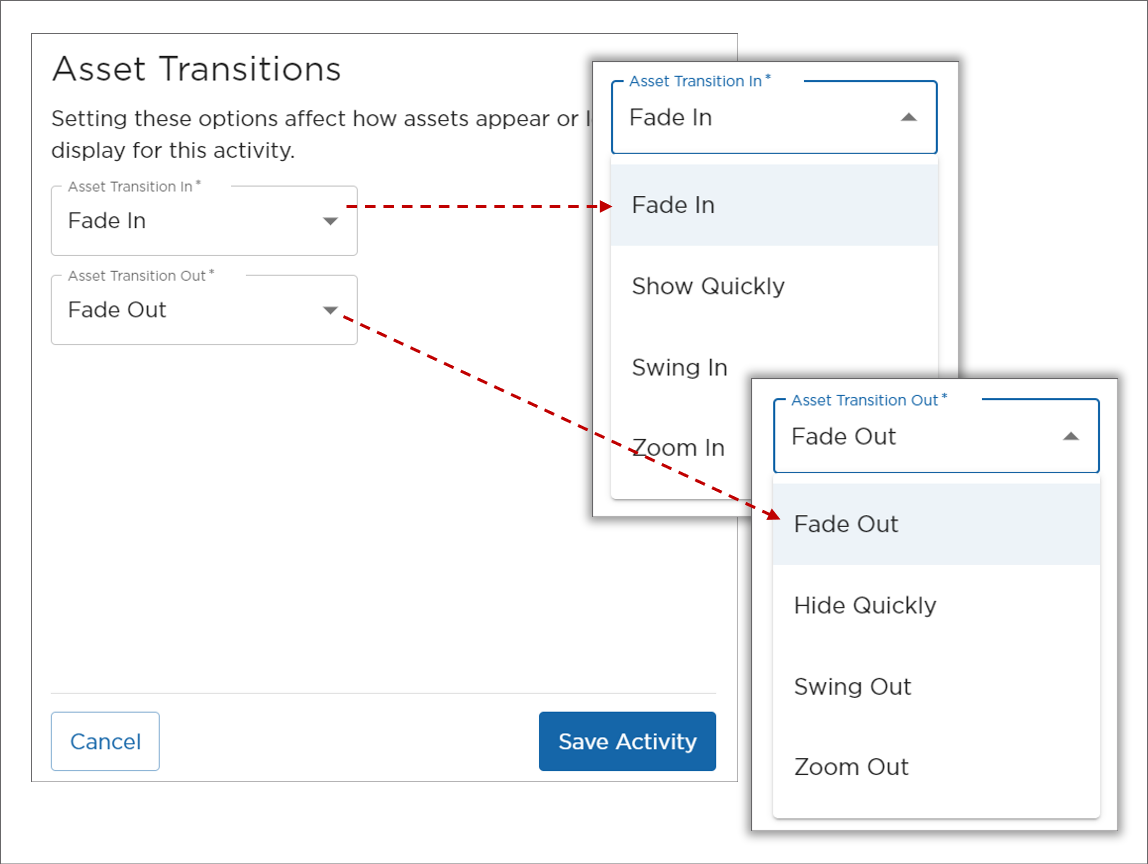
Asset Transitions
Click Save Activity.
The new activity appears in the activity summary page: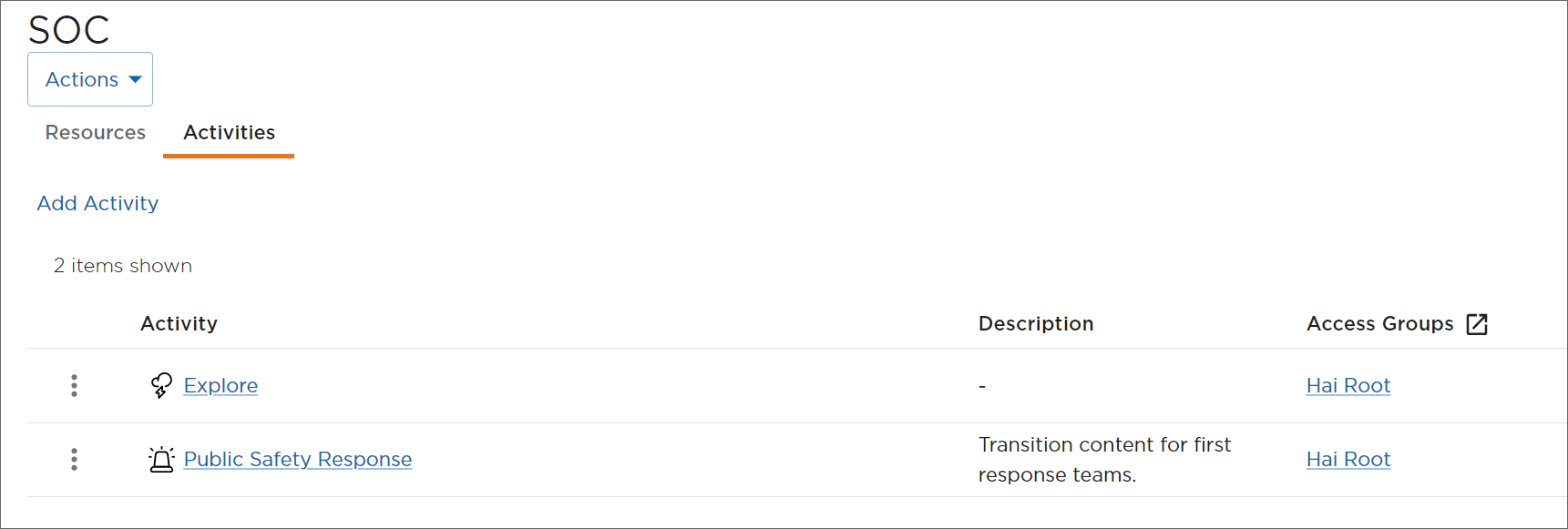
New Activity