
Activity Automation
Automate actions that occur when the specified conditions are met.
To edit Activity Starts or Activity Ends conditions:
Click the user icon in the top right and click Admin > Resources to access the Resources home page.
Click Rooms on the left navigation pane.
Click the room containing the activity to edit.
Click the Activities tab.
Click the activity to edit.
Click the Automation tab.
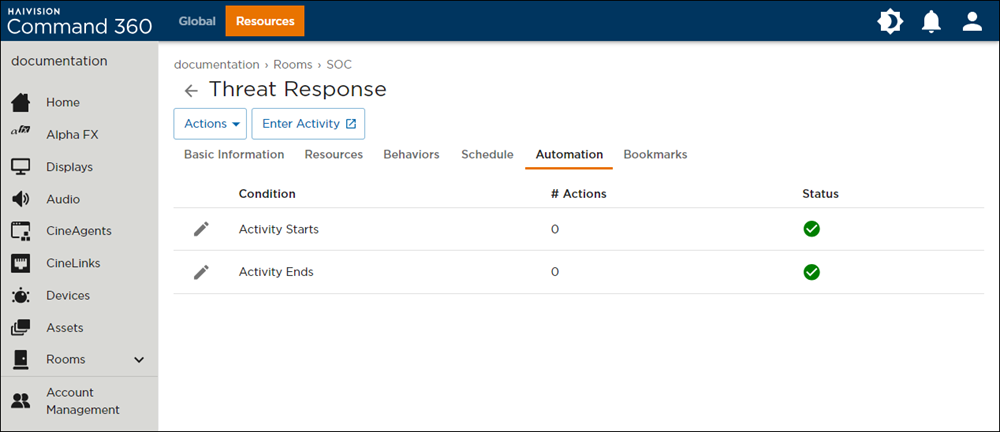
Click the
 icon next to Activity Starts or Activity Ends. The Manage Actions side panel opens on the right.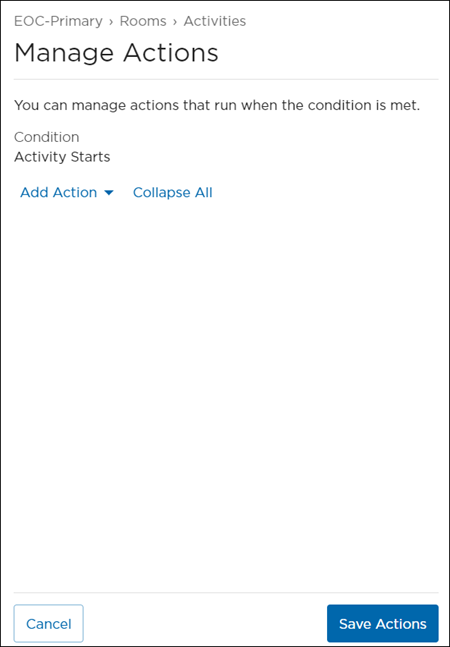
Click the Add Action drop-down menu.
Select Delay, Device, Audio, or Display.

Note
As noted in the Manage Actions panel, when an activity ends, all displays are cleared; therefore, the Display action is unavailable for the Activity Ends condition.
For more information on different action types, see Behavior Actions.
Repeat steps 8 and 9 to add more actions.
Note
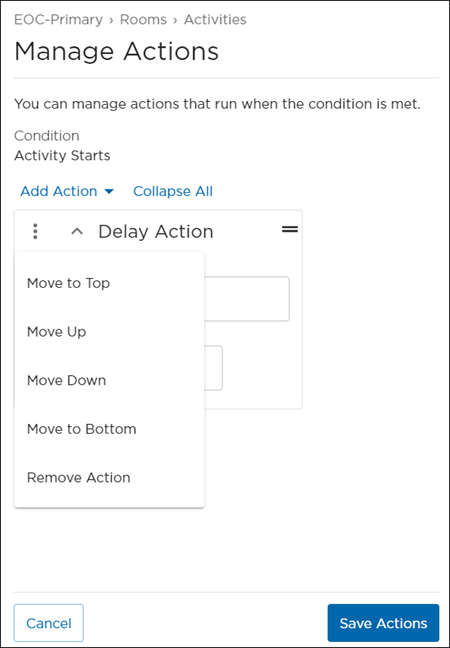
Click the  icon on an action to change the order of actions or remove it.
When finished, click Save Actions.