
Configuring an Ethernet Interface
Factory Settings According to Selected Mode
Mode | IP Address | Netmask | Gateway |
|---|---|---|---|
DHCP (Default) | Assigned by DHCP server | ||
STATIC | 192.168.1.10 | 255.255.255.0 | 192.168.1.1 |
GATEWAY | 192.168.1.10 | 255.255.255.0 | |
OFF | N/A | N/A | N/A |

Note
When the OFF option is selected, Ethernet mode is disabled.
Configuring an Ethernet interface may disconnect the unit.
See the tabs below to configure the Ethernet Interface.
Unit Panel
From the Home menu, use the wheel to select
 > ETH CONFIG.
Use the wheel to set Ethernet options (DHCP, Static, Gateway, Off).
The selected mode appears:
When selecting DHCP mode, settings are automatically retrieved.
When selecting STATIC mode, you need to enter network settings.
When selecting GATEWAY mode, you need to enter the IP Address, the netmask, and the DNS server address.
Use the wheel to enter new settings.
Select
 to save new settings.
Web Interface
On the Web Interface, click
 on the Ethernet line.
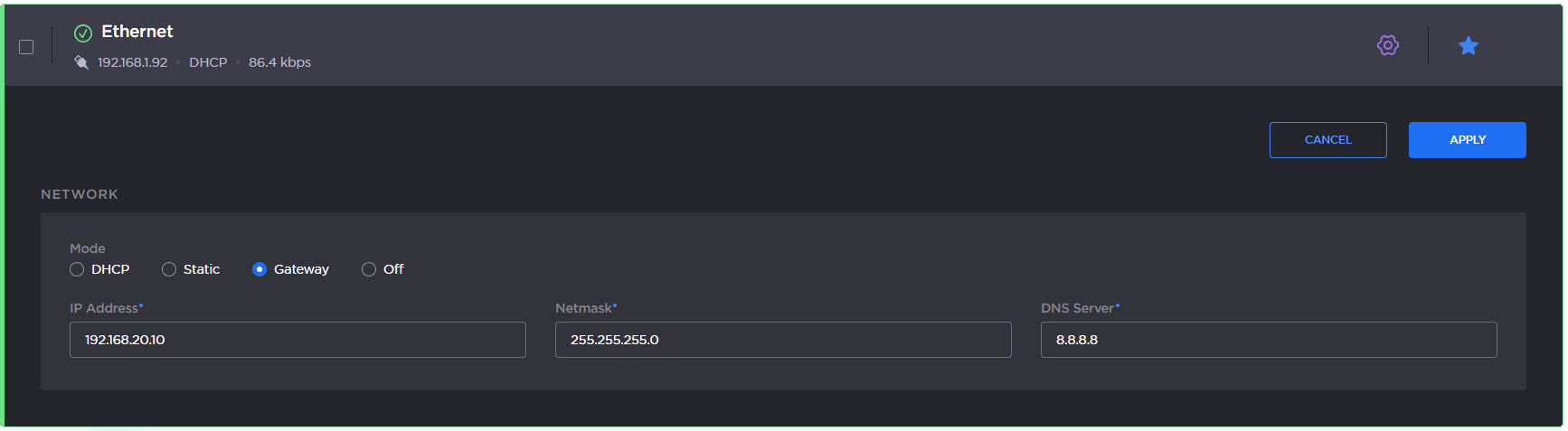
Ethernet settings
In the Mode field, select the configuration mode according to the Ethernet connection used:
DHCP
STATIC
GATEWAY
OFF
Modify the settings as required:
If Static mode is selected, IP Address, Netmask and Gateway.
If Gateway mode is selected, IP Address and Netmask.
Note
Below these parameters, the MAC address assigned to the device is indicated:

Click the Apply button to save these settings.
Note
Applying new Ethernet settings will disconnect the unit from the web interface.