Using Bluetooth
External audio inputs can be added via Bluetooth to be used with the intercom. For more information, see Using the Intercom.
To configure Bluetooth from the Unit Panel or from the Web Interface, see the sections below.
Unit Panel
From the Home menu, use the wheel to select
 > BT.
> BT.Press the wheel to enable or disable Bluetooth.
After enabling Bluetooth is enabled, you can:
Select
 to display all nearby devices. Then, select the device you wish to pair.
Select
 to display previously paired devices. Then, select the device you wish to pair.
Web Interface
On the Dashboard in the Networks section, click on the toggle button in the Bluetooth line to enable or disable Bluetooth.

Bluetooth enable
After enabling Bluetooth, click the
 icon to view nearby Bluetooth devices.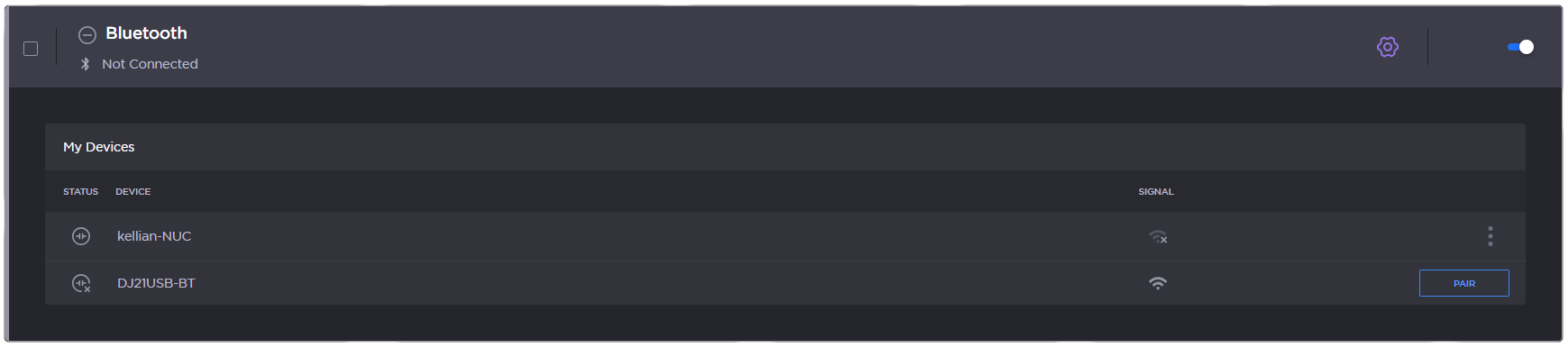
Bluetooth pair
Click the Pair button to pair with the desired Bluetooth device.

Note
To connect to a Bluetooth device previously paired or to forget it, click the  icon.
icon.