
Updating the Firmware

Note
Ensure that the battery is properly charged before starting to update.
The firmware can be updated from Hub 360 or Manager (v3.3.0 and higher).
Note
The firmware can be updated from Hub 360 or Manager (v3.3.0 and higher).
Unit Panel
Download the firmware file from the Haivision Support Portal.
Copy the
.fwfirmware file that you downloaded to an SD card or USB flash drive.Insert the SD card or connect the USB flash drive to the transmitter.
From the Home menu, turn the wheel to select
 >
>  > Firmware .
Press the wheel to confirm. A message displays information about the firmware version and asks for confirmation.
Turn the wheel to select YES.
Press the wheel to confirm.
Web Interface
Download the firmware file from the Haivision Support Portal.
In the sidebar, click Settings.
Click the Update tab.
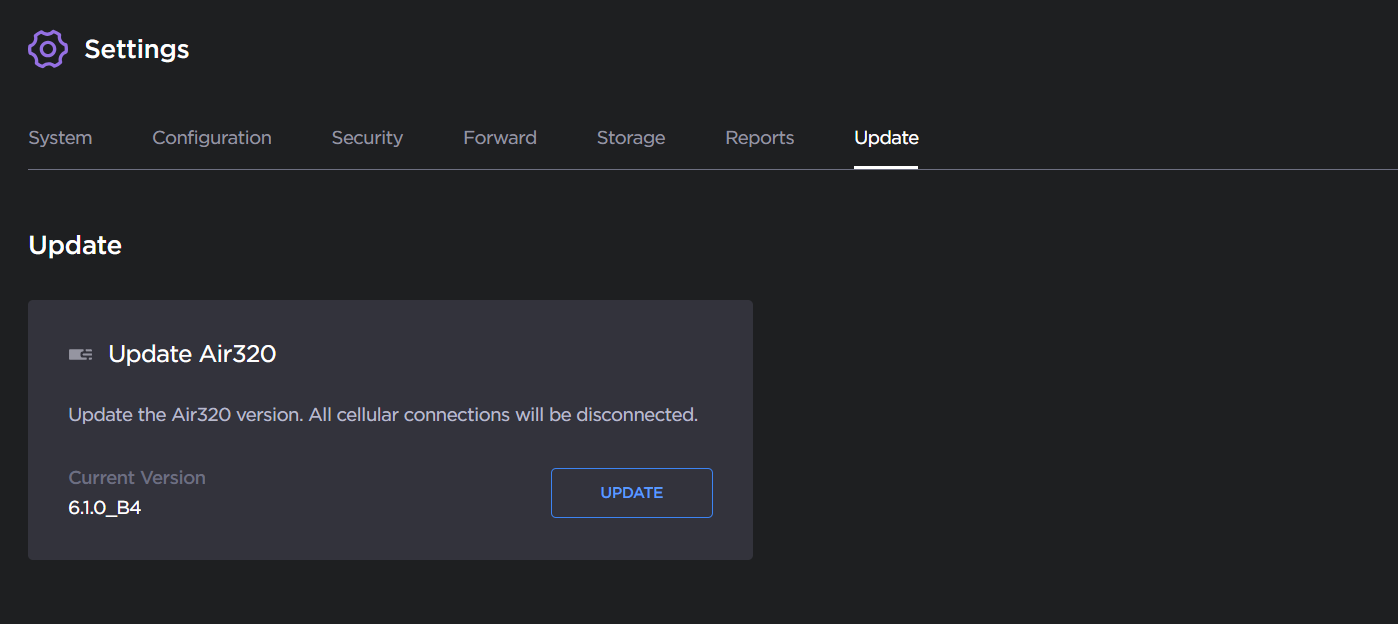
Click the Update button.
Drag and drop or click the Browse button to select the
.fwsoftware file that you saved.
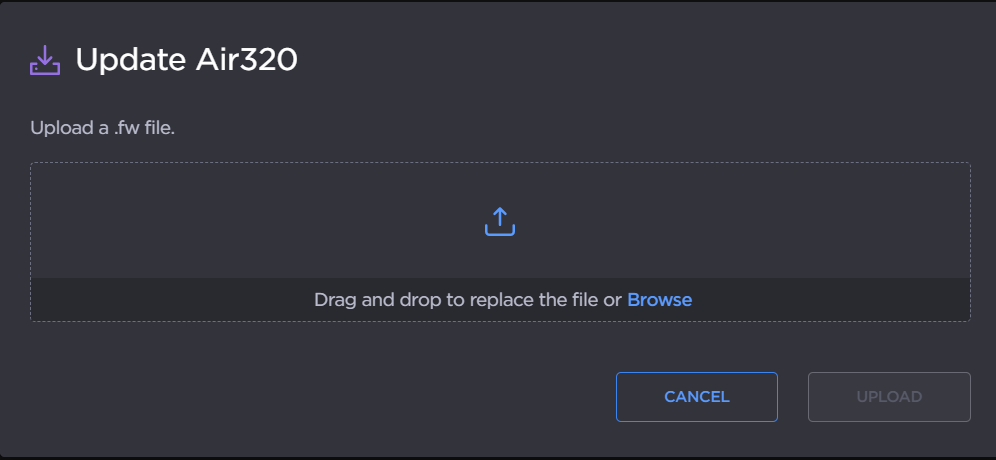
Click the Upload button.
Follow the instructions on the screen.
Important
The update may take several minutes, depending on whether it is a major update or not. During the update, do not perform any actions on the system. At the end of the process, a message appears to reboot the unit, depending on the firmware version uploaded.