
Selecting the Video Source
To select amongst the following sources from the Unit Panel or the Web Interface, see the sections below.
Auto (Default)
SDI input
HDMI input - SD (PAL/NTSC) standard is not supported
Pattern (Internal Pattern Generator)

Note
When selecting the Pattern generator as the source, you can select a specific pattern to be generated. The pattern options are: color circles, color bars or flat black.
You can also select one of the following standards: NTSC, PAL, 720p50, 720p59.84, 720p60, 1080p25, 1080p29.97, 1080i59.94, 1080i60, 1080p50, 1080p59.94 and 1080p60.
When Auto mode is selected, the following rules are applied:
SDI Input Presence | HDMI Input Presence | Selected Input |
|---|---|---|
|
| SDI |
|
| HDMI |
|
| SDI |


Unit Panel
From the Home menu, use the wheel to select
 >
>  > Video Source.
 Select the expected source.
When selecting Pattern, the Pattern Shape and the Pattern Standard fields appear. On the Upper part of the screen, an icon indicates the selected source: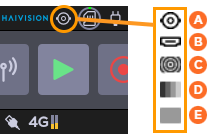
 SDI
SDI HDMI
HDMI Color circles pattern
 Color bars pattern
 Black pattern
Turn the wheel to select
 and press it to preview the video.
Web Interface
On the Dashboard, in the Streams section, click the
icon to open the Edit Stream dialog.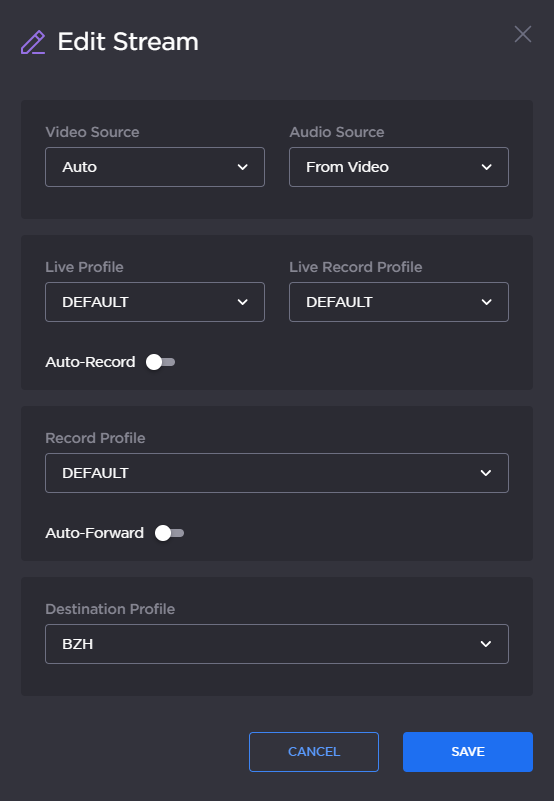
Edit Stream
Select the Video Source in the drop down list.
Note
If you select SDI, HDMI, or Auto, the video resolution is automatically detected.
If you select Pattern, go to Streaming > Input/Output to define the shape and the resolution to be used.
Click the Save button.