
Display Settings
On the Display Settings page, you can select the display resolution for Haivision Play Set-Top Box.

Note
The selectable resolutions include the output format (e.g., CVBS (Composite), HDMI, Component, or VGA) as well as the resolution.
To change the display resolution:
Using the remote control, press the Left/Right arrows or OK button to scroll through the Resolution values.
When you reach the correct value, select Save.
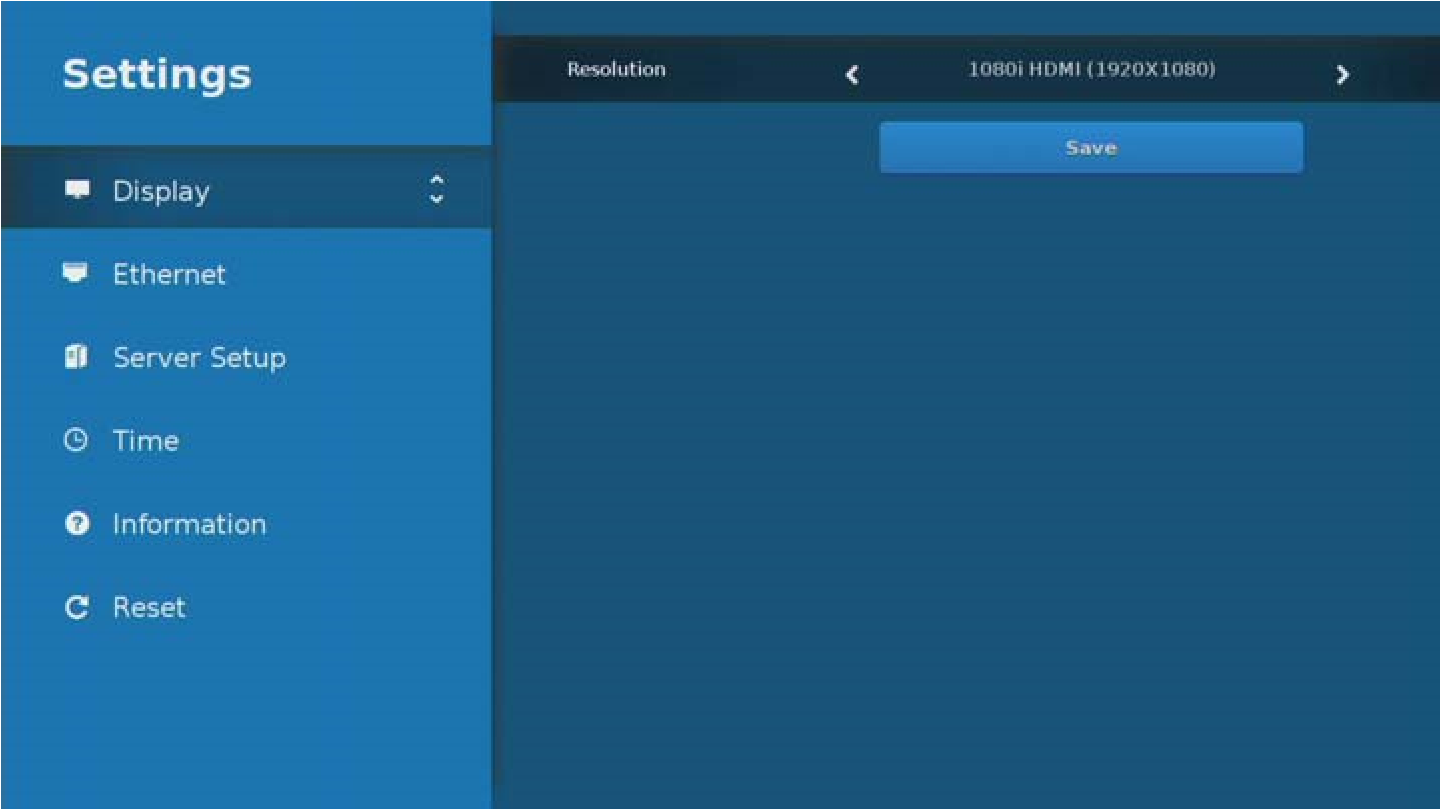
STB Display Settings
Haivision Play Set-Top Box will test the new resolution and display a confirmation dialog:
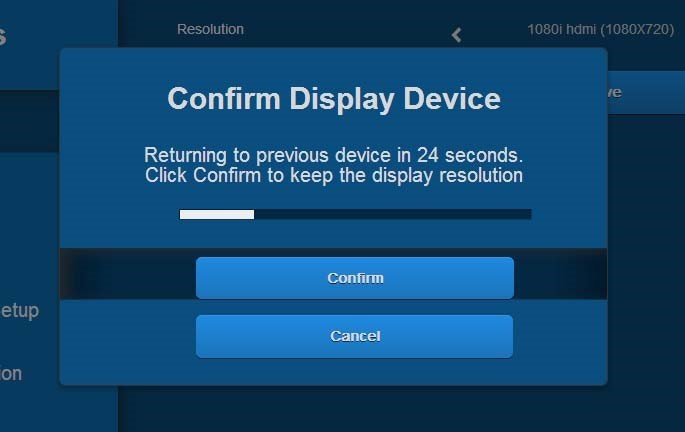
STB Display Confirmation Dialog
To confirm the resolution change, select Confirm.
To cancel the resolution change, select Cancel (or wait 30 seconds). The display returns to its previous resolution setting.
Note
If a resolution is selected that is not supported by the display, the screen goes black for 30 seconds and then returns to its previous resolution.