
Framing Overlay
You can overlay an image on the Live/Record camera views to assist with proper framing.

Note
The overlay image appears only in the Live and Record camera previews. It helps talent position themselves correctly, achieve the desired framing balance, and avoid being obscured by post-production graphics.
The overlay image is not encoded into the transmitted or recorded video.
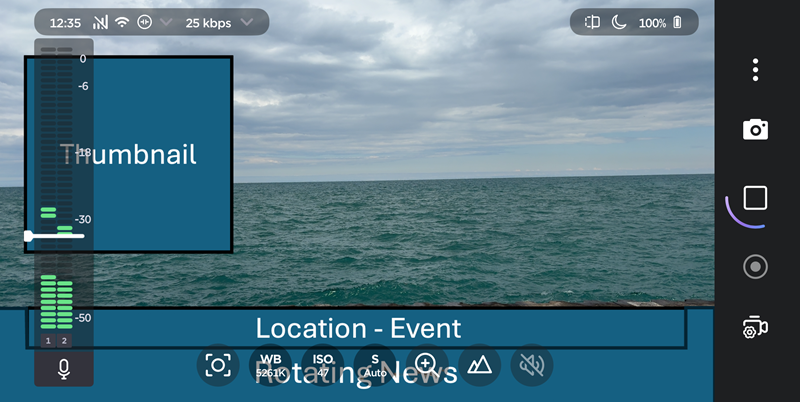
See the Overlay section of the table in Configuring App Settings to enable this setting and upload images from your device.
To adjust the opacity of the overlay:
Tap the
 icon on the Live or Record screen.
Tap the toggle to select Overlays.
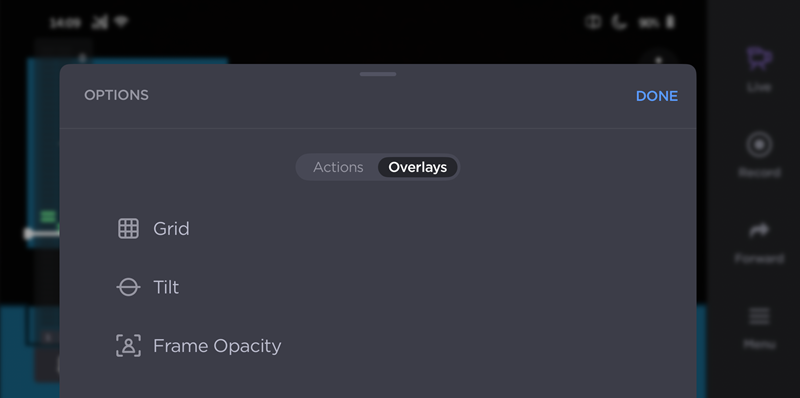
Tap Frame Opacity. A slider appears.
Drag the slider to the desired opacity level.
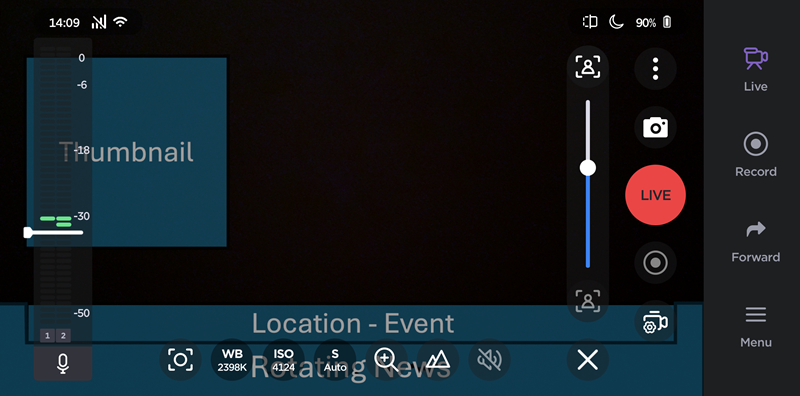
Tap
 to dismiss the slider.