
Importing/Exporting Settings
You can import and export MoJoPro settings and connection profiles as JSON config files.
Importing Settings

Tip
You can also launch MoJoPro with the desired settings/connections by tapping a valid config file.
To import settings and connections:
Go to the
 Menu screen and tap
 Settings.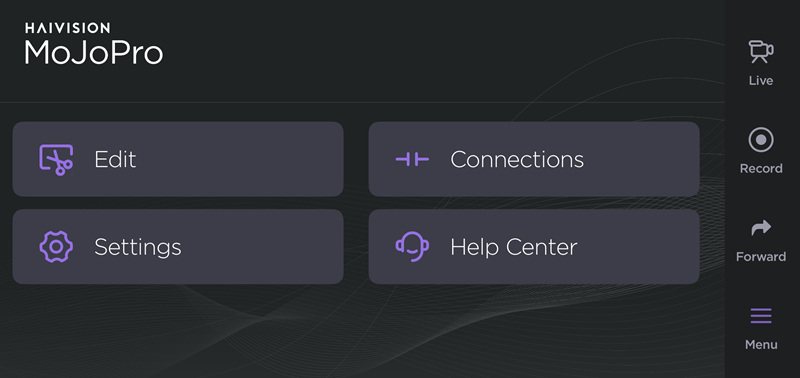
Scroll down to the Import/Export Settings section.
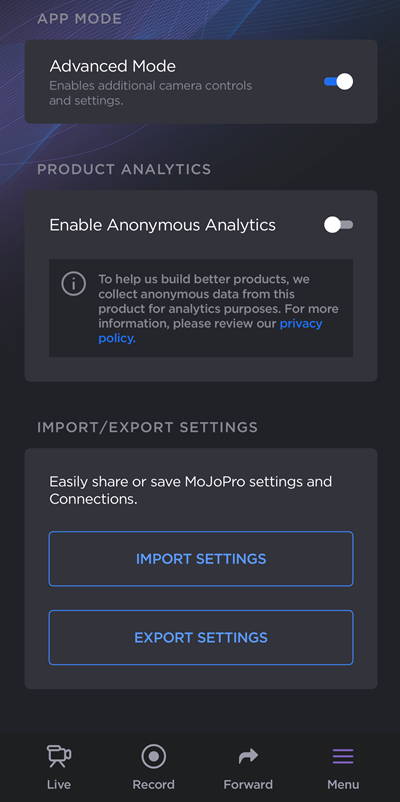
Tap Import Settings.
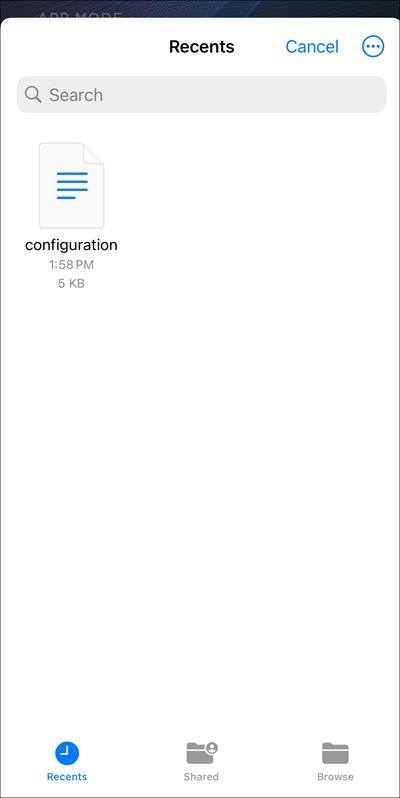
Select a configuration file from your device.
Select the settings to import.
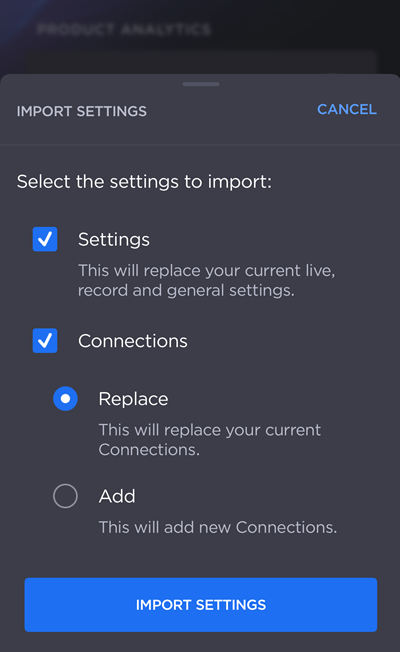
Settings - This will replace your current live, record and general settings.
Connections - Select either Replace or Add. Replace removes and replaces all current connection profiles with connections in the configuration file. Add maintains current connections and adds new ones from the configuration file.
Tap Import Settings.
Exporting Settings
To export settings and connections to be used on other MoJoPro devices:
Go to the
Menu screen and tap Settings.Scroll down to the Import/Export Settings section.
Tap Export Settings.
Select the settings to export.
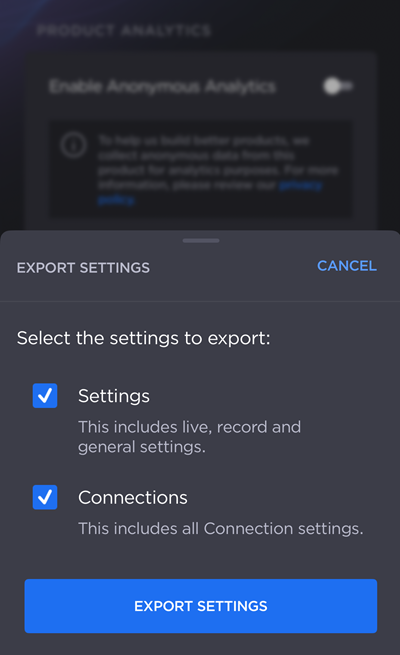
Settings - This includes live, record and general settings.
Connections - This includes all connection profiles.
Tap Export Settings.
Save the file or select a share method from the iOS share modal.