
Editing Project Audio
Go to the
 Menu and tap
  Edit.
Edit.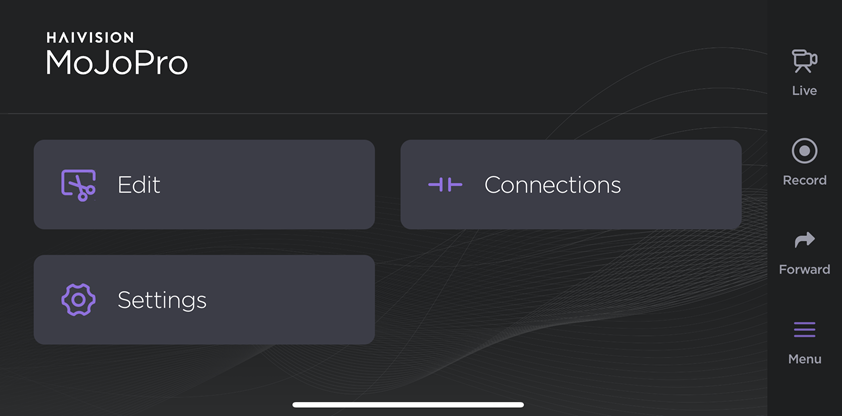
Menu Screen
Tap a project on the Edit screen.
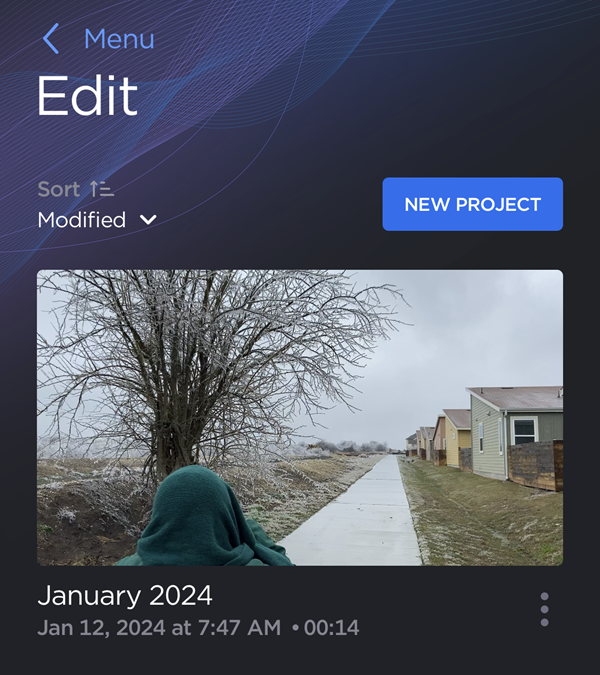
Example Project
Tap
 Audio to open the Audio Editor.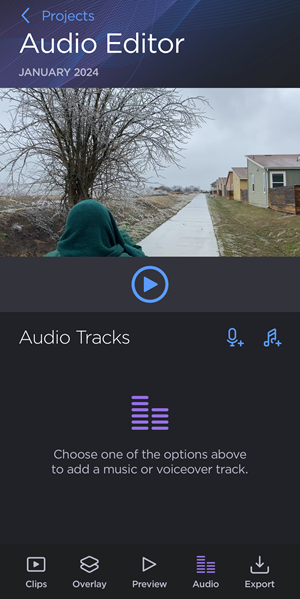
Audio Tracks Screen with no tracks
Tap


To record a voiceover track:
On the Audio tab, tap the
icon to add a voiceover track.Tap the empty voiceover track.
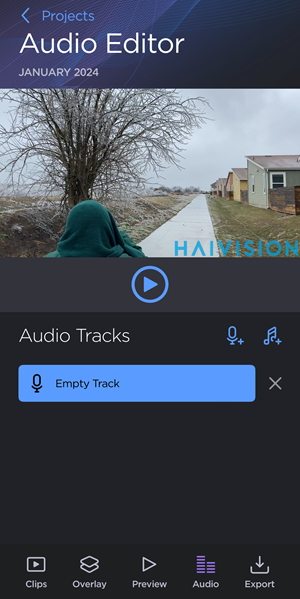
Tap the Record Voiceover button.
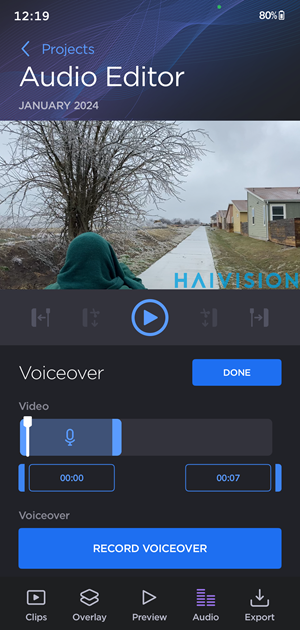
Tap the red
 icon to start recording a voiceover. The currently-selected audio input is displayed.
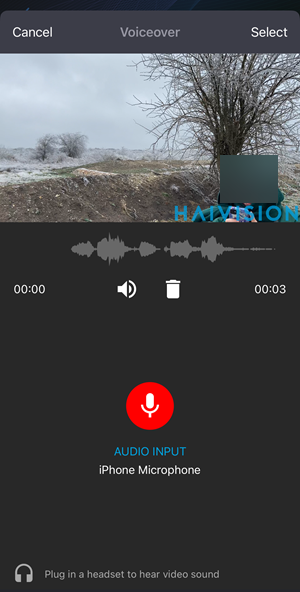
Tap Select to save the voiceover track.
Drag the Video handles to select the portion of video that will contain the voiceover track.
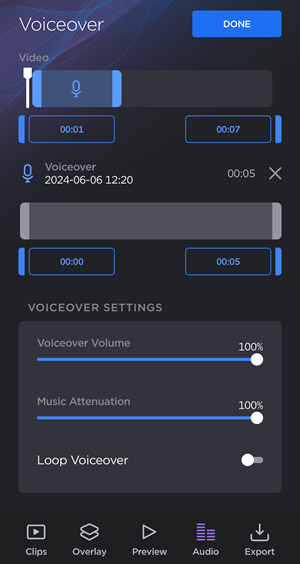
Drag the Voiceover handles to select the portion of the voiceover track to be played in the video.
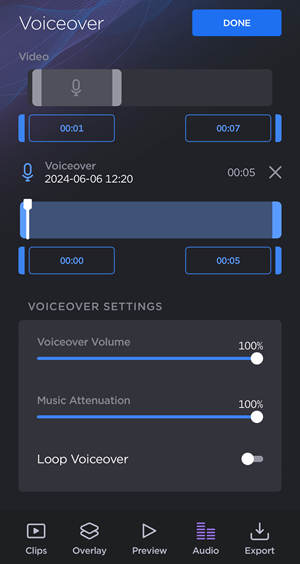

Tip
You can also tap the timestamps below the Video or Voiceover handles to set the start and endpoints with greater precision:
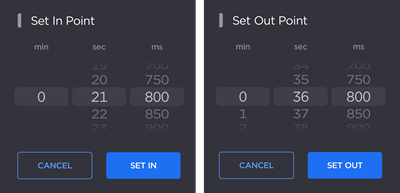
Under Voiceover Settings, drag the sliders to adjust Voiceover Volume and Music Attenuation.
(Optional) Enable the Loop Voiceover toggle to loop the track for the selected portion of video.
Tap Done to save your changes.
To add music or an audio track from your device:
On the Audio tab, tap the
icon to add a music track.Tap the empty music track.
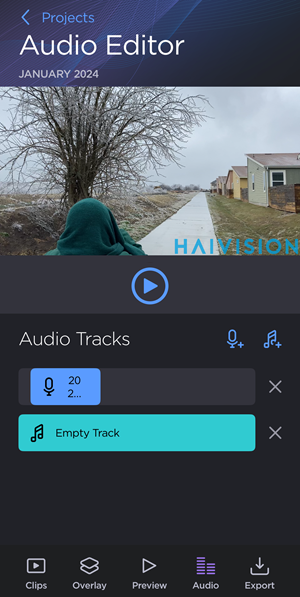
Tap the Choose a File button and select an audio track from your device.
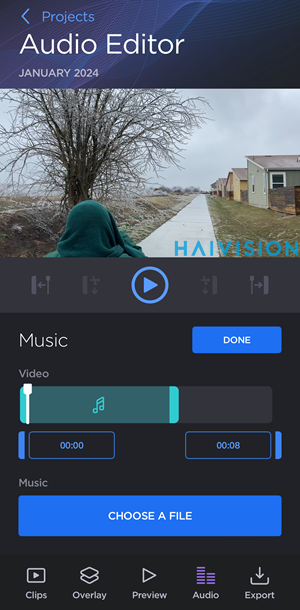
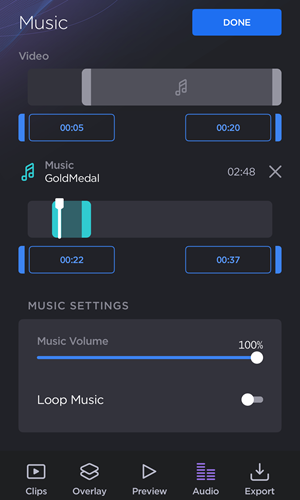
Drag the Video handles to select the portion of video that will contain the audio track.
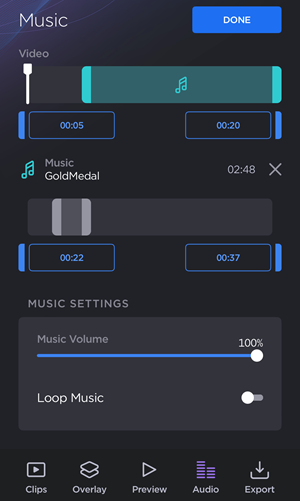
Drag the Music handles to select the portion of the audio track to be played in the video.
Tip
You can also tap the timestamps below the Video or Music handles to set the start and endpoints with greater precision:
Under Music Settings, drag the slider to adjust Music Volume.
(Optional) Enable the Loop Music toggle to loop the track for the selected portion of video.
Tap Done to save your changes.
Tap Projects to return to the previous screen and save your changes.
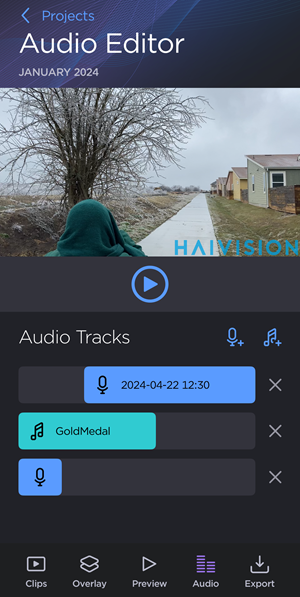
Audio Editor Screen with 3 Tracks