
Uploading an MP4 File to Use as a Video Source
If you have an MP4 file from a KB recording and want to use it on another KB device, you can upload it to your second KB using the following procedure.

Note
MP4 files other than those from a KB recording are not guaranteed to work.
Click the
 button.
Type "
\\<ip address>\filesource", where<ip address>is the IP address of the KB Encoder\Transcoder, and press Enter.You are prompted with a login dialog box. Use the hvroot credentials.
Note
This hvroot user is a separate SMB user and is not the same as the hvroot system user.
Copy the MP4 to this folder.
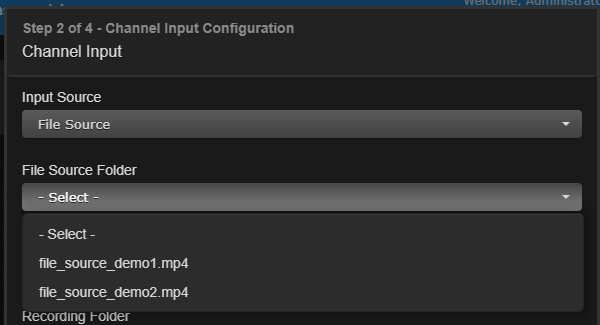
When creating a channel in KB and selecting File Source as the input, a File Source Folder dropdown appears to select from your uploaded MP4s:
Using Finder, click Go > Connect to Server.
In the Connect to Server window, enter "
smb://<ip address>/filesource" in the Server Address field, where<ip address>is the IP address of the KB Encoder\Transcoder.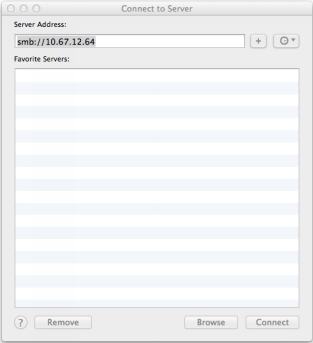
Click Connect.
You are prompted with a login dialog box. Use the hvroot credentials and click Connect.
Note
This hvroot user is a separate SMB user and is not the same as the hvroot system user.
After you are successfully connect, look for the link to the SMB drive under the Shared section of Finder.
Copy the MP4 to this folder.
When creating a channel in KB and selecing File Source as the input source, a File Source Folder dropdown appears to select from your uploaded MP4s:
.png?inst-v=b122f9c9-7d65-49a3-b6cd-4d13f92f1198)