
Log Files
The information found in various logs can help you assess performance and troubleshoot issues. Sharing the logs with your service representative can assist them in troubleshooting your system.

Important
Log files can contain sensitive data and should be appropriately protected. Follow appropriate security guidelines for user credentials (logins and passwords).
The following log files are available:
Log Name | Description |
|---|---|
All Logs | All system and application logs. |
System Messages | Operating system messages. Includes /var/log/messages. |
Application | Log data from the KB Encoder processes. Includes /opt/haivision/var/log/. |
Accessing Logs
To access the logs:
Click the
 icon and click Administration.
In the menu on the left under Dashboards, click Reports.
Click the
 button next to the log file type you wish to download. The chosen log file downloads according to your browser settings.
The compressed .zip file consists of a number of text log files with descriptive filenames to assist you in identifying the appropriate file for the information you seek.
If the standard logs do not contain the information you need, you can enable Diagnostic Logging.

Note
Log files are also available to view in the Console UI; see Using the Console UI with Haivision Hardware for details.
Diagnostic Logging
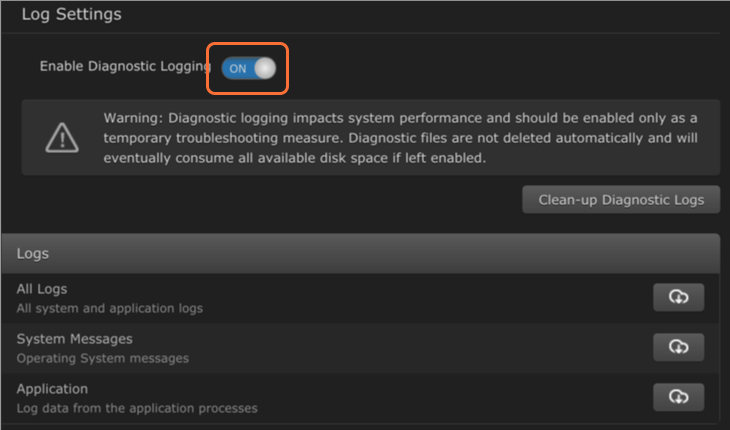
As an aid in troubleshooting, you can enable/disable Diagnostic Logging as needed. Diagnostic Logging adds more verbose entries into the logs and provides additional information which can be useful for diagnosing problems.

Caution
Due to the impact that Diagnostic Logging has on overall system performance, Haivision recommends that you only enable this feature temporarily.
Diagnostic log files are not deleted automatically and can eventually consume all available disk space if left enabled.
Log files can contain sensitive data and should be appropriately protected. Follow appropriate security guidelines for user logins and passwords.
Enabling/Disabling Diagnostic Logging
To enable or disable diagnostic logging:
Click the
icon and click Administration.In the menu on the left under Dashboards, click Reports.
Slide the Enable Diagnostic Logging switch to ON or OFF.
Clearing Diagnostic Logs
Additionally, you can delete diagnostic logs to improve system performance.
To do this:
Click the
icon and click Administration.In the menu on the left under Dashboards, click Reports.
Click the Clean-up Diagnostic Logs button.