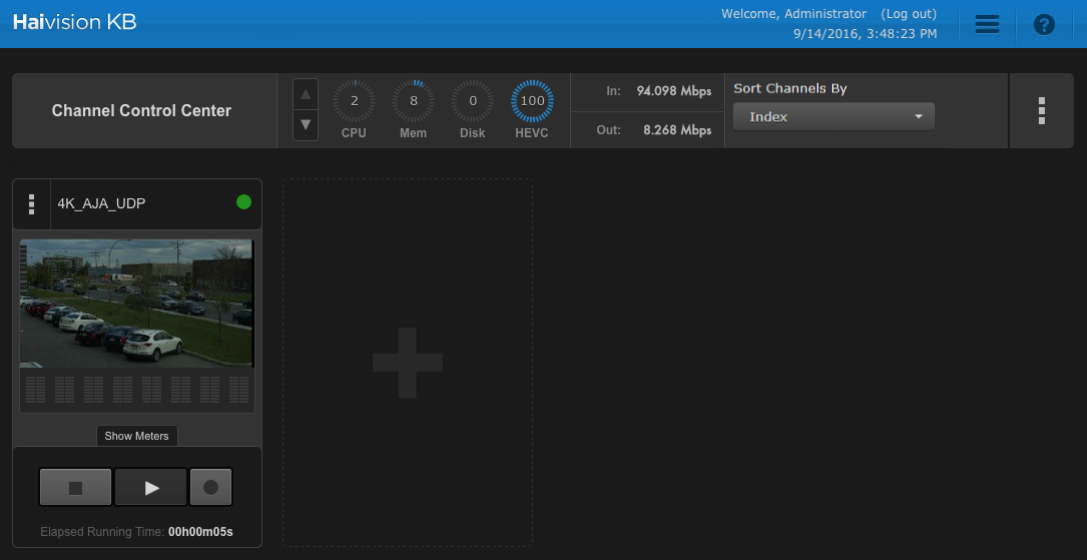
Creating a 4K Channel

Important
You must be using the 4K-capable appliance to be able to create a 4K channel. Check with your Haivision Sales representative.
To create a 4K channel:
Click the
 icon and click Channel Control Center.
Click the + icon to add a channel.
In Step 1 of the Create Channel Wizard, provide a name for the channel and click Next.
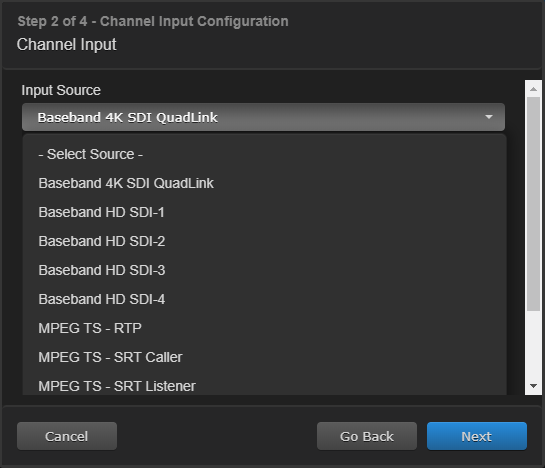
In Step 2, select an appropriate 4K input source from those listed for the AJA Corvid card, such as "Baseband 4K SDI QuadLink". Click Next.
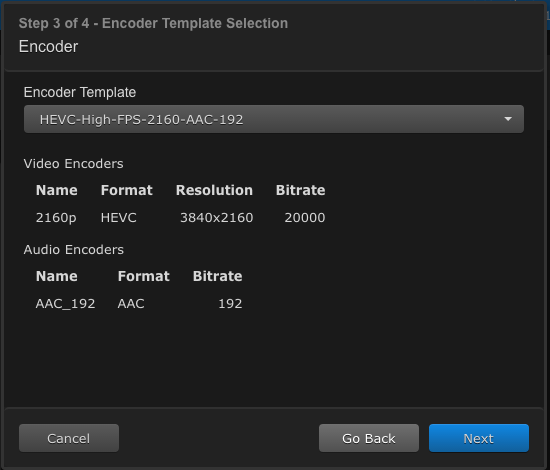
In Step 3, choose from the available H264 and HEVC options. For instance, "HEVC High FPS 2160 AAC 192" with a resolution of 3840x2160. Click Next.
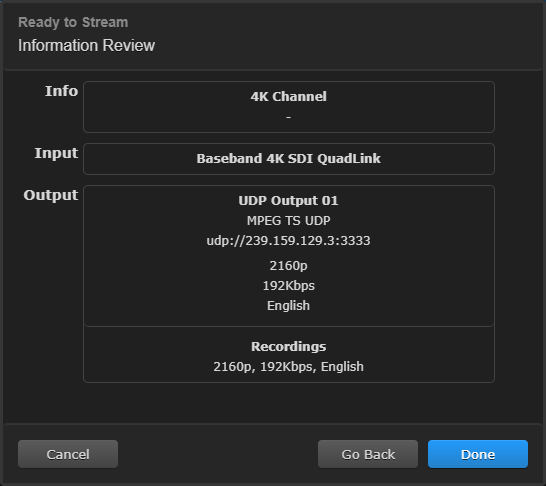
In Step 4, provide the Channel Output information and click Next.
Review the Information to ensure it is correct and click Done.
When the new channel appears in the Channel Control Center, click the button below it.
When the channel starts, the HEVC meter displays 100 in the Dashboard or System Status Bar.