Configure the Haivision KB Encoder
For this task, the following output settings are used:
Video | Audio |
Codec: H.264 | Codec: AAC (LC) |
Profile: High (Level 4.0) | Bitrate: 192 kbps |
Bitrate: 3808 kbps | Sample Rate: 44.1 kHz |
Keyframe: 2 seconds (60 seconds) | |
Frame Rate: 30 |
To configure the KB Encoder:
Log into the KB user interface.
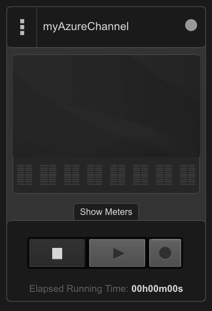
From the Channel Control Center, click the
 menu and select Add Channel.
When the wizard opens, type the desired Channel Name in the field and click Next.
Select the appropriate channel input source from the Input Source drop-down menu and click Next.
From the Encoder Template drop-down, make the appropriate selection.

Note
Azure now supports 1080p single bitrate and 1080p adaptive bitrate (ABR) workflows.
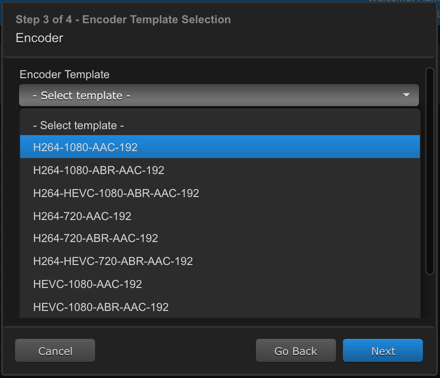
Verify your selection and then click Next.
Sample of a single bitrate selection: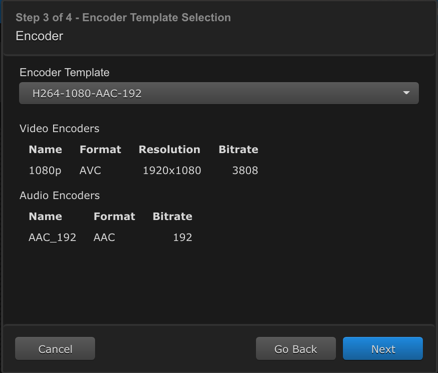
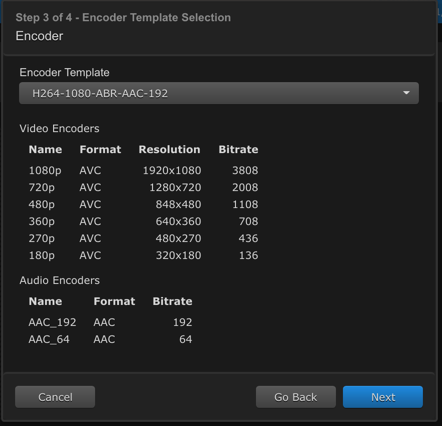
Sample of an adaptive bitrate (ABR) selection:
From the Select New Output drop-down, choose RTMP and click Next.
From the Channel Output window, populate the Azure stream information.
In the Output Name field, type in the name of the channel.
In the Server field, paste the RTMP link from the initial channel setup.
In the Stream Name Template field, use the template
RTMPStreamName_%video_bitrate%to name the stream.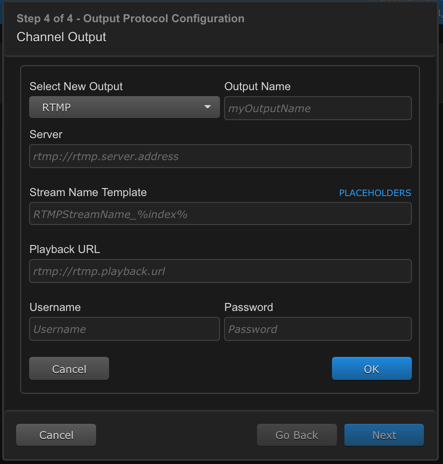
Click OK, then click Next.
Click Done.
Click the
 button to start the encoder channel.