
Beginner's Guide to Using the KB API
This tutorial explains the basics for using the REST API commands that are documented in the API Integrator's Reference.
Prerequisites
Download and install the Postman API Development Environment

Note
Postman is used in this tutorial. However, any API tool is supported.
Obtaining a Session ID
To access the KB API commands, you must first login and obtain the returned Session ID value. This value must be included in the header of all subsequent API commands.
Open the Postman application, and dismiss any popups/dialog boxes that appear.
In the main window, create a new request as shown in the following figure:
Select Post in the request type dropdown menu.
Enter the Request URL for the Login API command, using the following format:
https://<KB URL>:1080/ecs/auth.jsonSince the Login command requires you to supply the username and password, click the Body tab.
Click raw in the body format, and select JSON in the format type dropdown menu.
In the textbox enter the haiadmin username and password using the format documented in the API Reference for the Login command.
Click the Send button.
If successful, a Session ID is returned at the bottom of the request. Copy, the contents within the quotation marks for use in the next section.
Running Other Sample API Commands
After receiving the Session ID, other commands can now be run.

Important
If you receive a "Not authenticated, ERROR: KULA_ERROR_INVALID_SESSION_ID" result from subsequent API commands, the Session ID value has expired. Re-submit the Login command and use the new Session ID value in your header.
Get KB System Details
To get the details of you KB system:
Create a new request by clicking the + tab, and populate the fields as follows:
Select Get command type.
Enter the Request URL for the Get System Information API command, using the following format:
https://<KB URL>:1080/ecs/system.jsonSince all requests require the Session ID in the API command header, click the Headers tab.
In the Key column, type Authorization.
In the Value column, paste the Session ID value you copied in the previous section.
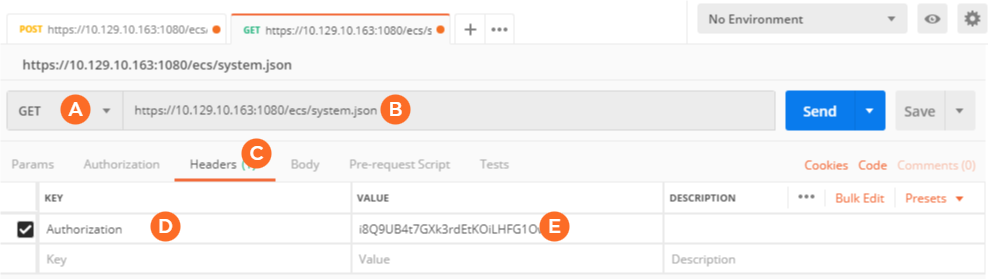
Click the Send button.
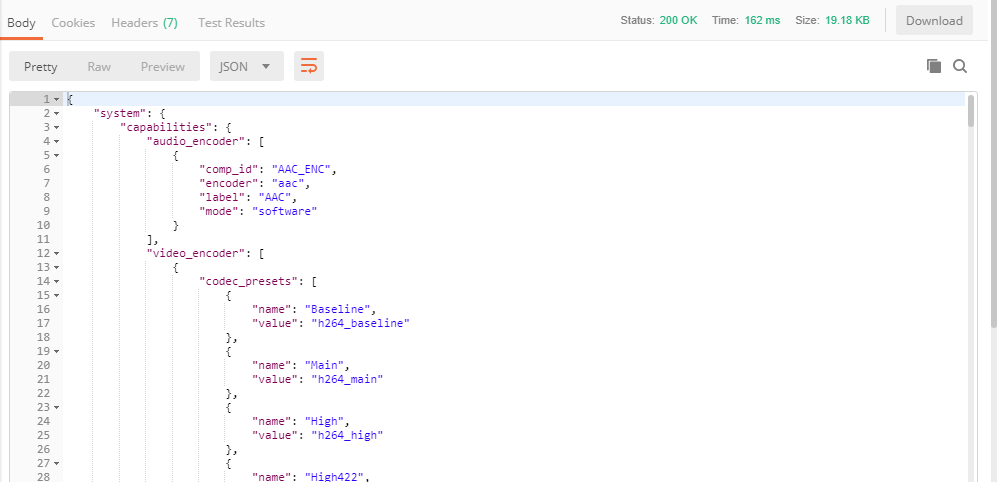
Results of the command are shown at the bottom of the request. For example:
Create a Channel
Creating a new channel requires two API commands:
Similar to the previous command, create a new request by clicking the + tab, and populate the fields as follows:
Select Post command type.
Enter the Request URL for the Create Channel API command, using the following format:
https://<KB URL>:1080/ecs/channels.jsonClick the Headers tab: In the Key column, type Authorization and in the Value column, paste the Session ID value you copied in the previous section.
Click the Body tab and enter the channel label:
Click raw in the body format, and select JSON in the format type dropdown menu.
In the textbox enter the desired channel label using the format documented in the API Reference for the Create Channel command.
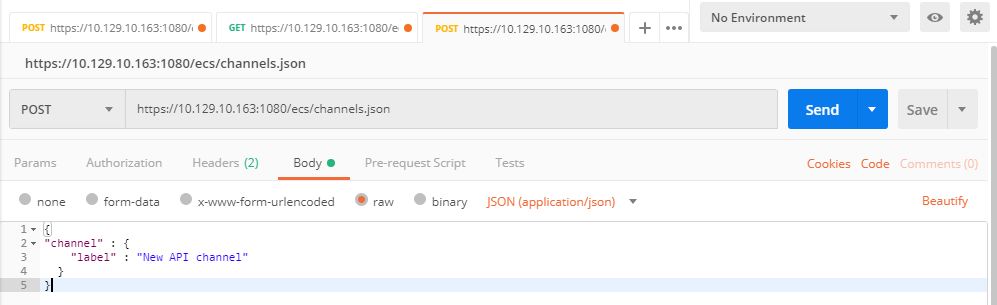
Click the Send button. A "Resource created successfully." message is returned in the results window.
Now, add the channel configuration to the newly created channel:
Select Put command type.
Enter the Request URL for the Load a Channel's Configuration API command, using the following format:
https://<KB URL>:1080/ecs/channels/<channel label>/preset.jsonEnsure the Session ID value is included in the Headers tab.
Click the Body tab and enter a valid channel configuration as documented at Channel Configuration File Syntax Reference, for example:
CODE{ "version": "5.0", "type": "multistream", "label": "New API channel", "description": "", "kulabytepreset": { "input": { "format": { "videoin_enable": "1", "videoin_width": "1920", "videoin_height": "1080", "videoin_framerate": "29.97", ...

Tip
For help with creating the proper JSON format, create a channel in the KB web interface with similar settings and export the channel. The downloaded JSON file is of the proper format.
Click the Send button. A "Request processed successfully." message is returned in the results window.
The channel can now be started and stopped by using the Controlling a Channel API command.