
Managing the Priority of StreamHubs within a Group
As an administrator you can configure the priority of StreamHubs belonging to each group. When routes are created outside of the manual booking process in the Master Control screen (i.e., starting a Live directly on a transmitter or MoJoPro device), the routes are assigned to a StreamHub according to this priority.
To manage a group's StreamHub priority:
Click Admin Area on the sidebar.
Click the Groups tab.
Click the
 icon next to the group whose StreamHub priorities you want to manage.
Select StreamHubs Priority.
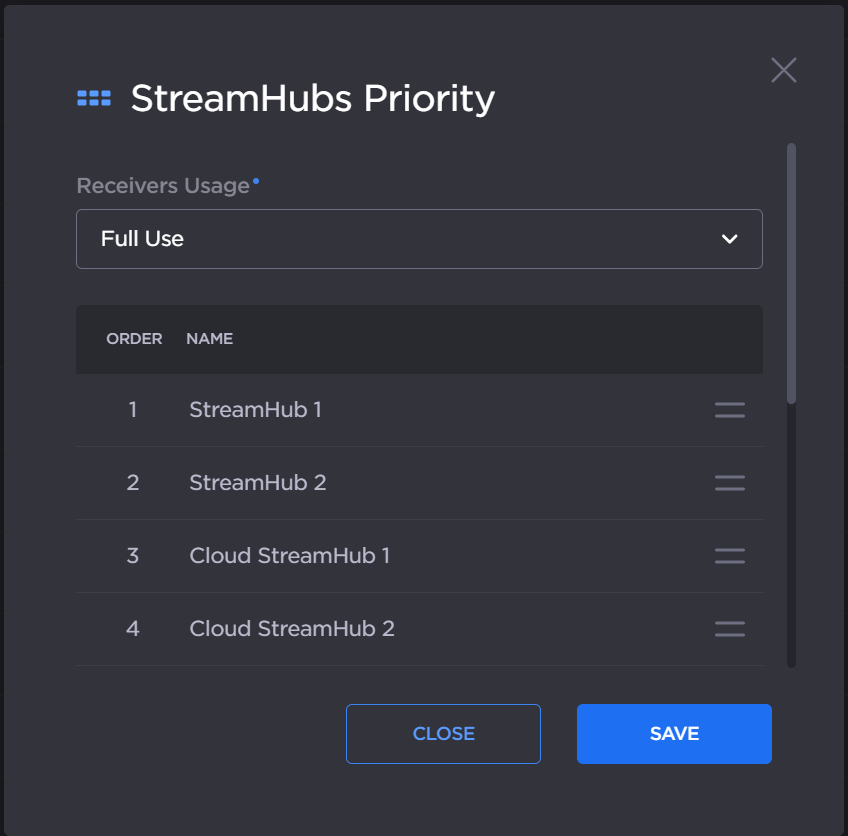
StreamHub Priority
For Receivers Usage, select Full Use, Split Load, or No Automatic Allocation.

Note
The Receivers Usage setting automates how live transmissions are directed to multiple StreamHubs in your environment.
Full Use: Hub 360 fills one StreamHub with all the inputs available before moving to the next one.
Split Load: Hub 360 acts like a load balancer, splitting the load between StreamHubs.
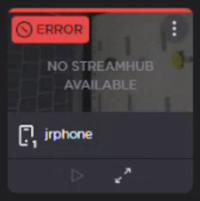
No Automatic Allocation: Hub 360 does not automatically assign a StreamHub to a source. If no booking was previously defined for a source and a live transmission starts, a “No StreamHub Available” error appears within Master Control.
If the group currently contains any StreamHubs, click and hold the
 icon to change the order of the priority of the StreamHubs as desired.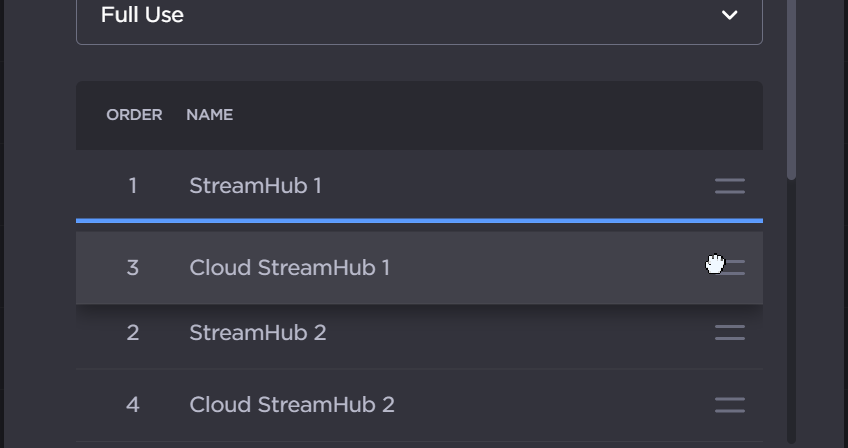
Click the Save button.
For more details of how this operates, see Understanding StreamHub Usage with Automated Routes.