
Appliances Screen
The Appliances screen allows you to manage and control your connected Haivision devices (encoders, decoders, transmitters, and receivers).
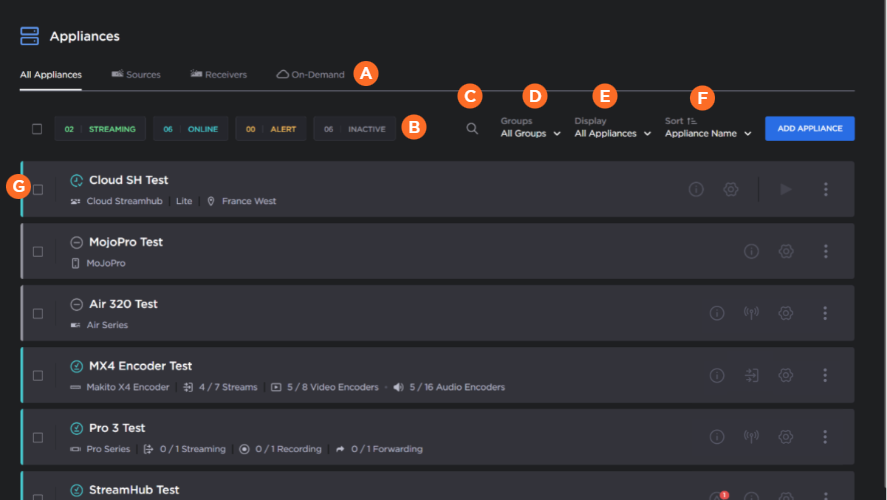
Filtering the Appliance List
To help manage a long list of appliances, there are a variety of options for filtering the list:
| The tabs along the top of the screen allow you to view only the sources, receivers, and cloud appliances in the appliance list. |
| The appliance status buttons (streaming, online, alert, or inactive) can be used to filter the appliance list. |
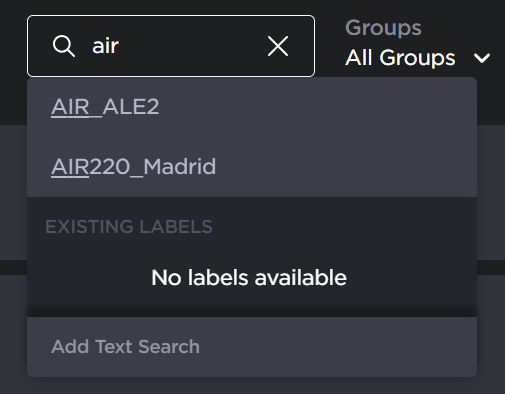
| Clicking the 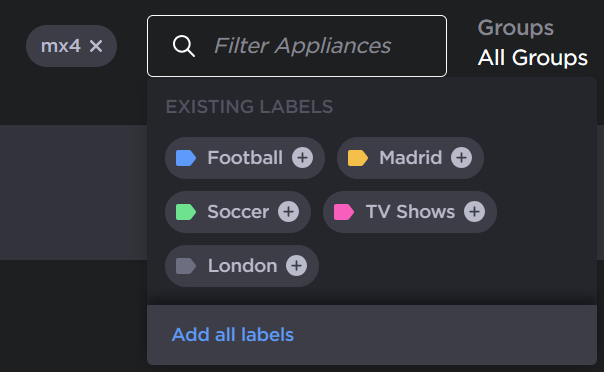 Search Appliances Note
|
| The Groups dropdown allows you to filter the list by the groups to which the appliances are assigned. 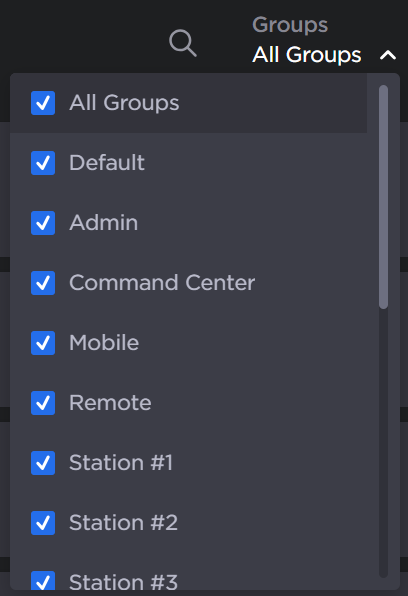 Groups dropdown |
| The Display dropdown allows you to filter the list by the appliance type. 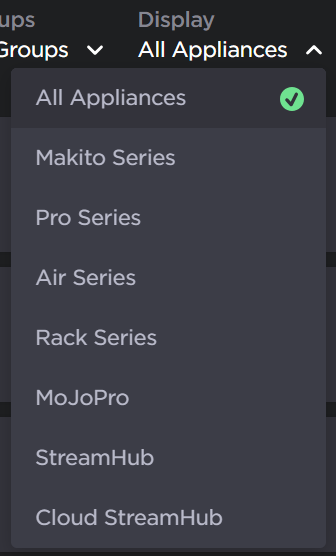 Display dropdown |
| The Sort dropdown allows you to sort the list by appliance name, type, or status. The sort order can also be defined. 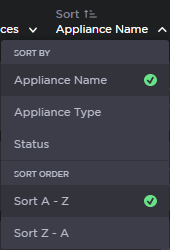 Sort dropdown |
| Each paired appliance is shown in the list. See Viewing and Editing Appliance Details for details about what information appears for the appliances. |




See Managing Your Appliances for more details of using this screen.