
Viewing a Multi-Source Session in the Live Review Player
If the session you are viewing contains multiple sources, the sources not currently playing appear on the source strip at the bottom of the player window. Click the source thumbnails to add them to the player.
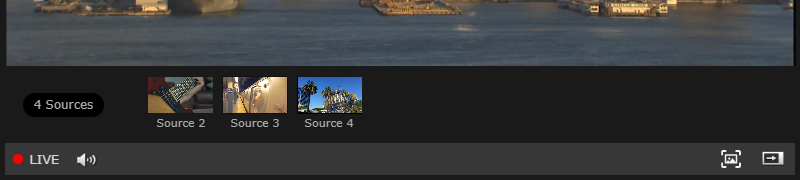
Source Strip
Up to four sources can be added to the player:

Multiple Sources
After adding multiple sources to the player, the following icons are available when hovering over each source:
Click and drag the source's
 icon to arrange the sources in the player.
Click the source's
 icon to remove the source from the player. The source returns to the source strip.
Click the source's
 or
or  icons to mute/unmute the source.
Click the source's
 icon to show the source in full-screen mode. Click the
  icon or the Esc key to exit full-screen mode.

Source icons