
Signing in to Your Server

Important
After the VM starts, it may take up to 5 minutes for all services to launch, the HMP sign-on screen to appear, and sign-on to be possible. Please be patient if sign-on fails initially. Subsequent reboots will be quicker.
Accessing the Web Interface
You need certain information from the Azure portal page to sign in to your server. We suggest opening a separate tab in your browser.
From the deployment complete screen, click Go to resource. (Or click Home > Virtual Machines and click your new instance name.)
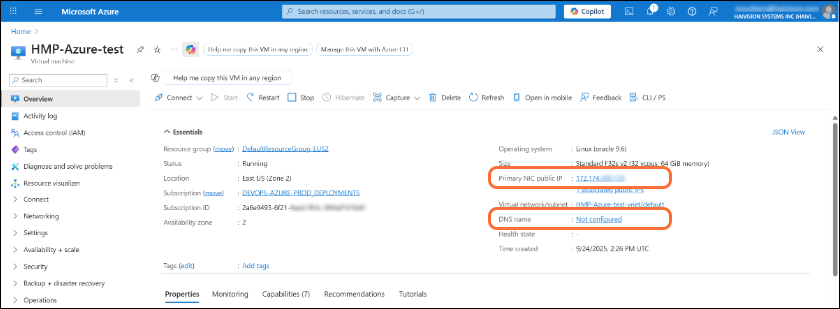
Find and copy the server's Public IP address.

Tip
You may also configure a DNS name for your server. Click Not Configured under DNS name.
In a new browser tab, paste the IP address (or if you configured one, the DNS name) into the URL address bar. A message may appear warning that the connection to the server is untrusted. This is normal, and you can safely continue. The sign-in screen of your server appears.
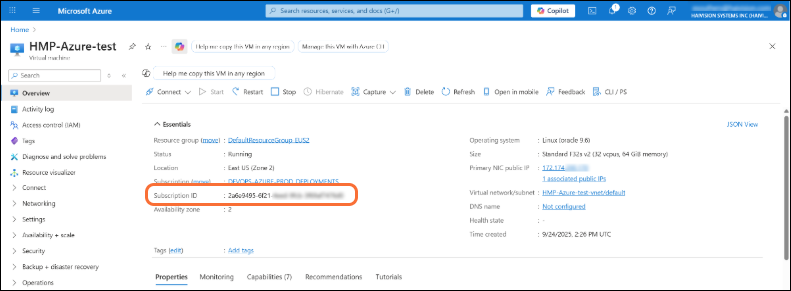
In the Azure portal browser tab, find and copy the server's Subscription ID. On first start up of your server, the Subscription ID is the password for signing into the web interface.
In the HMP browser tab, enter
haiadminas the User Name, and paste the Subscription ID in the Password field.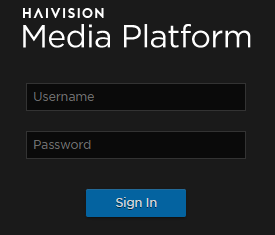
Tip
The Subscription ID is the initial password for all user accounts.
You can now start configuring your system. However, some essential functionality requires a license (creating video sources, recordings, connecting to an SSO server, etc.). See Licensing Your Server to obtain a license.
Accessing the Server via SSH
You can log in to virtual server's Secure Shell (SSH) by using the key that was downloaded when the virtual server was created. See the "Basics" heading in Setting Up Your Server.

Note
The Console UI is not available for HMP Cloud instances.
In a terminal window, enter the following command:
ssh -i <private-key.pem> hvroot@<public-ip-address>
The shell appears.

Azure SSH