
Signing in to Your Server

Important
After the VM starts, it may take up to 3 minutes for all services to launch, the HMG/HSG sign-on screen to appear, and sign-on to be possible. Please be patient if sign-on fails initially.
Accessing the Web Interface

Note
Internet Explorer is no longer supported. We recommend using Microsoft Edge or Google Chrome.
You need certain information from the Azure portal page to sign in to your server. We suggest opening a separate tab in your browser.
In the Azure portal browser tab, click the
 icon and click Home.
Click Virtual Machines.
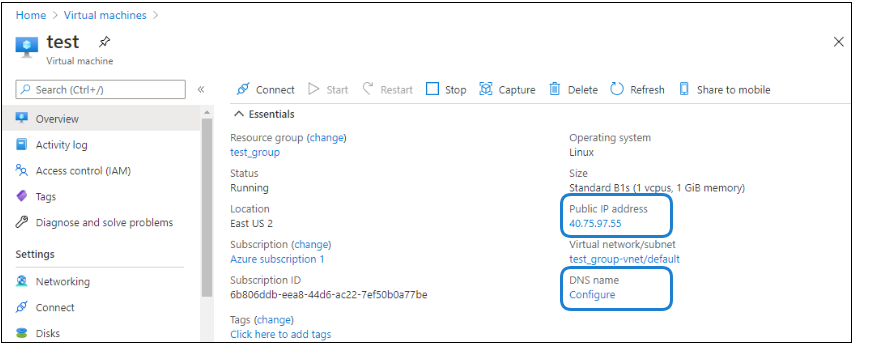
Click on the Media Gateway/SRT Gateway virtual machine resource. Find and copy the server's Public IP address.

Tip
You may also configure a DNS name for your server. Click Configure under DNS name.
In a new browser tab, paste the IP address (or if you configured one, the DNS name) into the URL address bar. A message may appear warning that the connection to the server is untrusted. This is normal, and you can safely continue. The sign-in screen of your server appears.
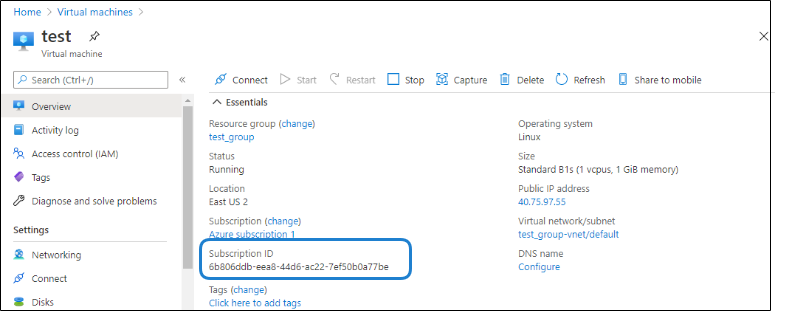
In the Azure portal browser tab, find and copy the server's Subscription ID. On first start up of your server, the Subscription ID is the password for signing into the web interface.
In the Gateway browser tab, enter haiadmin as the User Name, and paste the Subscription ID in the Password field.
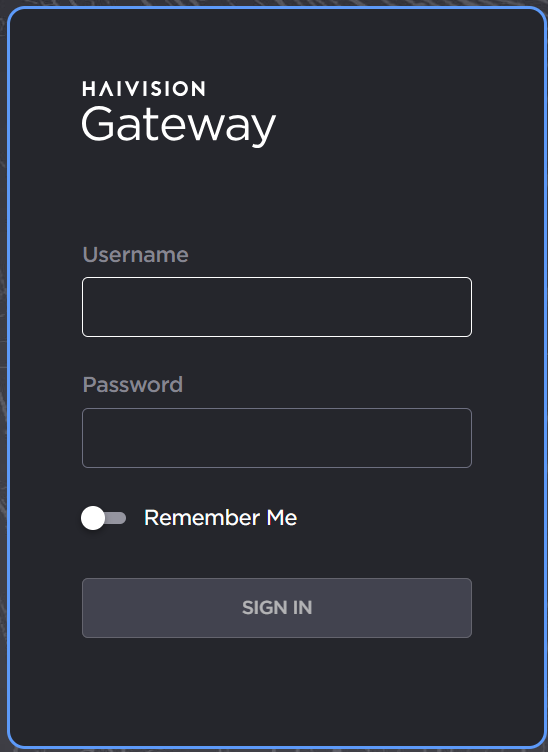
Media Gateway sign in screen
Tip
The Subscription ID is the initial password for all user accounts.
Click the Sign In button. A License Required modal appears. See Licensing Your Server to obtain a license.
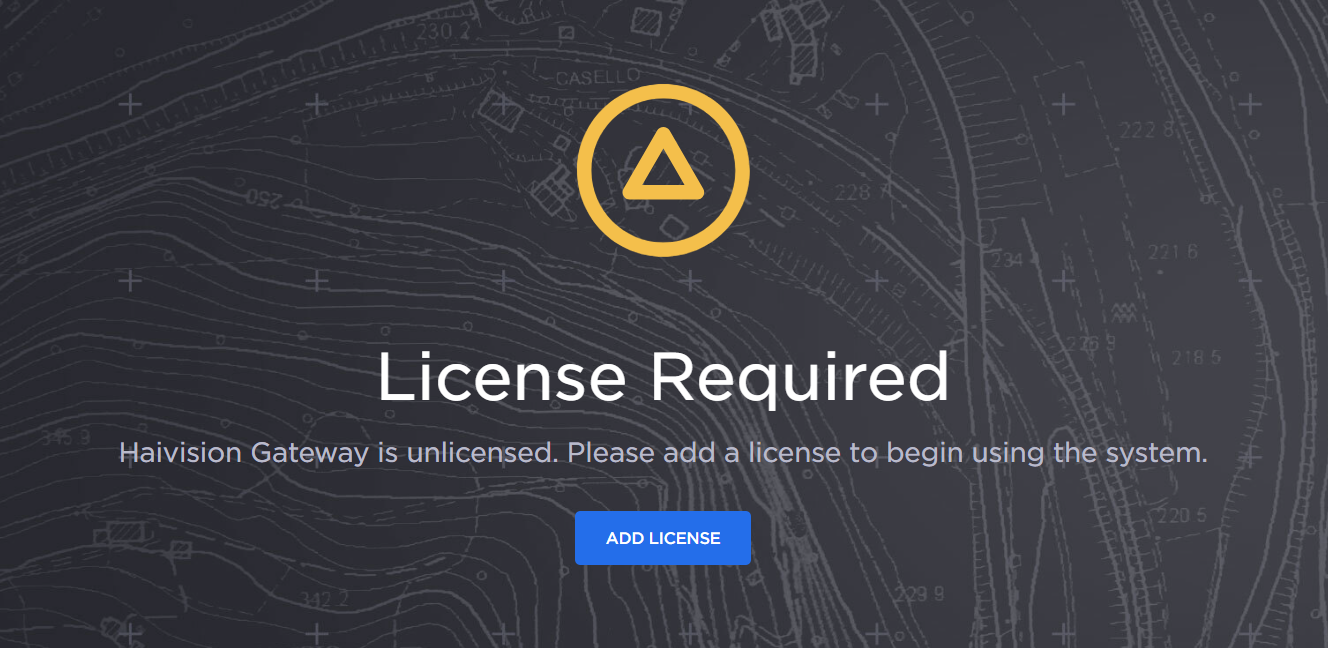
Add License
Accessing the Server via SSH
You can log in to virtual server's Secure Shell (SSH) by using the key that was downloaded when the virtual server was created. See the "Basics" heading in Setting Up Your Server.
Note
The Console UI is no longer available for Gateway Cloud instances.
In a terminal window, enter the following command:
ssh -i <private-key_rsa> hvroot@<public-ip-address>
The shell appears.
