
Signing in to Your Hyper-V VM

Important
After the VM starts, it may take up to 3 minutes for all services to launch, the Gateway sign-on screen to appear, and sign-on to be possible. Please be patient if sign-on fails initially.
Accessing the Web Interface

Note
Internet Explorer is no longer supported. We recommend using Microsoft Edge or Google Chrome.
Open a new tab in your browser and enter the IP address you noted in Creating a Hyper-V VM from VHDX Disks.
The sign in screen appears. Sign in using one of the credentials provided on the Important Notice included with your device.
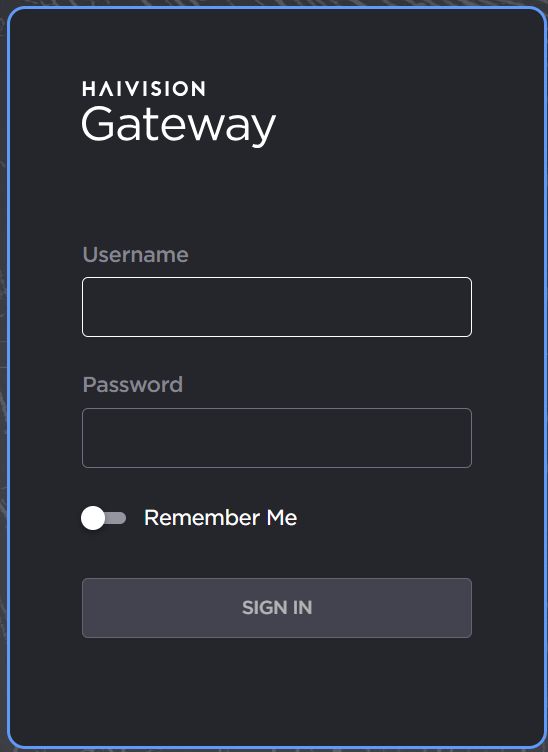
Sign In
When first signing in with an account, you are required to change the default password. Complete the inputs and click the Change button.
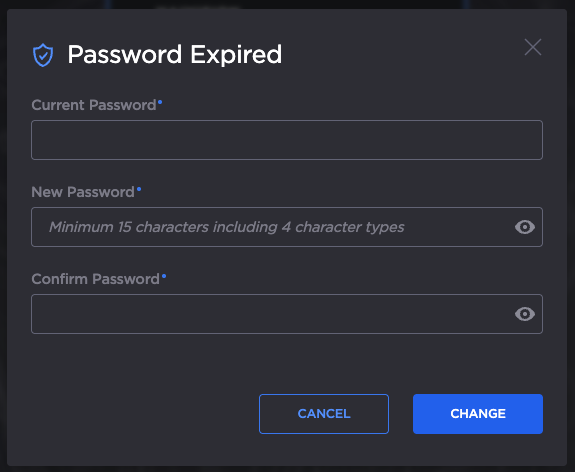
Expired Password
Click the Sign In button. A License Required modal appears. See Licensing the Hyper-V VM to obtain a license.
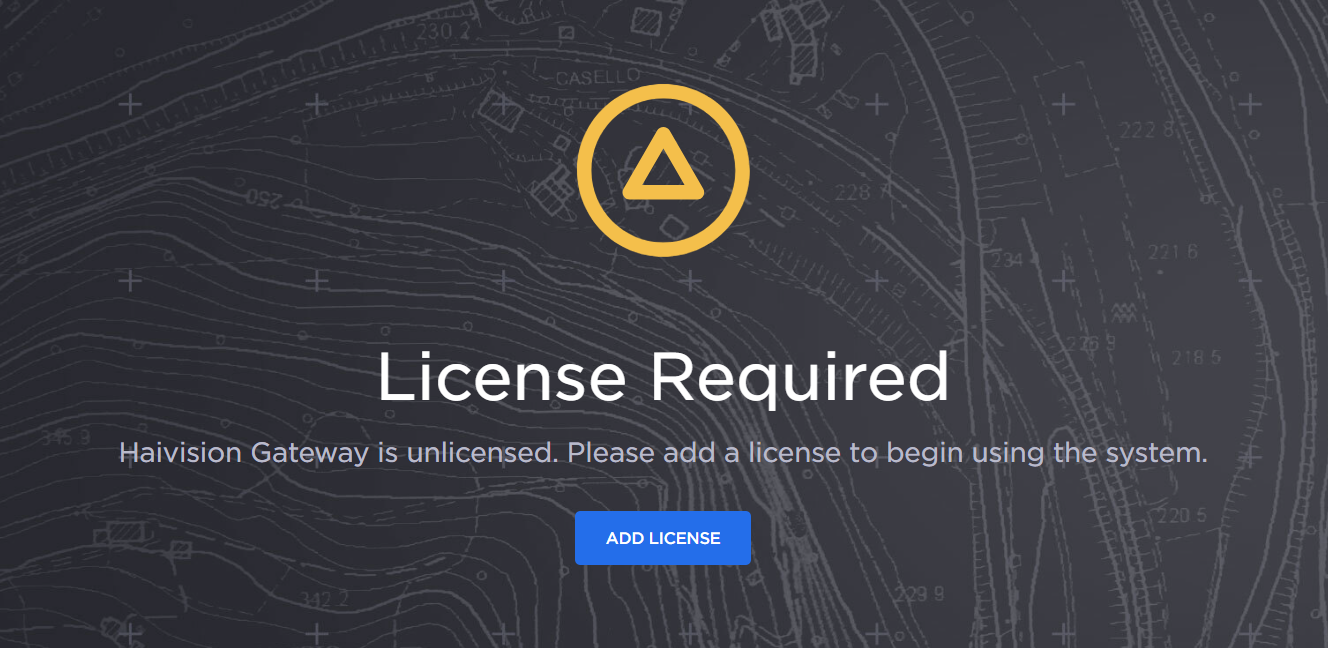
Add license