
Generating and Importing a Private Key
Generating a Private Key
To generate a private key:
In the bottom of the sidebar, click
 >
>  Security.
Click Certificates in the navigation toolbar.
Click the Generate button.
On the Generate Certificate dialog:
For the Type, select Self-Signed.
Type in a name for the certificate.
Enable the Create New Private Key toggle.
Fill in the remaining fields. See Certificate Settings.
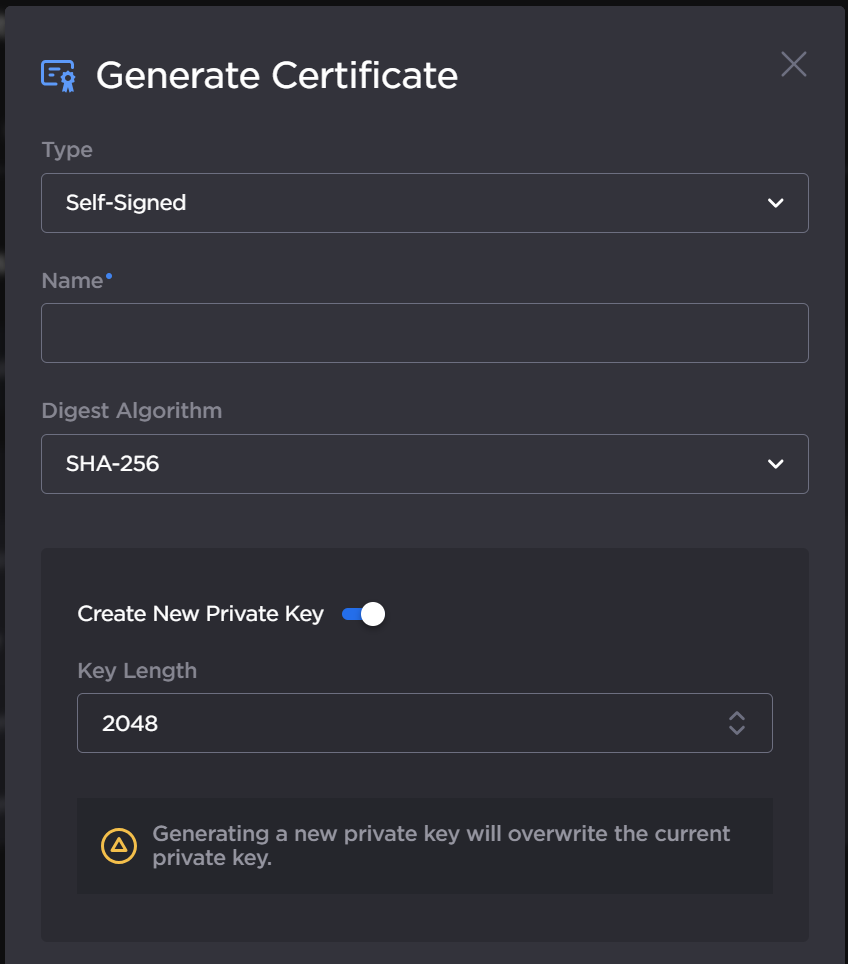
Generate Private Key Dialog
Click the Generate button.
In the Certificates page, the newly imported certificate is added to the list and should have a green status LED. Click in the State column to activate the certificate.
Click the Reboot Gateway link and confirm the reboot in the resulting dialog to reboot your Gateway for the new active certificate to take effect.

Reboot
Importing a Private Key
To import a Private Key:
In the bottom of the sidebar, click
> Security.Click Certificates in the navigation toolbar.
Click the Import button.
On the Import Certificate dialog:
For the Type, select Private Key + Certificate Pair.
Enter the password for the private key.
To update your security certificate, drag and drop or click Browse and select the new Certificate and Private Key, and optionally a Intermediate Certificate Bundle file.
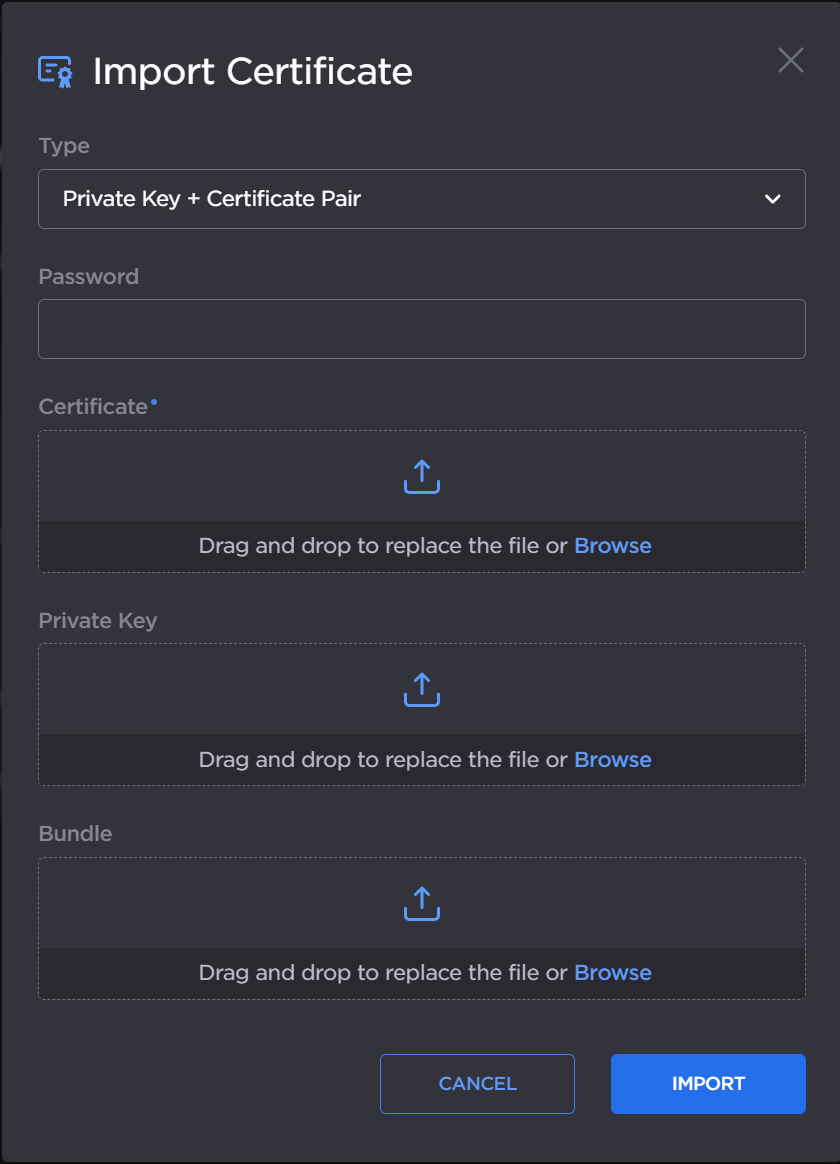
Import Private Key Dialog
Click the Import button
On the Certificates page, the newly imported files are added to the list. Click in the State column to activate the certificate.
Click the Reboot Gateway link and confirm the reboot in the resulting dialog to reboot your Gateway for the new active certificate to take effect.
Reboot