
Adding a License
To add a license:
After signing into the web interface, if you see a License Required dialog, click Add License.
-or-
In the bottom of the sidebar, click >
>  Settings. Then, click Licensing in the navigation toolbar.
The Licensing view pane shows status information for the installed license, including its expiration date, version limit, product edition, and the status of other licensed options, as shown below:
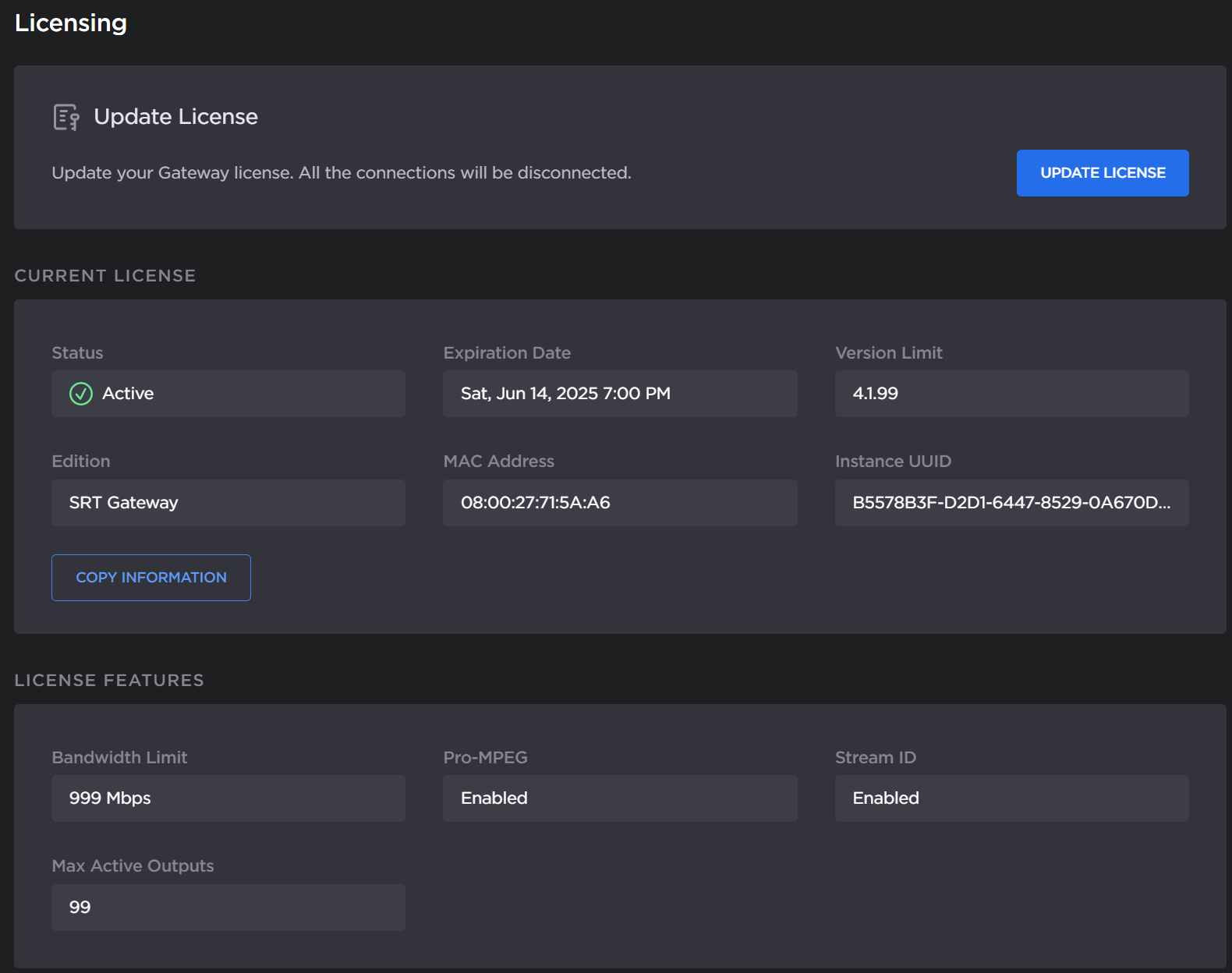
License screen
At the bottom of the screen, click the Copy Information button to copy your hardware details to the clipboard.
To request a license for your product:
Log in to the Haivision Support Portal.
After logging in, click License Requests.
Click the New button.
Select the appropriate device type and click the Next button.
Fill in the form with the appropriate information, and click Save.
Your license request is submitted and you will be contacted by a Haivision representative shortly with a license key for your product.
After you receive a license key, click the Update License button to load the license.
Drag and drop or click Browse and select the license key file.
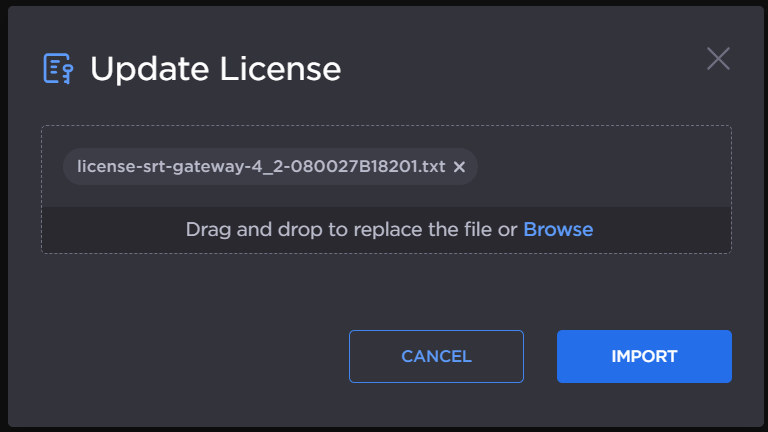
Update License
Click the Import button.
The License Status is updated to show the new license information.
Related Topics