
Signing in to Your Proxmox VM

Important
After the VM starts, it may take up to 3 minutes for all services to launch, the HMG/HSG sign-on screen to appear, and sign-on to be possible. Please be patient if sign-on fails initially.
Accessing the Web Interface

Note
Internet Explorer is no longer supported. We recommend using Microsoft Edge or Google Chrome.
Open a new tab in your browser and enter the IP address you noted in Creating a Proxmox VM from an OVA.
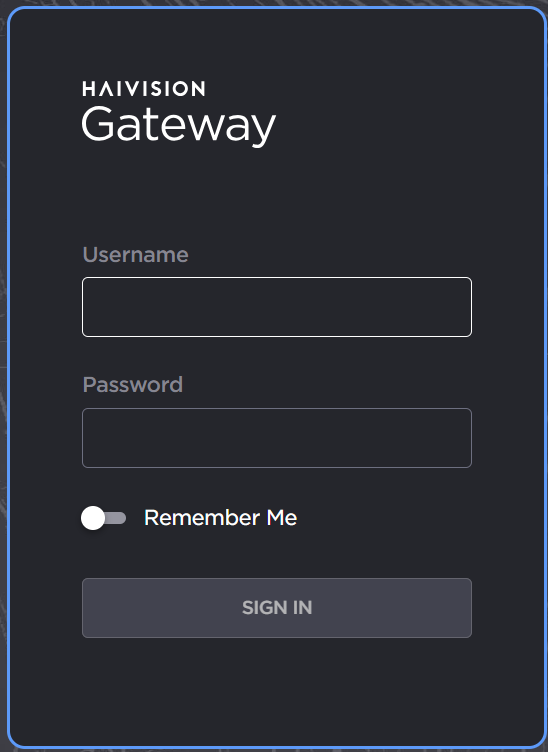
The sign in screen appears. Sign in using one of the credentials provided on the Important Notice included with your device.
Click the Sign In button. A License Required modal appears. See Licensing the Proxmox VM to obtain a license.