
Generating and Importing a Private Key
Generating a Private Key
To generate a private key:
In the side menu under Administration, click System Settings.
Click Certificates in the navigation toolbar.
Click the Generate button.
On the Generate Certificate or Private Key dialog:
Type in a name for the certificate.
For the Type, select Self-Signed.
Check the Create New Private Key checkbox.
Fill in the remaining fields. See Certificate Settings.
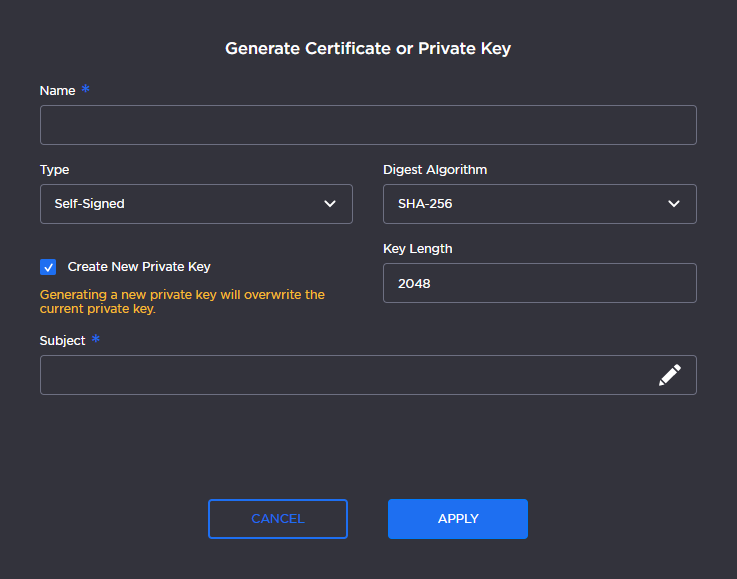
Generate Private Key Dialog
Click the Apply button.
In the Certificates page, the newly imported certificate is added to the list and should have a green status LED. Click in the Active column to activate the certificate.
Click Reboot.
Importing a Private Key
To import a Private Key:
In the side menu under Administration, click System Settings.
Click Certificates in the navigation toolbar.
Click the Import button.
On the Import Certificate or Private Key dialog:
For the Type, select Private Key + Certificate Pair.
Enter the password for the private key.
To update your security certificate, drag and drop or click Browse and select the new Certificate and Private Key, and optionally a Intermediate Certificate Bundle file.
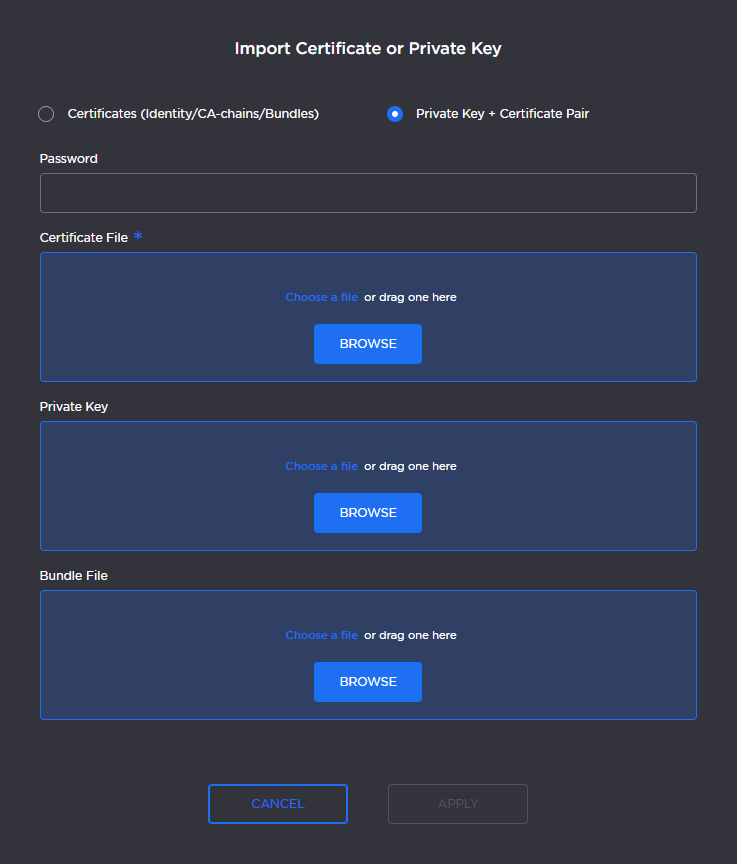
Import Private Key Dialog
Click the Apply button
On the Certificates page, the newly imported files are added to the list. Click in the Active column to activate the certificate.
Click Reboot.