
Managing Device Licenses
To license a paired device through EMS:
Click the checkbox next to the device you wish to license.
Click Actions and select Get Serial Numbers to generate a .CSV file containing the device serial number.
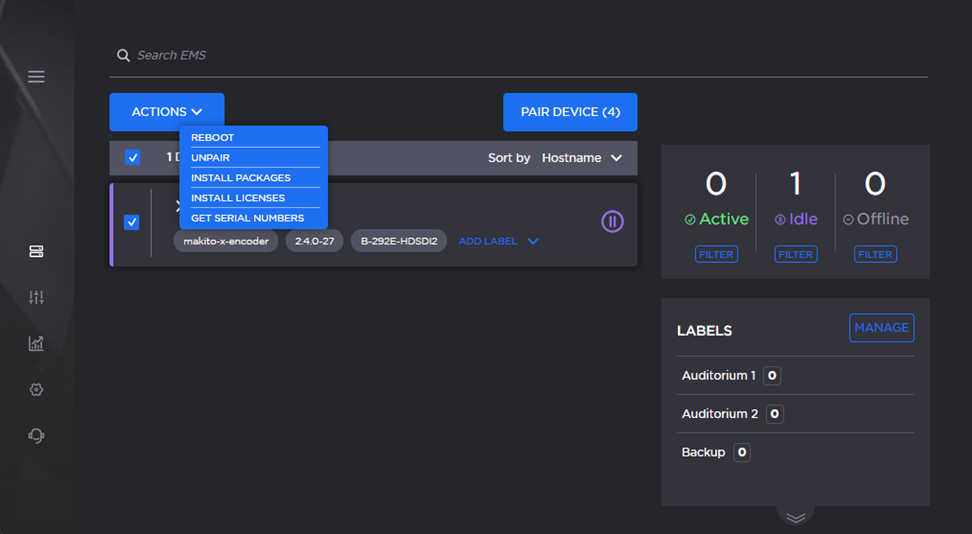
Device Actions Menu
Follow the link to the Support Portal and sign in with your Haivision account.
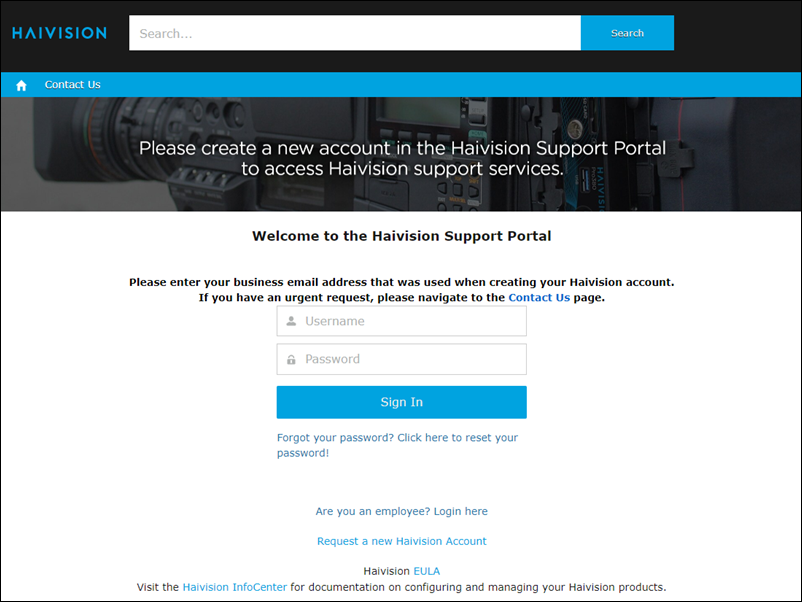
Haivision Support Portal Login Screen
Upload the generated .CSV file and complete the steps for requesting a valid license. Once you have obtained a valid license file, it can be uploaded to EMS for deployment.
In the side menu under Devices, click Files.
Select Licenses from the navigation toolbar.
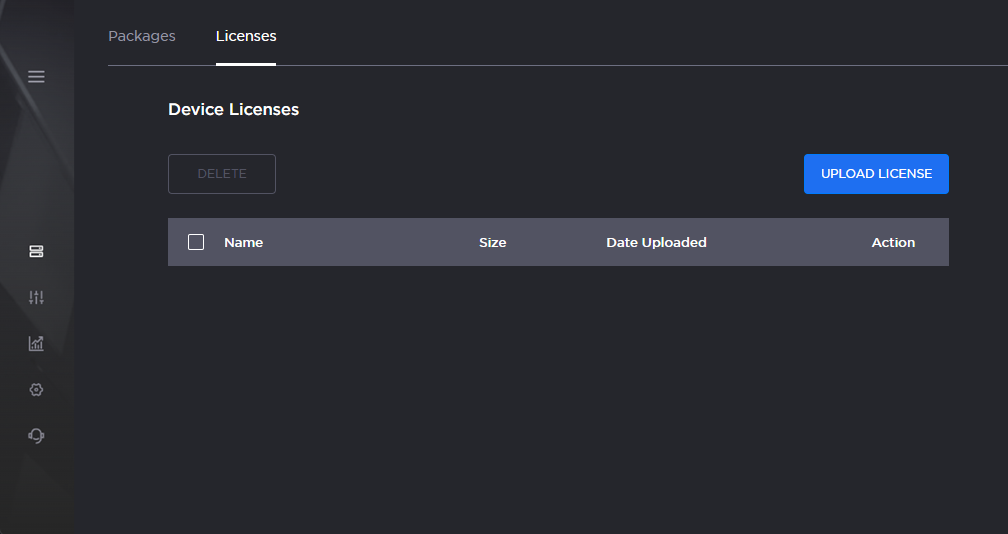
Licenses Pane
Click Upload License. The license repository opens.
Click Browse and select the desired license file or drag and drop the file onto the highlighted area.
Click Upload. Once uploaded, the license is available for deployment.
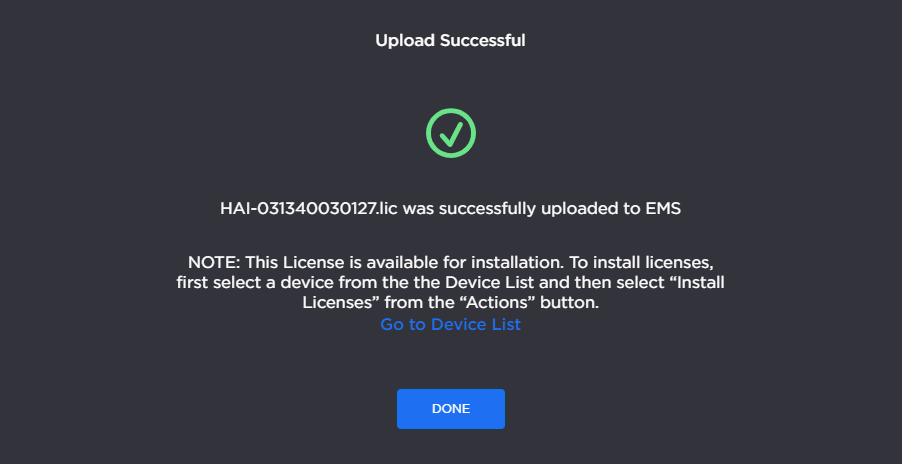
License Upload Success Message
Click Go to Device List to return to the Devices screen.
Click the checkbox next to the device(s) you wish to license.

Note
In order to be licensed, a device must be online. When licensing multiple devices at once, EMS ignores any offline devices.
Click Actions.
From the drop-down menu, select Install Licenses.
Select the desired license from the license repository and click Next.
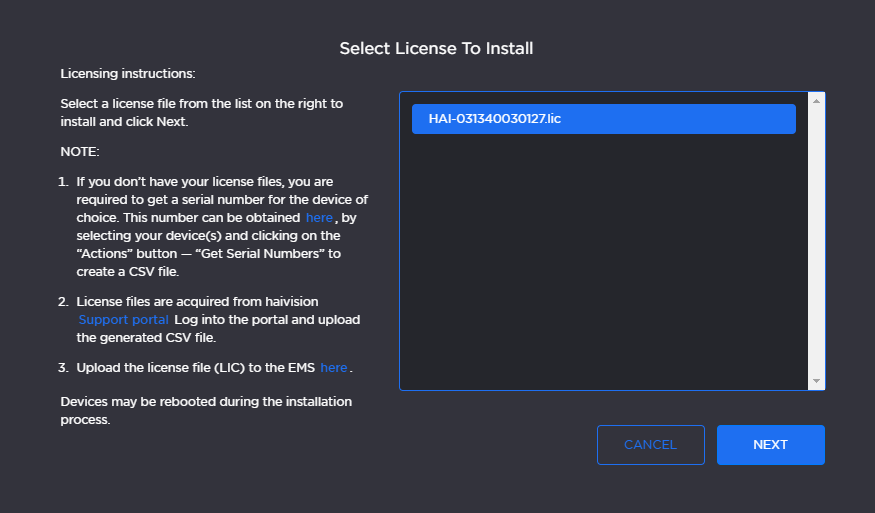
License Selection Window
Confirm the correct device and license are selected and click Start Deployment.
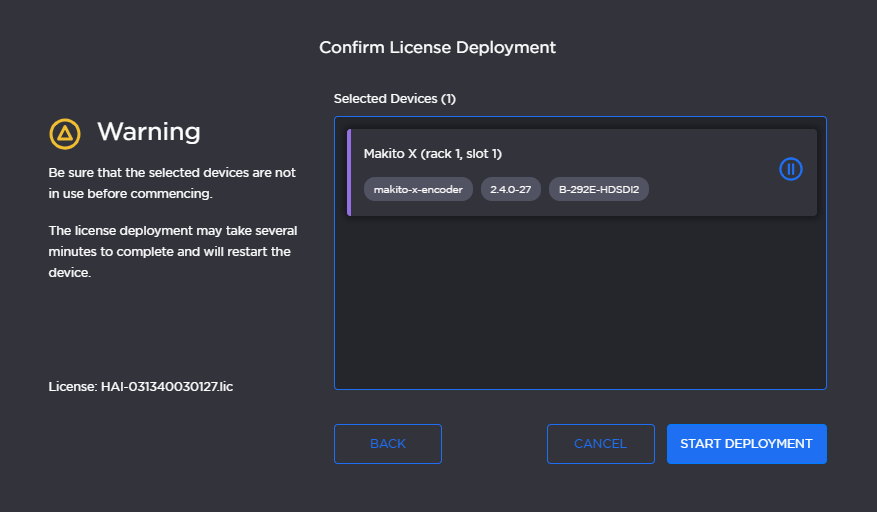
License Deployment Confirmation
The device will restart once the license has been deployed.