Updating the 8115 SBC BIOS

Important
Before continuing, please note:
Do not attempt an upgrade without direct instructions and support from Haivision.
Any currently installed systems (Windows, CineNet/Command 360) on system SSDs will be rendered inoperable following this update. A reinstall of the Windows environment and subsequent software (Command 360) is required. Do not proceed without the appropriate tools to reinstall the Windows environment and Command 360.
Upgrading the 8115 SBC BIOS
To upgrade the SBC BIOS:
Power down the system.
Remove the SSD and/or any other bootable material.
Insert the USB flash drive containing SBC BIOS files.
Boot the system with only this flash drive connected.
The first time the system boots into shell, you will not see the required drive. Press Ctrl+Alt+Del to reboot.
While the system is rebooting, switch the flash drive to the other USB port on the SBC.

Note
If other file systems are connected, the USB flash drive may be fs1: or fs2:
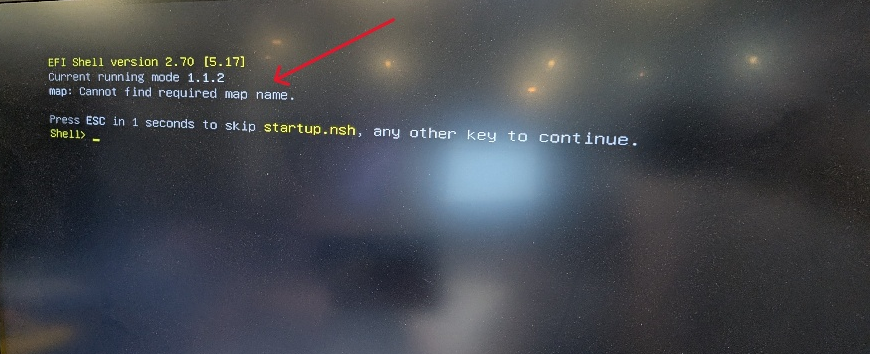
At the PowerShell prompt, type
fs0:and press ENTER.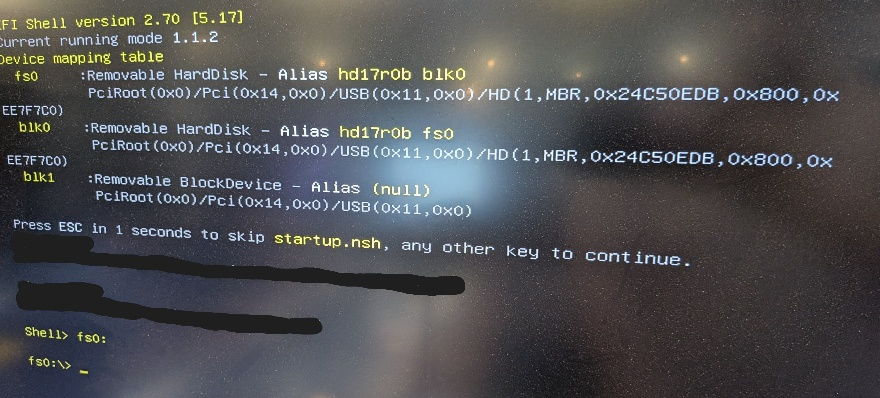
Type
dirin the prompt and press ENTER. A directory listing the contents of the drive appears.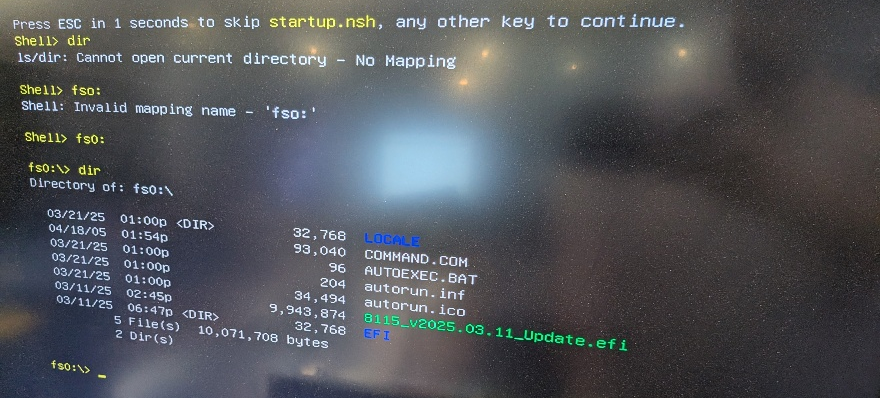
Type 8 and then press Tab to select the BIOS file.
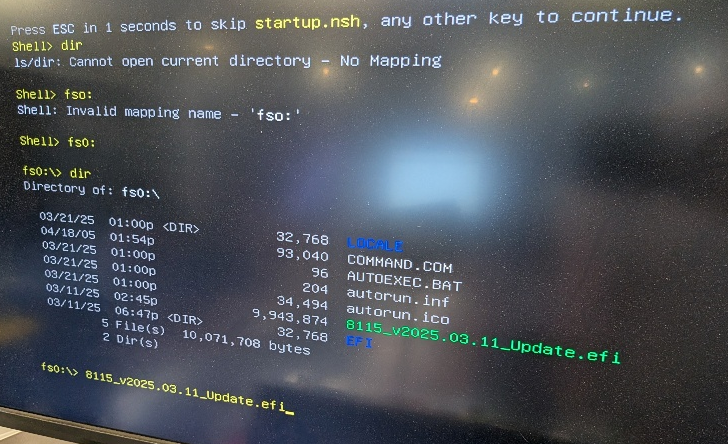
Press Enter. The BIOS flash runs.
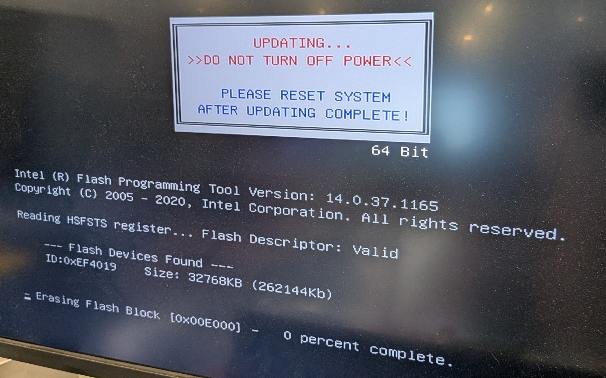
Once complete, the system boots back into shell and tells you the update was successful. The splash screen should now be a white Haivision logo.