Room Devices
To add a device to a room:
Click the user account icon in the top right corner and click Admin.
On the side menu, click Rooms.
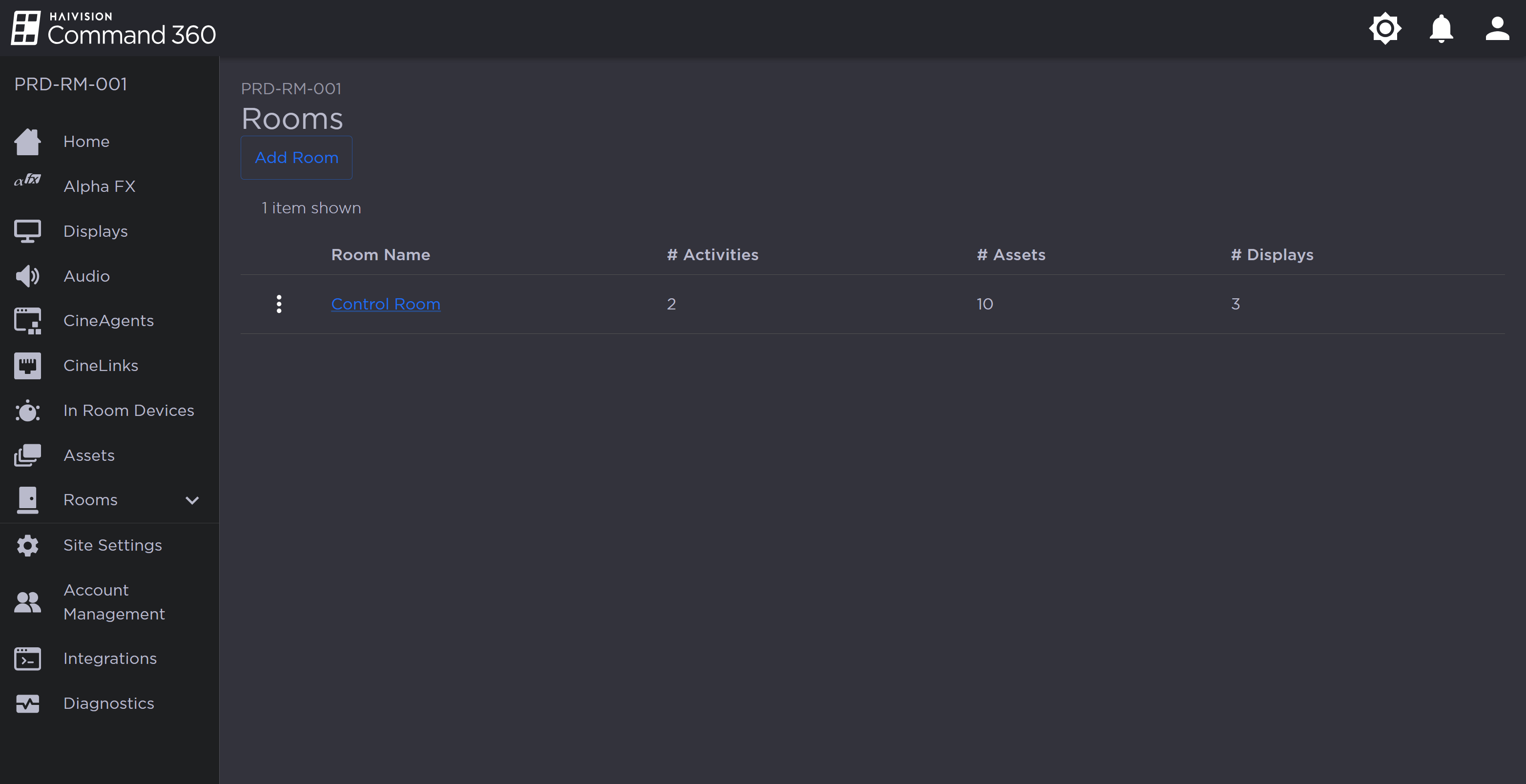
Rooms Page
Click a Room name from the summary table or on the side menu.
Click the
 icon on the In Room Devices resource.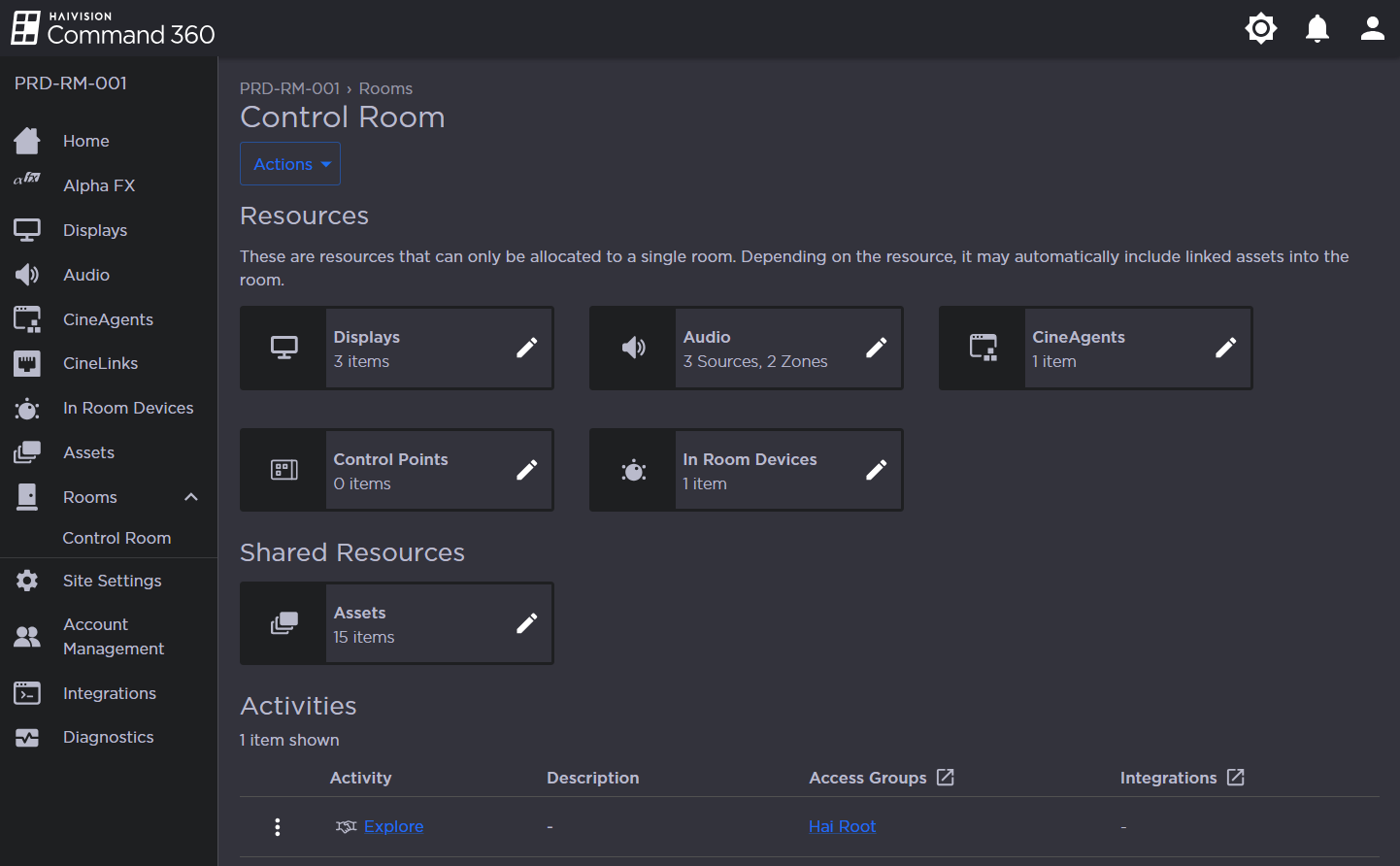
Under the Not in Room column, click the checkbox next to the device you wish to add.
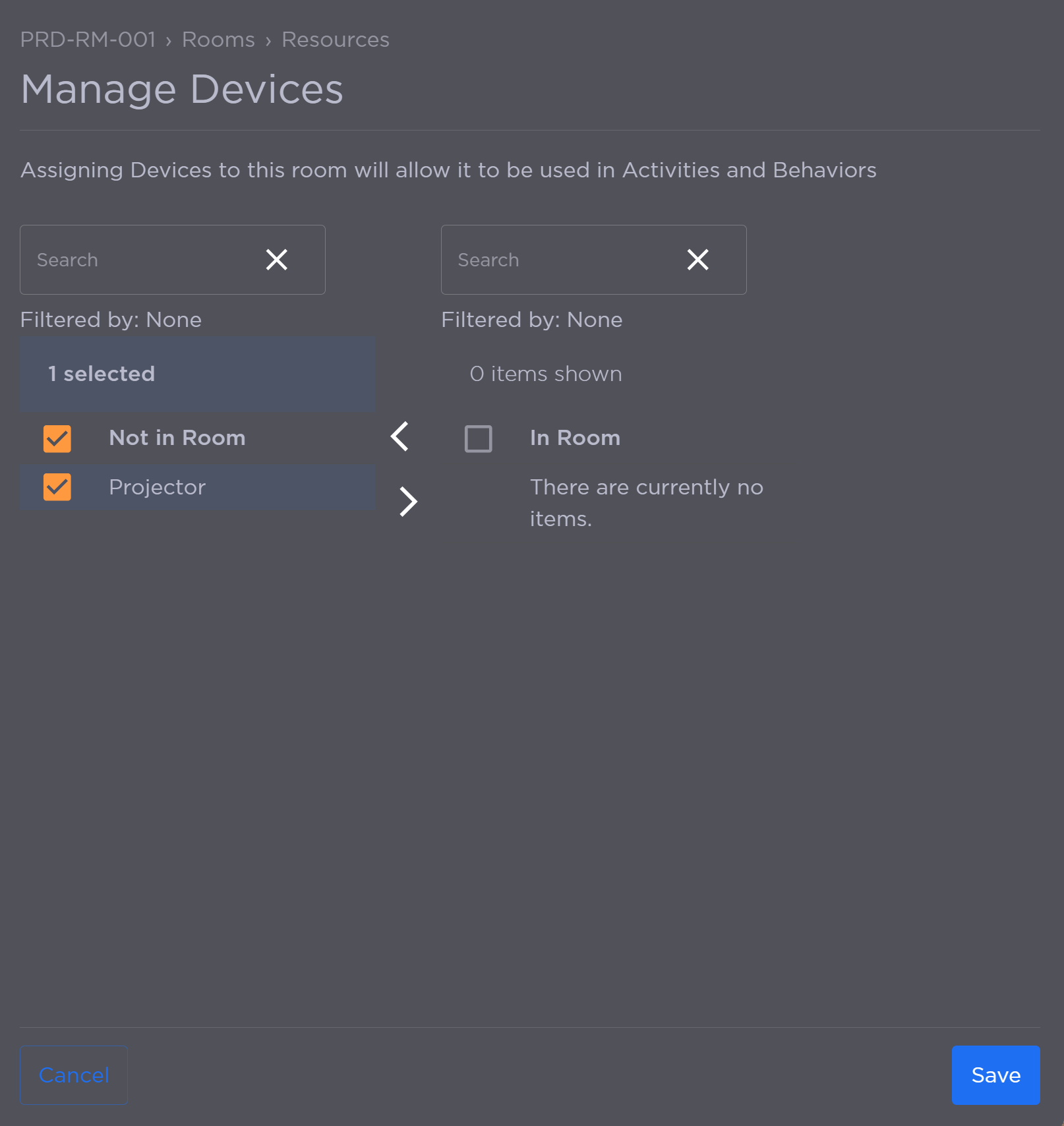
Click the
 icon to add the device(s) to the In Room column.
Click Save.
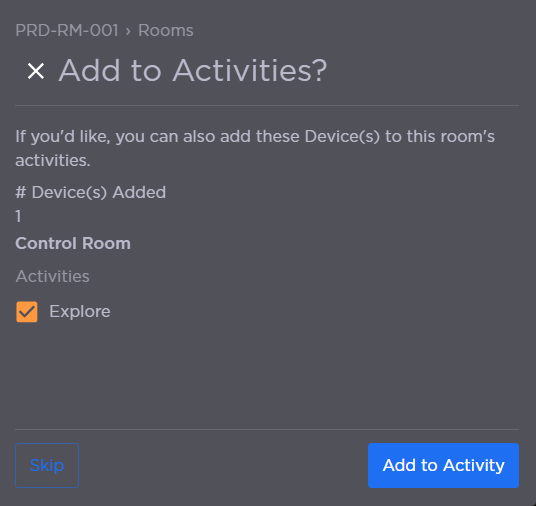
If Activities exist and are already associated with the room, the option appears to add the display to an Activity. If desired, check the box for the Activity and click Add to Activity. Otherwise, click Skip.