
Properties
The Asset Properties button becomes available in the Activity Interface after entering the Modify Asset view. Use the Attributes toggles to edit the asset's appearance on the display.
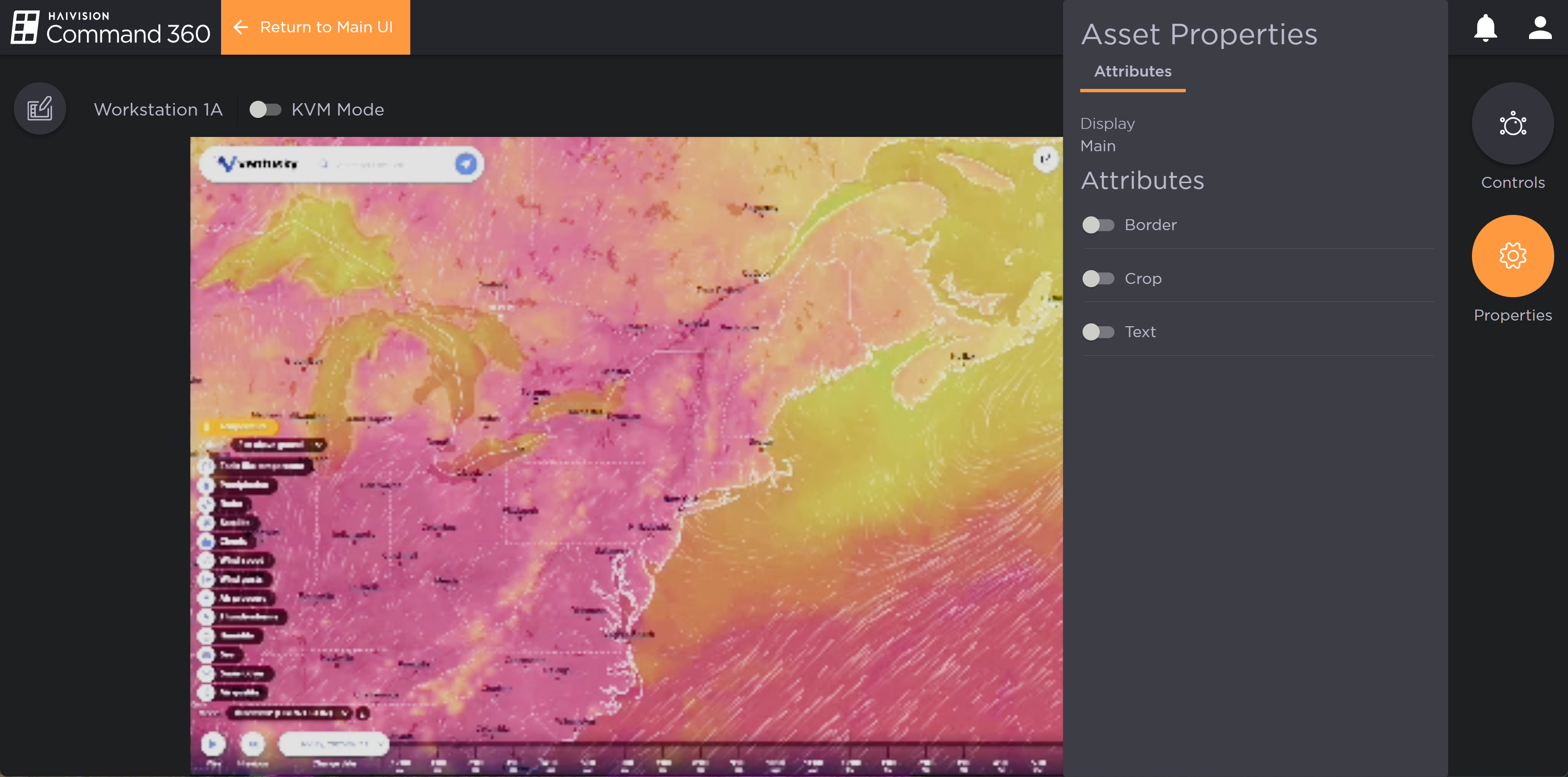
Browser Asset Properties
Attributes
Asset Attributes, designated within the Properties window of the asset, allow users to add a border, crop content, and add text.
To edit asset attributes:
Drag and drop an asset from the asset tray onto the display.
Click on the asset. An orange border appears around the selected asset.
Click the
 icon > Modify Asset.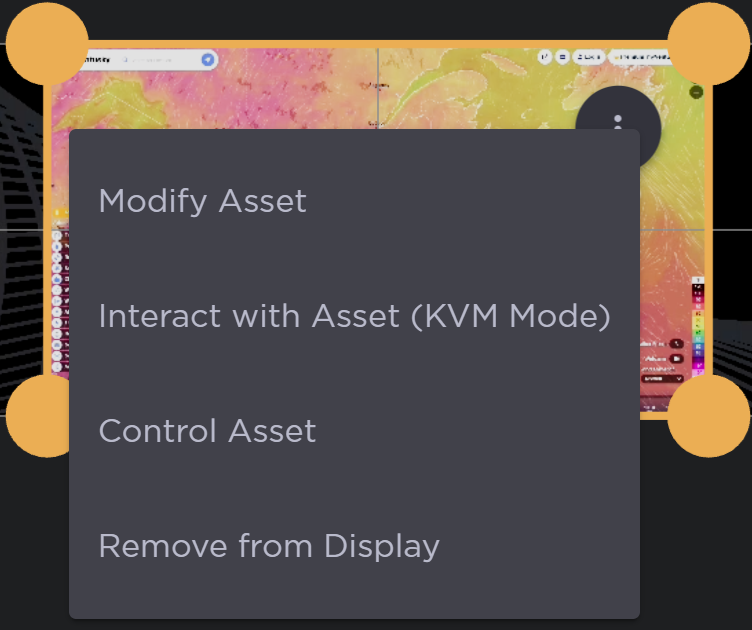
Browser Asset Options
Click the Properties button to the right of the asset.
Browser Asset Properties
Under Attributes, click the toggle of the attribute you wish to enable. See the sections below for instructions on enabling and editing attributes.
Add Border
Click the Border toggle button to enable modifications.
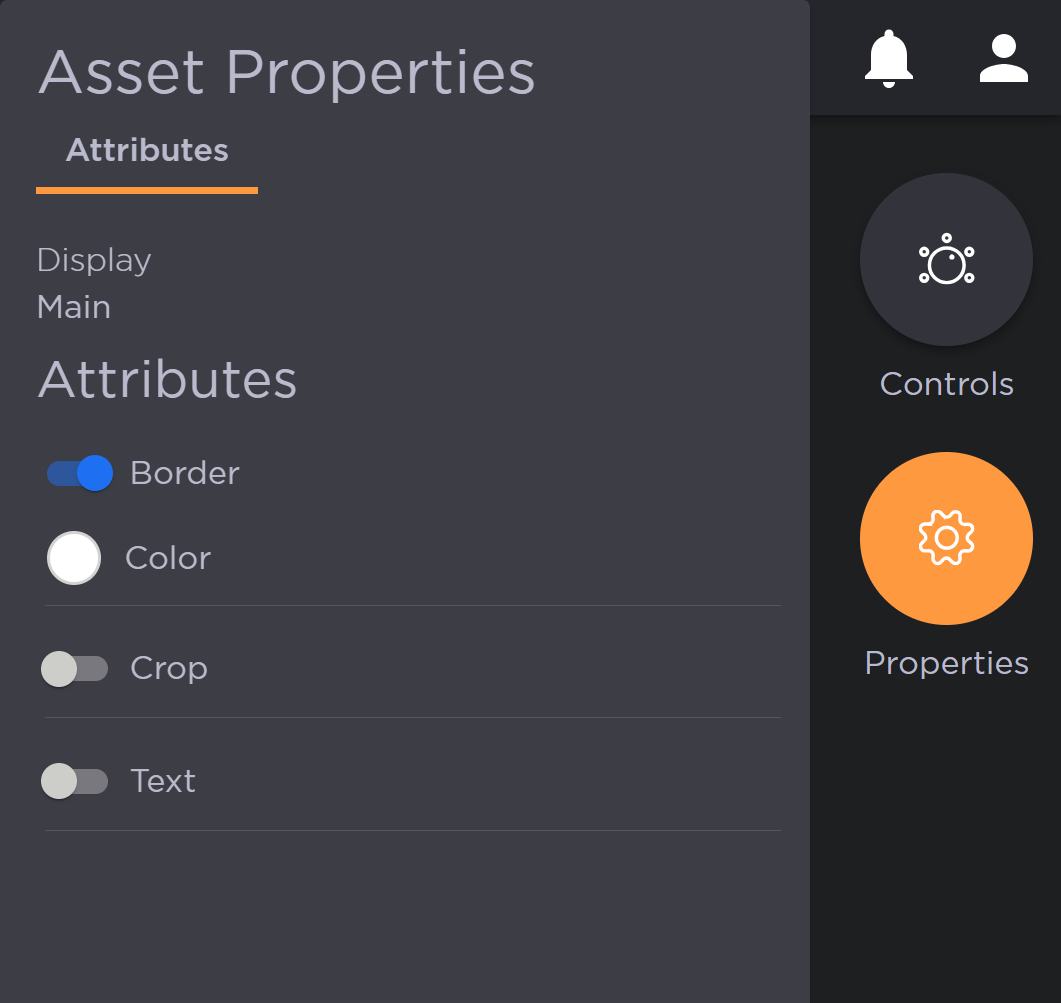
Border Toggle and Color
Click the Color indicator beneath the toggle. Select a color.
Click anywhere outside of the Properties panel, then click Return to Main UI.
The border now appears around the asset on the display.
Crop Content
Click the Crop toggle button to expand cropping options.
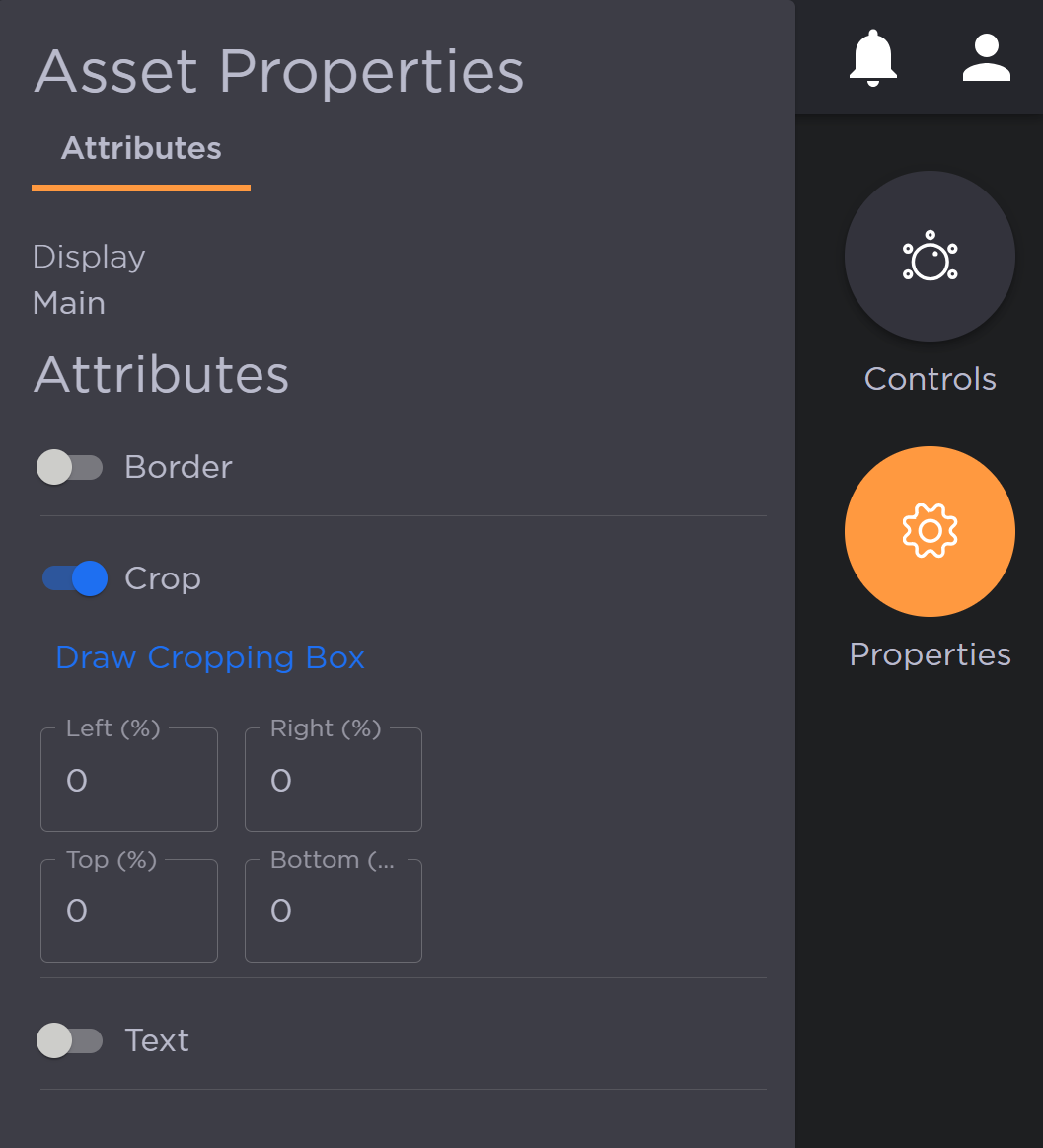
Default Crop Options
Select Draw Cropping Box to draw a free-hand square or rectangular box, that when cropped, displays the content inside the box on the canvas. The attributes window closes so the cropped image is fully visible.
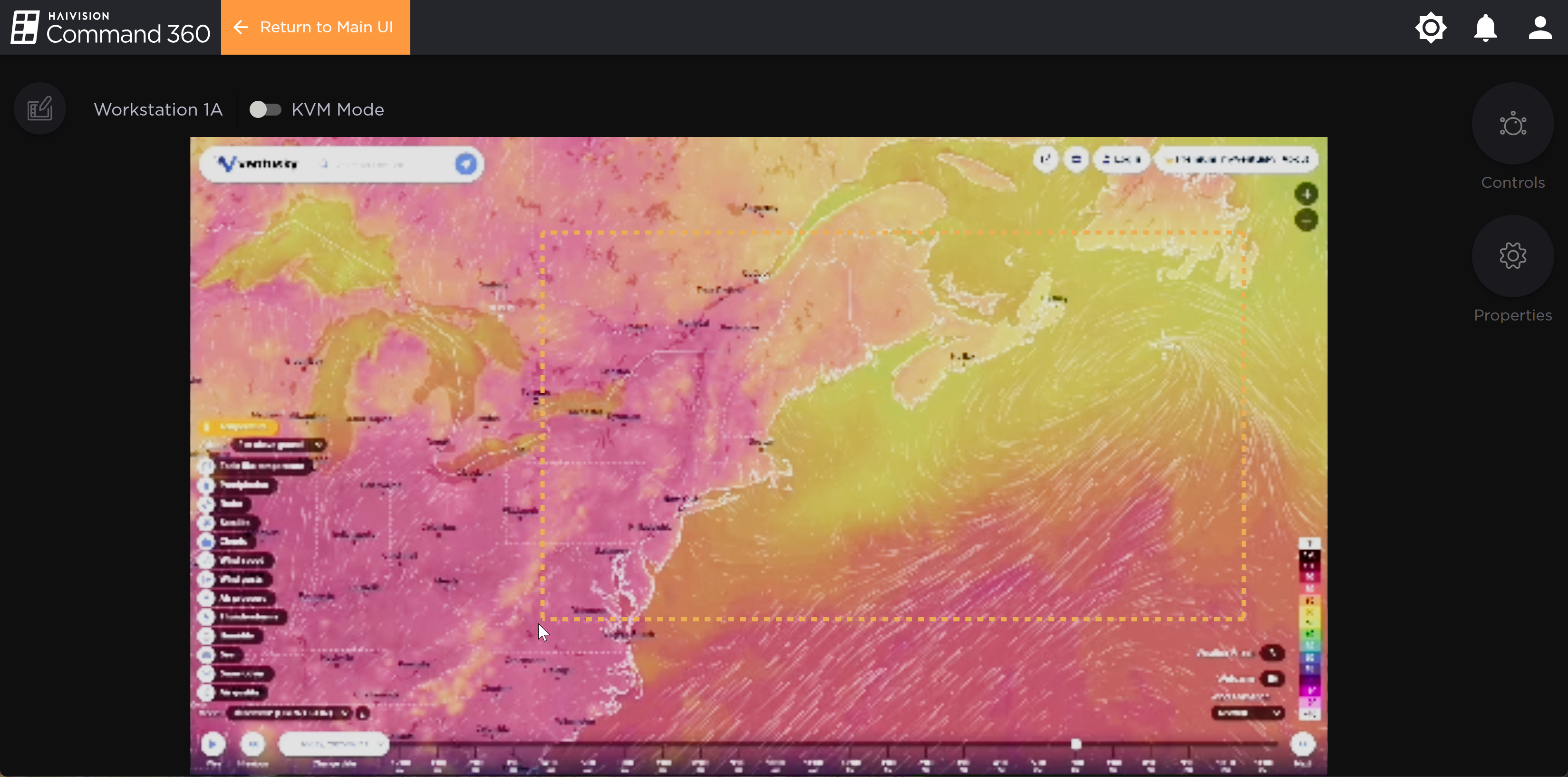
Crop Area on Browser Asset
If unsatisfied with the results, click on the Properties button again and click Reset Cropping.
Note that after the cropping, the Left/Right and Top/Bottom percentages are populated. These can be manually entered in lieu of the draw cropping option.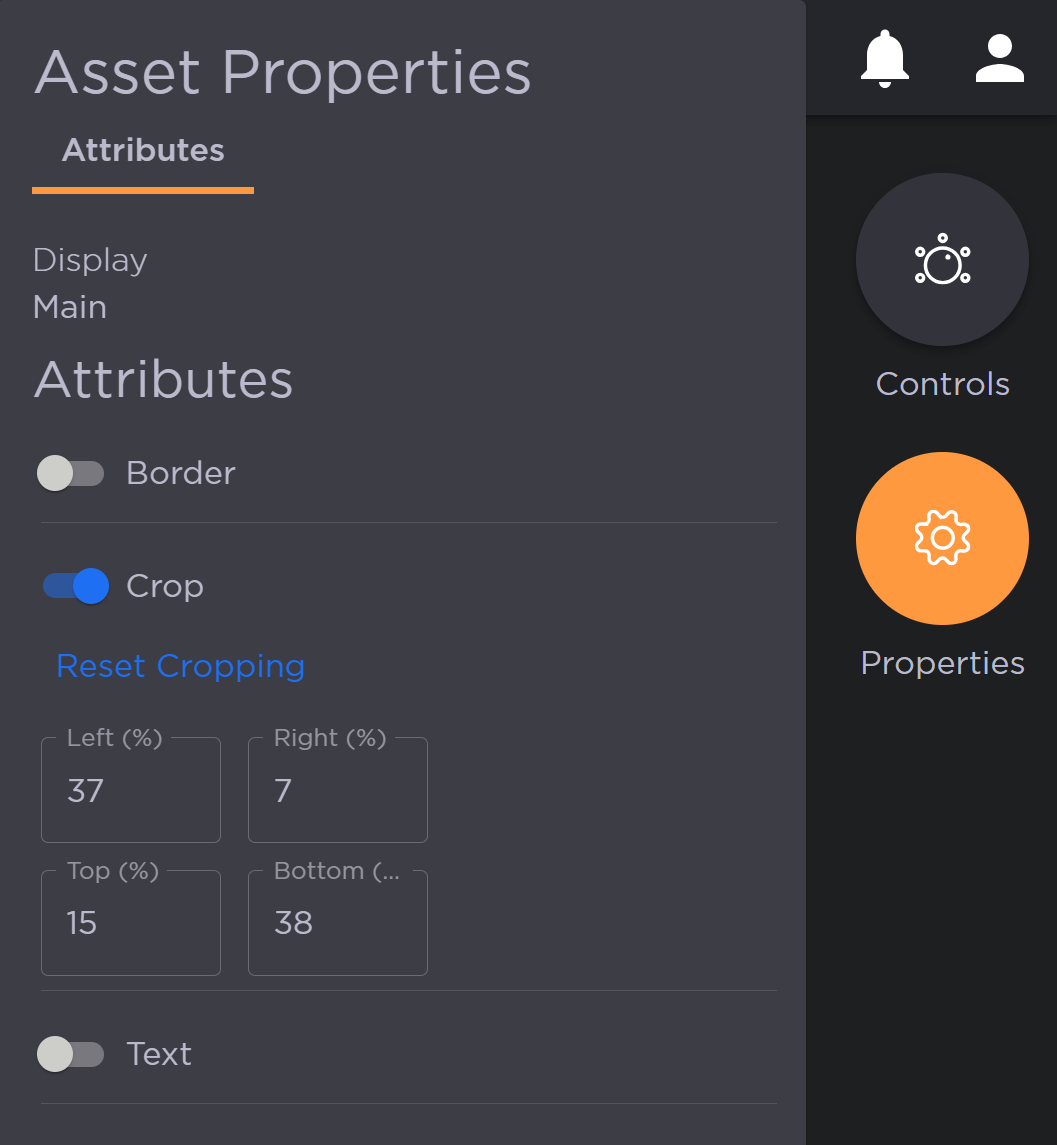
Crop Text Fields
3. Click anywhere outside of the Asset properties window, then click Return to Main UI.
Add Text
To add text:
Click the Text toggle to expand text options.
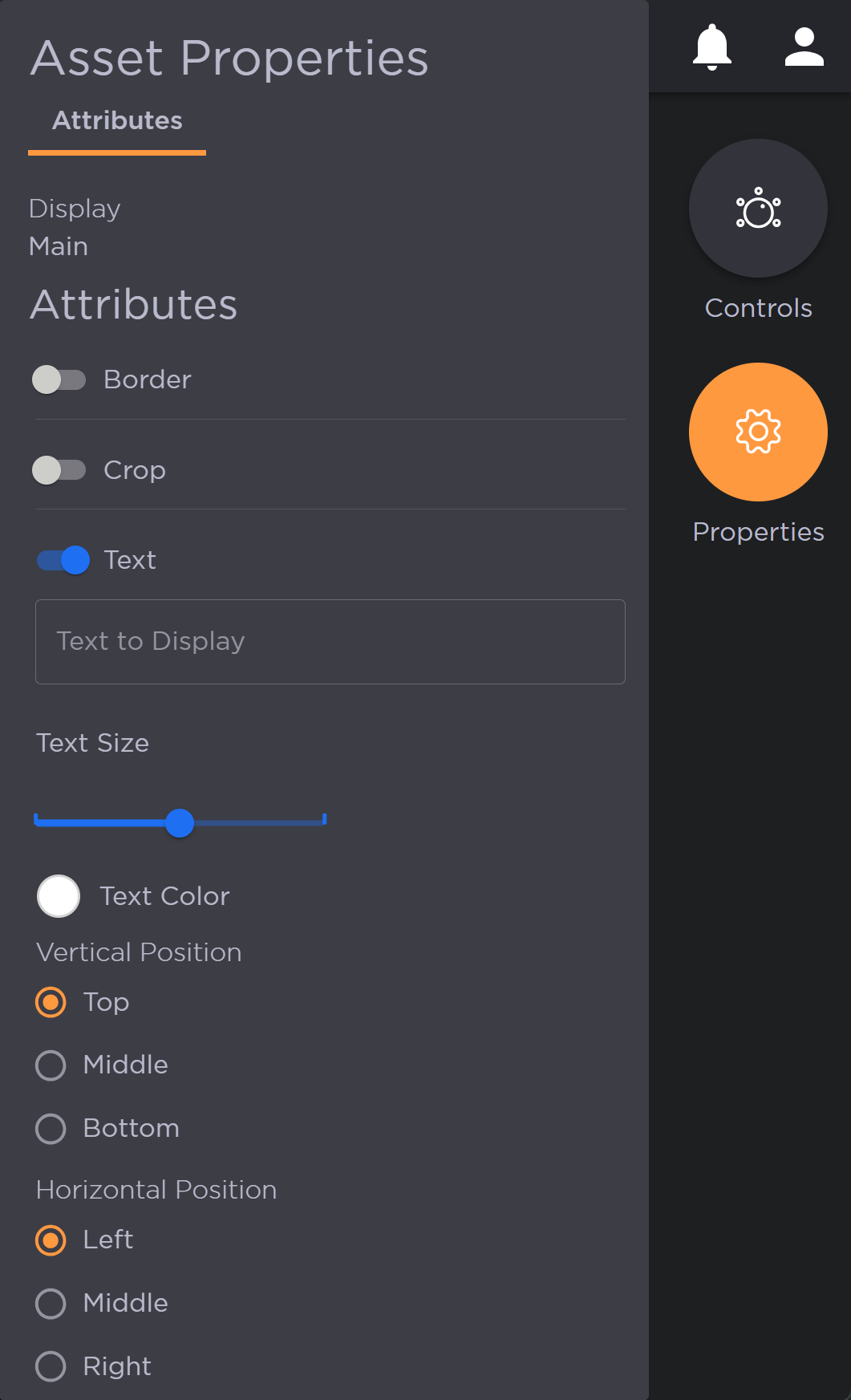
Text Options
Enter the Text to Display.
Drag the slider to edit the Text Size.
Click the color icon to edit Text Color.
Select the Vertical Position: Top, Middle, or Bottom.
Select the Horizontal Position: Left, Middle, or Right.
Click anywhere outside of the Asset properties window, then click Return to Main UI.