
Manually Updating the Certificate
This topic describes how to generate a certificate signing request (CSR) and manually submit a certificate.
To manually update the certificate:
Click the user icon in the top right and select Admin.
On the side menu, click Site Settings.
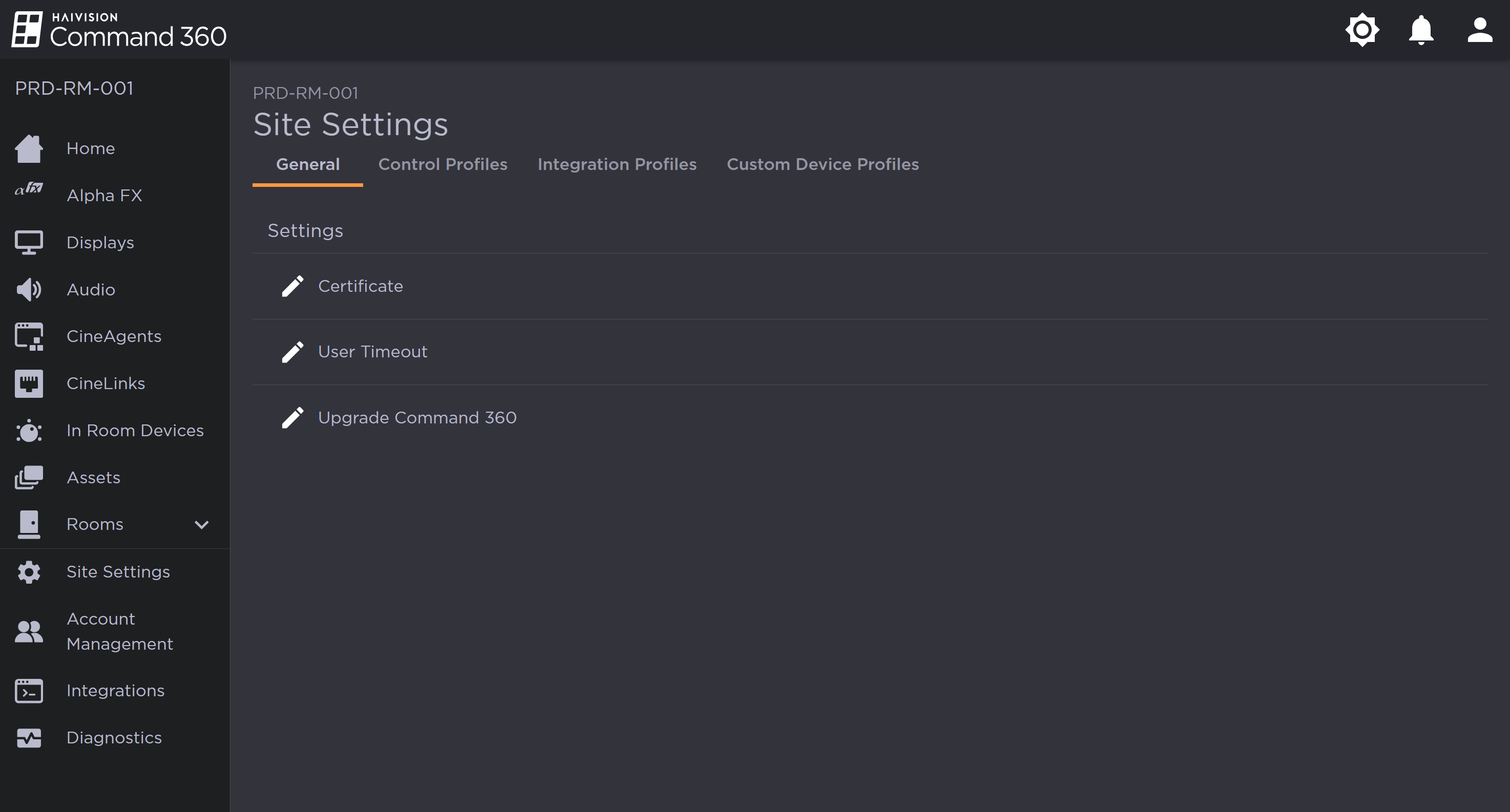
General Tab of Site Settings Page
Click the
 icon next to Certificate. The Certificate Management panel opens on the right.
Click the Actions button and select Generate CSR.
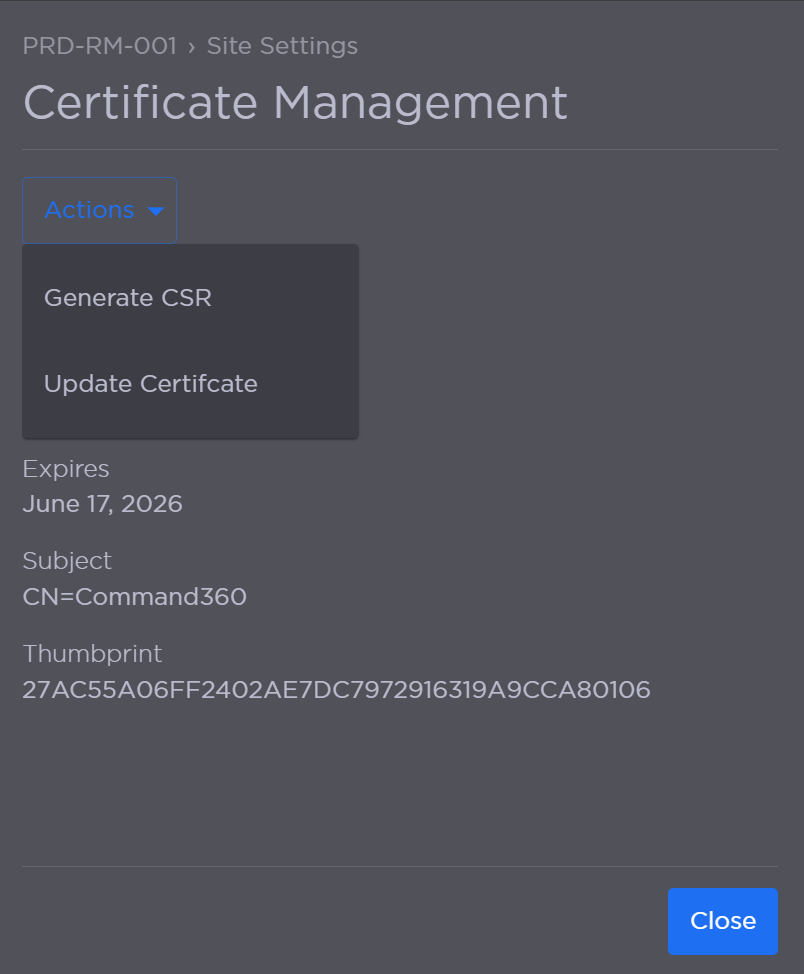
Certificate Management Actions
Confirm the information in the Subject and the Subject Alternative Names fields.
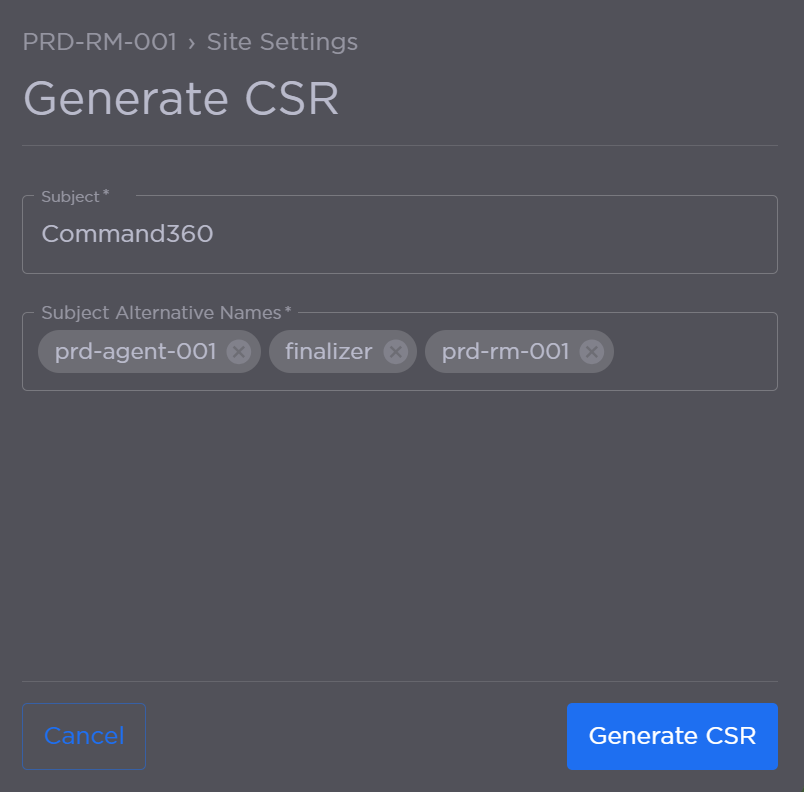
Generate CSR Fields
Click Generate CSR.
Copy the generated CSR or click Download CSR. As noted in the interface, the CSR is not stored in Command 360.
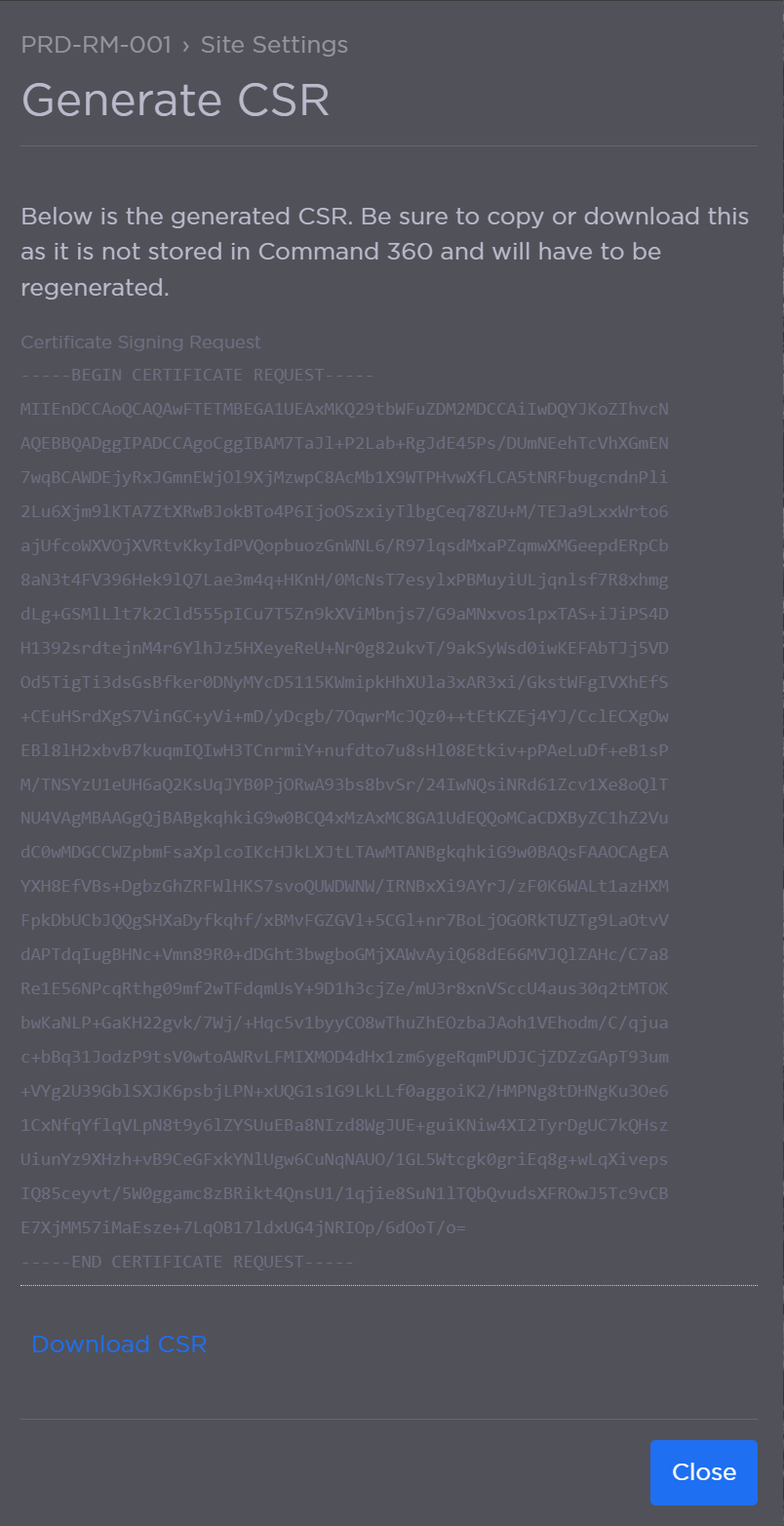
Generated CSR
After saving the CSR, click Close.
Click the
icon next to Certificate to return to the Certificate Management panel.Click the Actions button and select Update Certificate.
Click Manual Submission.
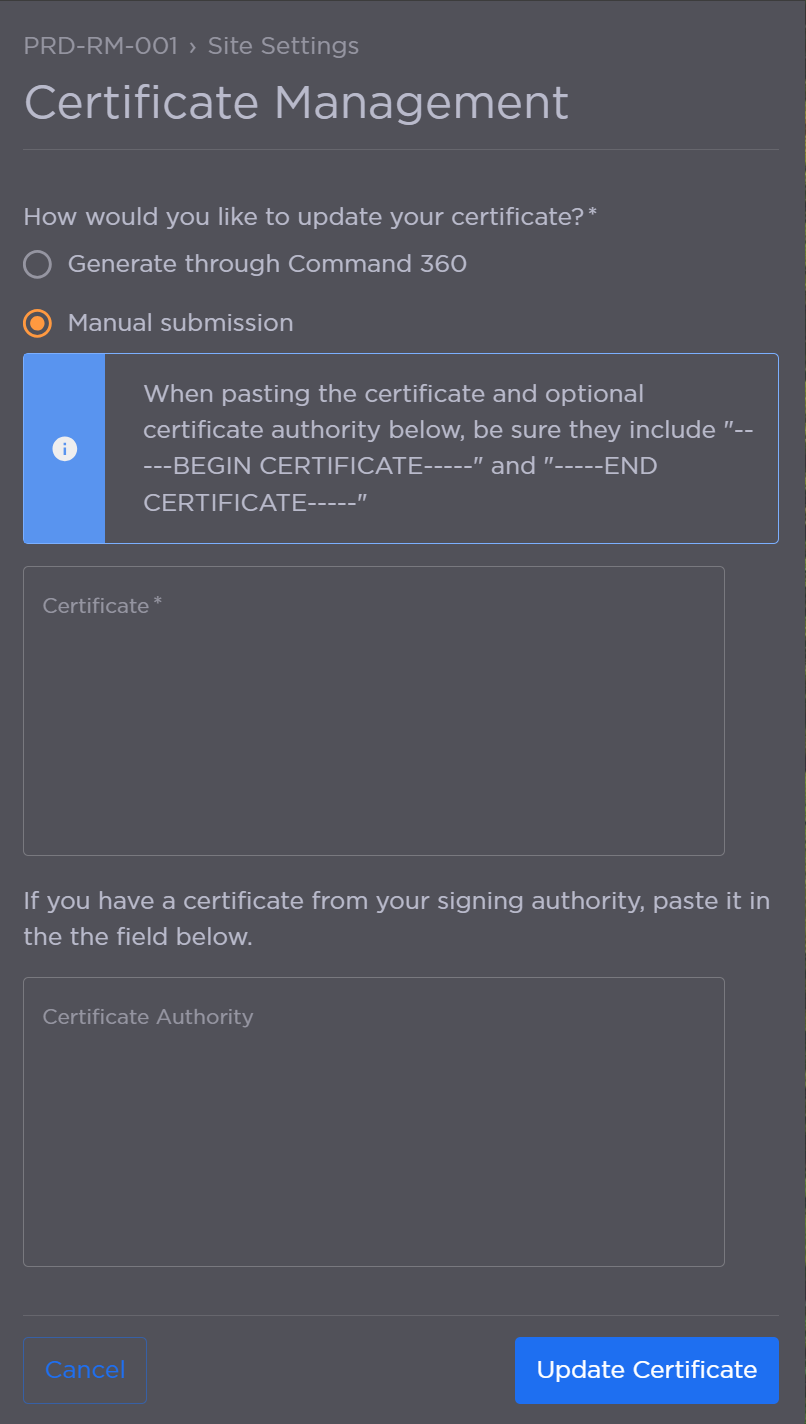
Certificate and Certificate Authority Fields
Paste the certificate in the appropriate field.
Click Update Certificate when finished.