
Landscape-Oriented Video Card Setup

Important
Disconnect video outputs before performing this task.
To set up an Alpha FX video card for landscape orientation:
Click the user icon in the top right and select Admin.
On the side menu, click Alpha FX.
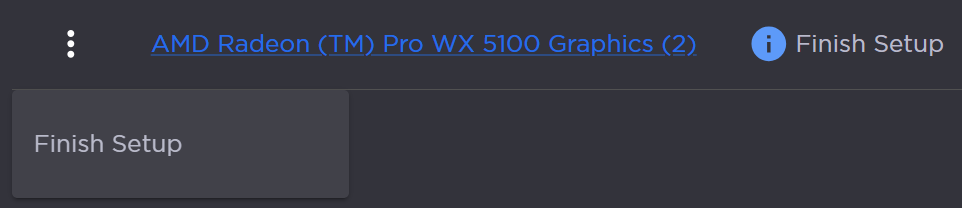
On a video card listing with the status Finish Setup, click the
 icon immediately to the left of the video card label.
 Click Finish Setup in the subsequent drop-down menu.
Finish Video Card Setup
Choose either the Basic or Advanced configuration option. If the card was preconfigured in Windows, click the checkbox next to Video Card is Preconfigured.

Warning
If the video card is preconfigured, please ensure that your selections in this workflow match your card's configuration. An incorrect selection here is not revertible within the user interface.
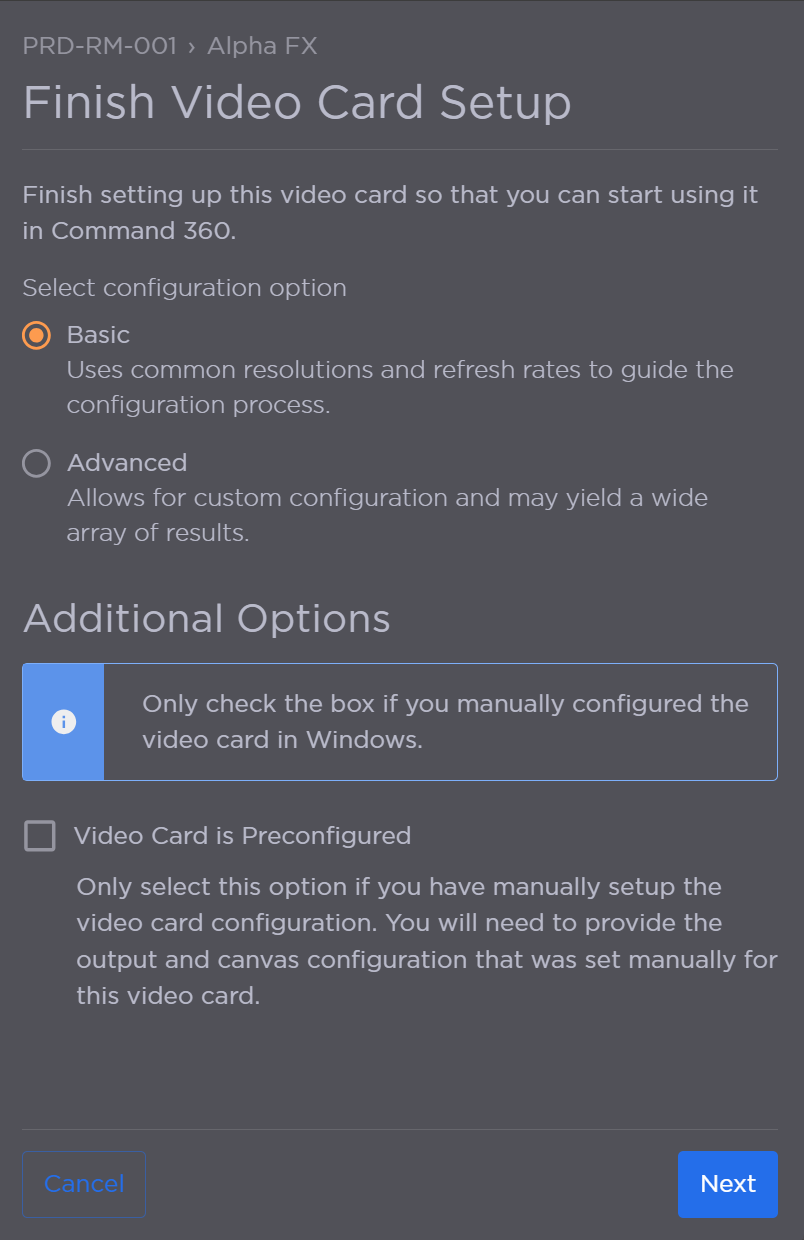
The Basic option provides the most streamlined setup options as it uses common resolutions and refresh rates. While the Advanced option allows for custom configuration, the results may vary depending on each user’s unique system components.
Select the appropriate Output Resolution and Output Refresh Rate (Hz).
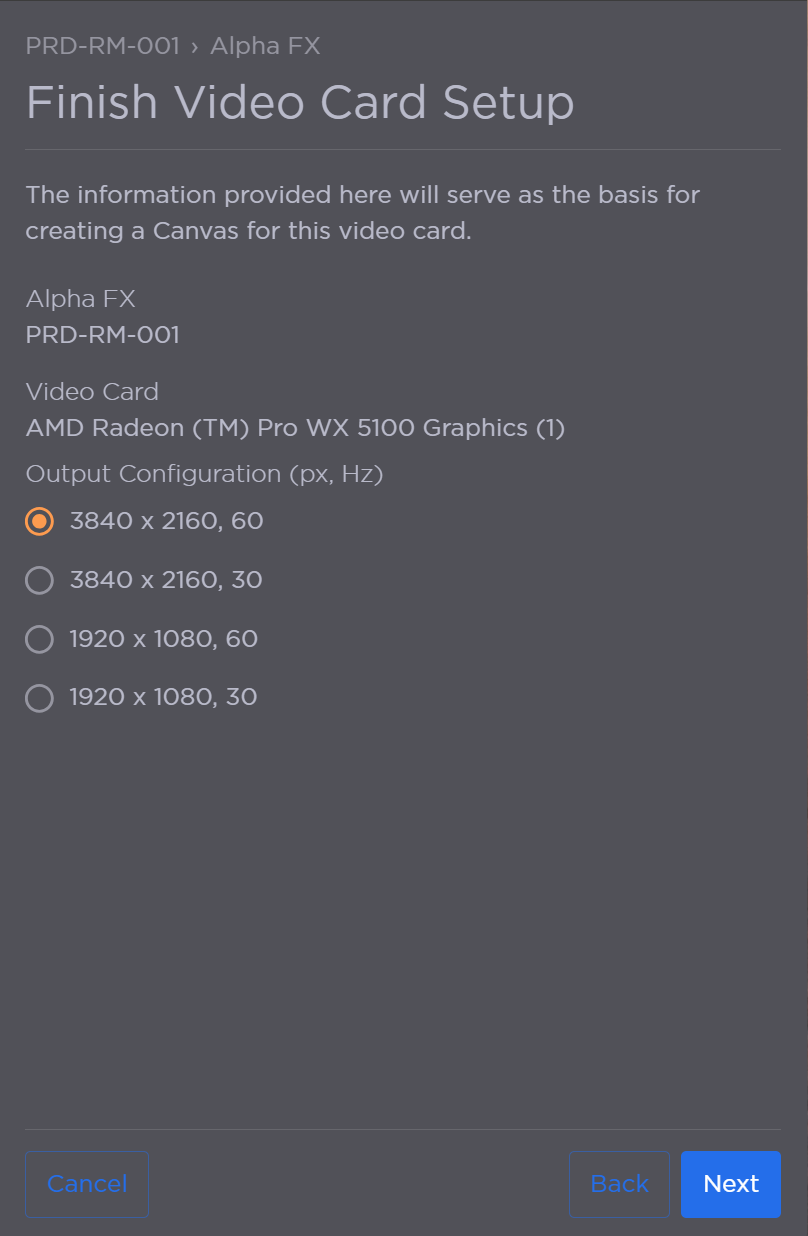
Basic Output Options
Enter a Canvas Name.
Select the Output Arrangement and indicate whether any of the outputs use a video splitter, then click Next.
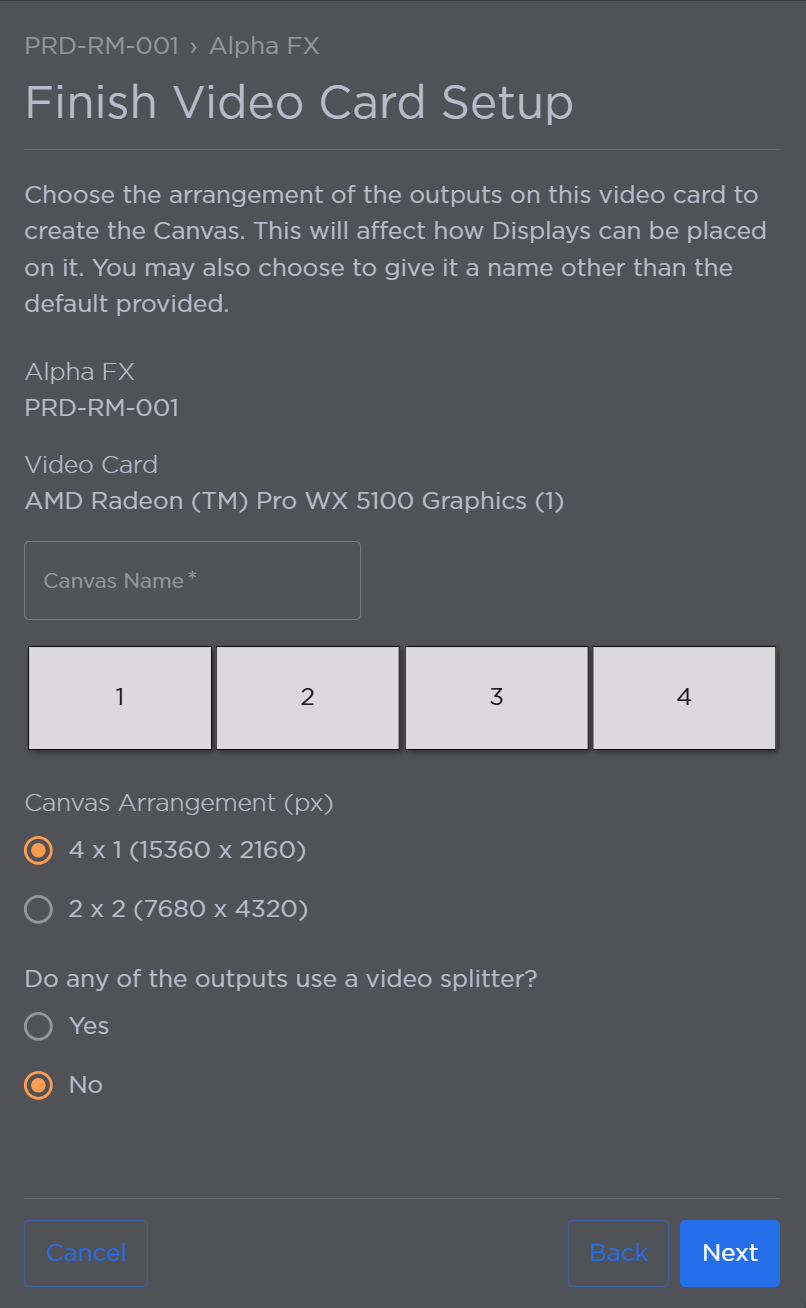
Output Arrangement
Review the summary card information. If any of the information needs changed or corrected, click Back to the appropriate page; otherwise, click Save Configuration.
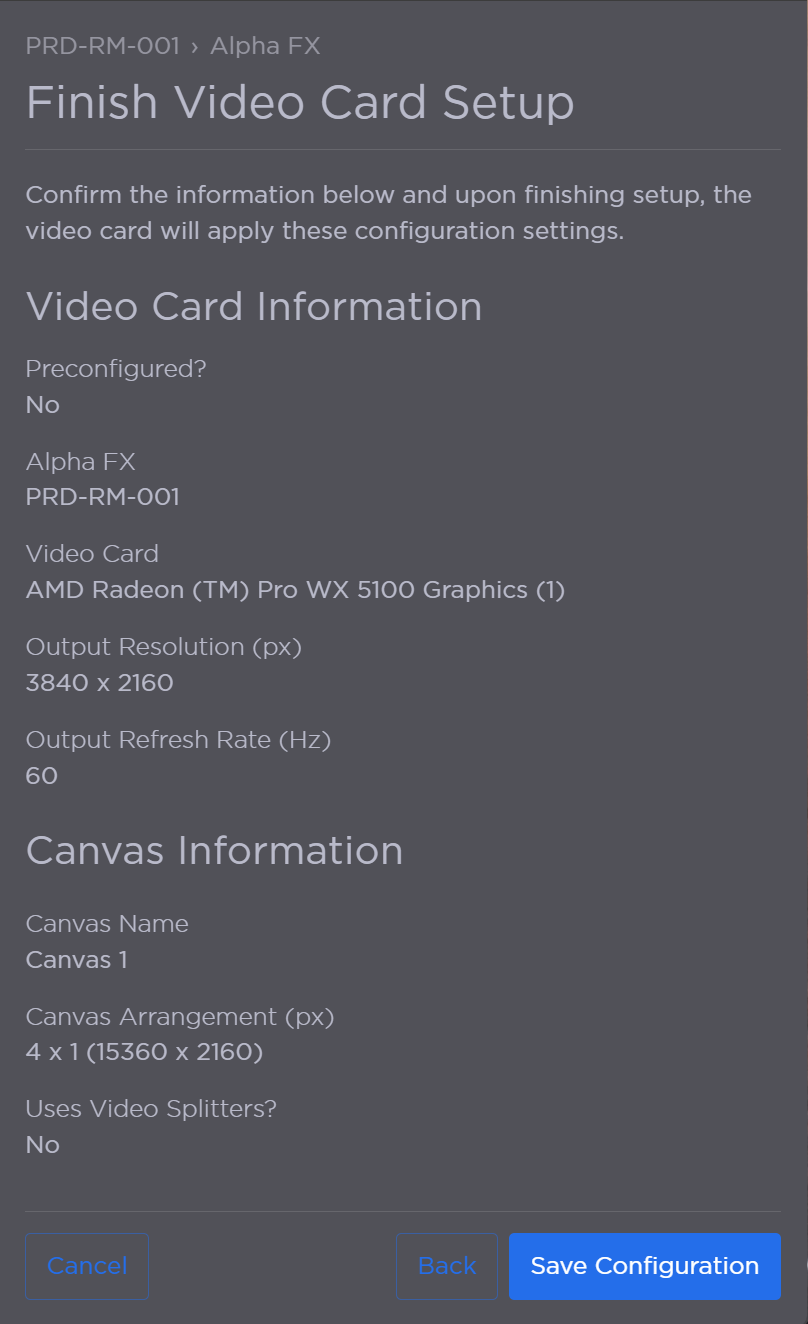
After the configuration is saved, a popup appears and the status in the Video Cards table changes from Finish Setup to Initializing.
Warning
Do not refresh the browser when the Configuring Video Card popup is visible. During this time, the system is in a vulnerable state, and interruption of the process could result in a malfunction which may require a factory reset.
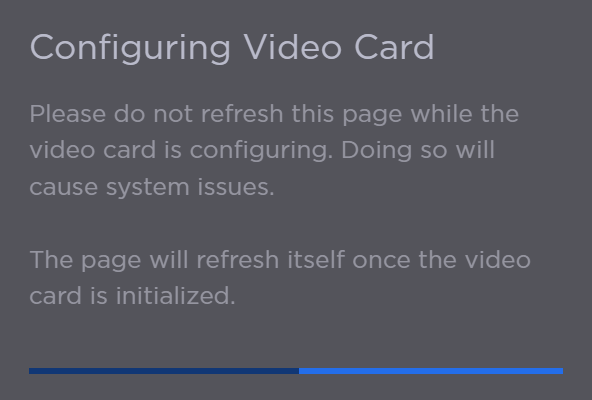
Configuring Video Card Popup
Ensure the video card status changes to Online. If an error occurs, go back to step 1 and validate all selections are appropriate for the system.