
Input Assets
Input assets are created by the system when the first video card is configured on an Alpha FX. The number of input assets that appear in the Asset Manager is based on the number of inputs detected in the hardware.
Options
In the Asset Manager, input assets appear with labels AI-01 through AI-16 (number varies depending on the specific Alpha model in your environment). Click the 
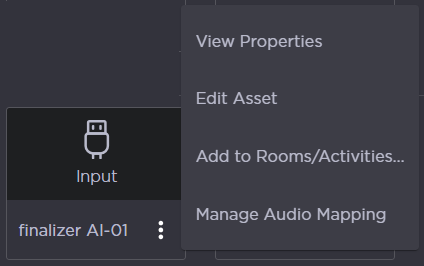
Input Asset Options
View Properties
Info
Click the View Properties option to open the Asset Properties side panel. On the Info tab, you can see the Asset Name, Type (Input), any tags that have been added, and additional info, including the name of the originating Alpha and the Input Number.
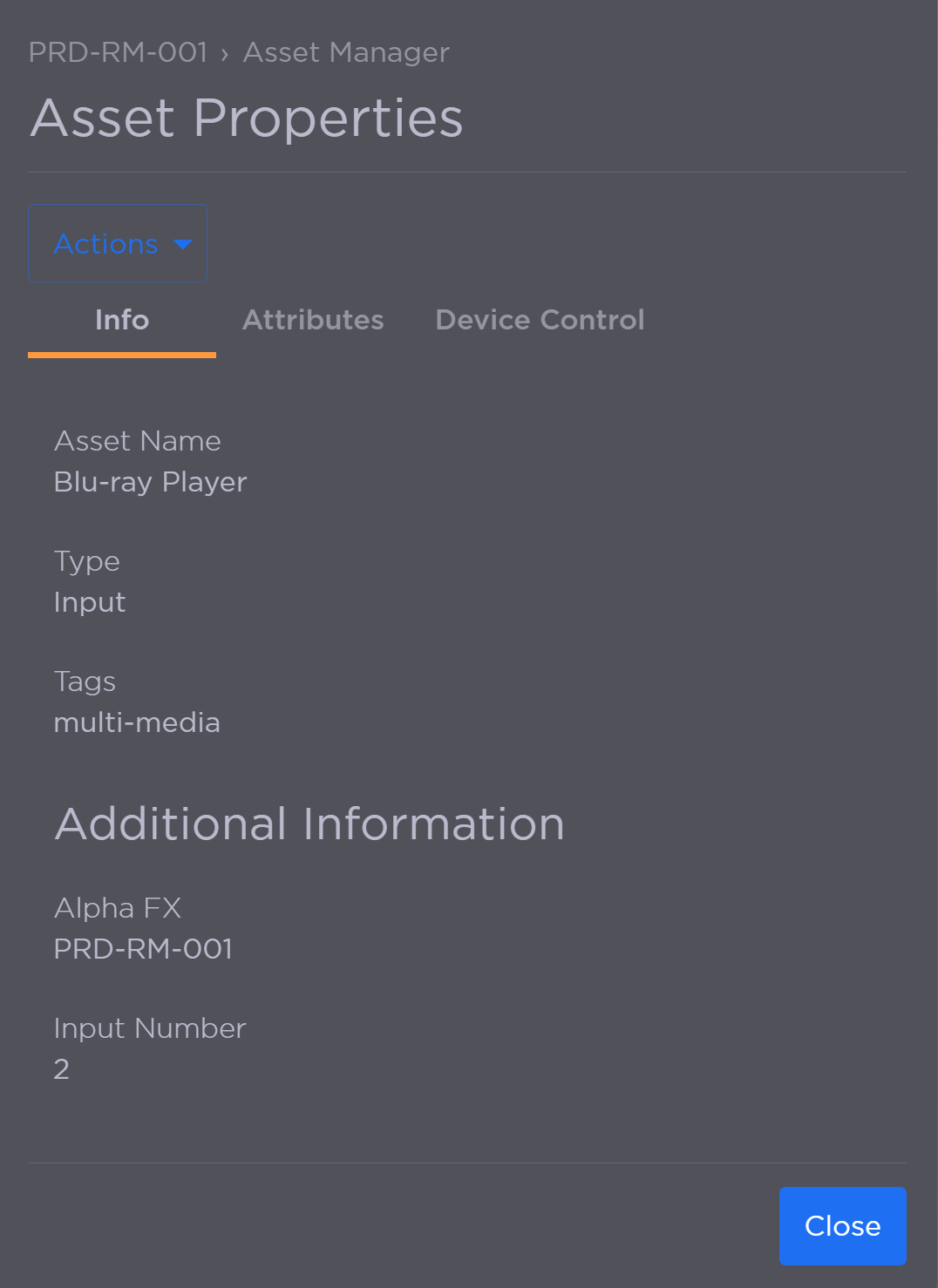
Input Asset Info
Attributes
Clicking the Attributes tab allows you to modify the asset's appearance on the video wall. Enable the toggles to add a border, crop the asset, or add text.
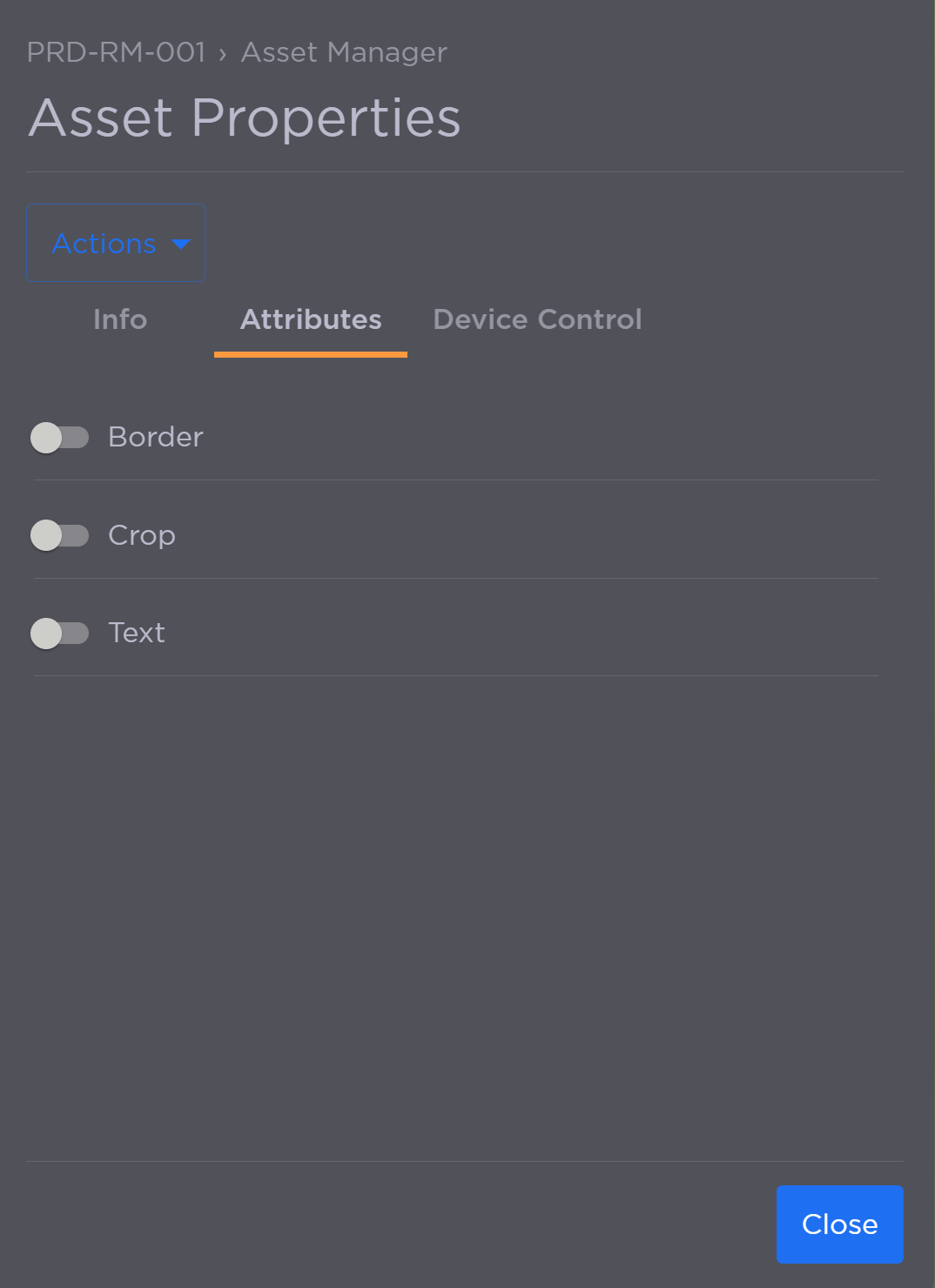
Input Asset Attributes
Device Control
Clicking the Device Control tab allows you to link a device profile to the asset in order to control it. Select a device profile, enter one or more IP addresses, and provide a port number (if it differs from the default value for the selected profile).
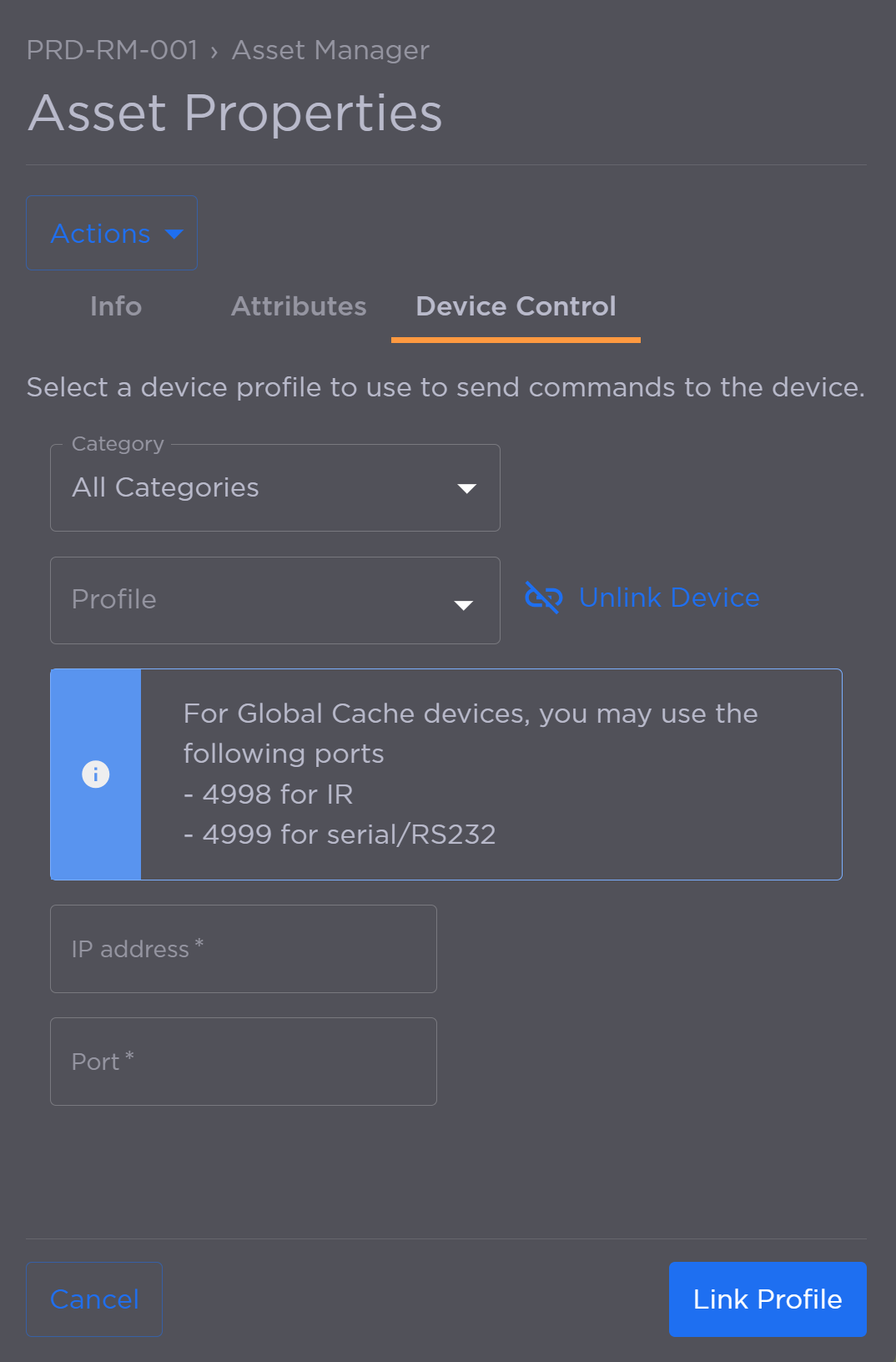
Input Asset Device Control Tab
Click Link Profile to save your changes.
Edit Asset
Click the Edit Asset option to edit the asset's name or add and remove tags.
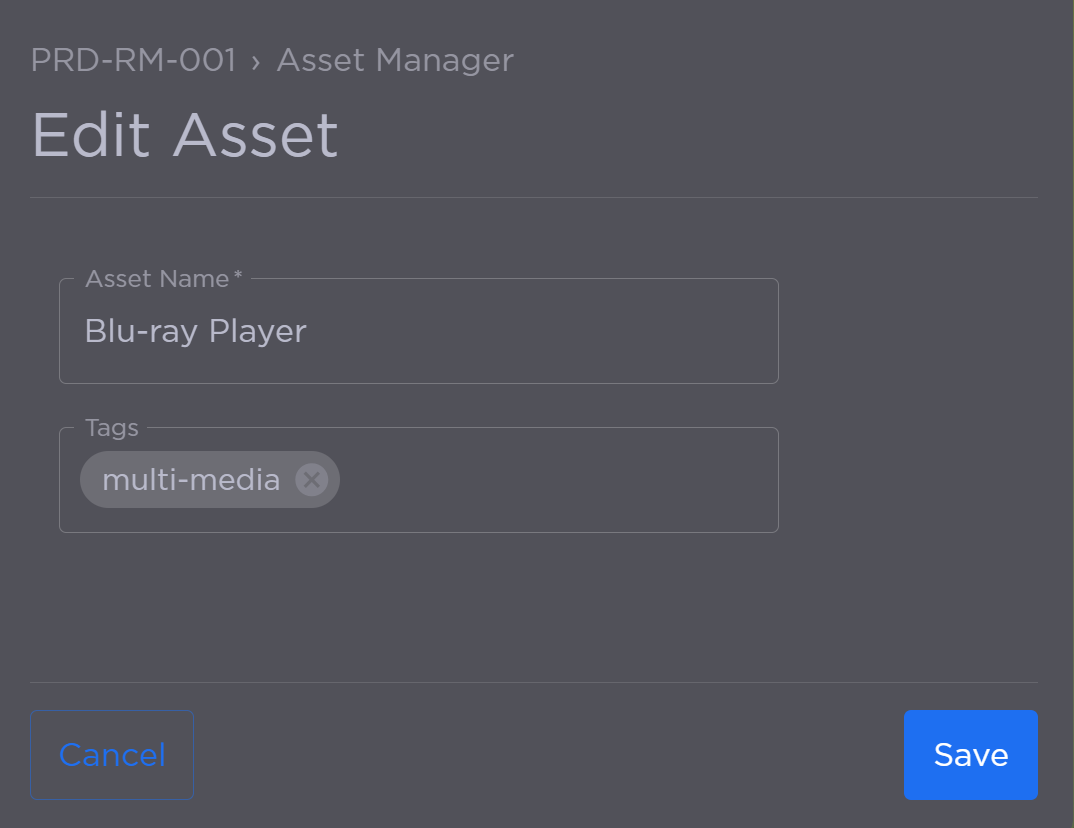
Edit Input Asset
Enter a new Asset Name.
Add or remove Tags.
Click Save when finished.
Manage Resource Links
Click the Manage Resource Links option to link the asset to a device.
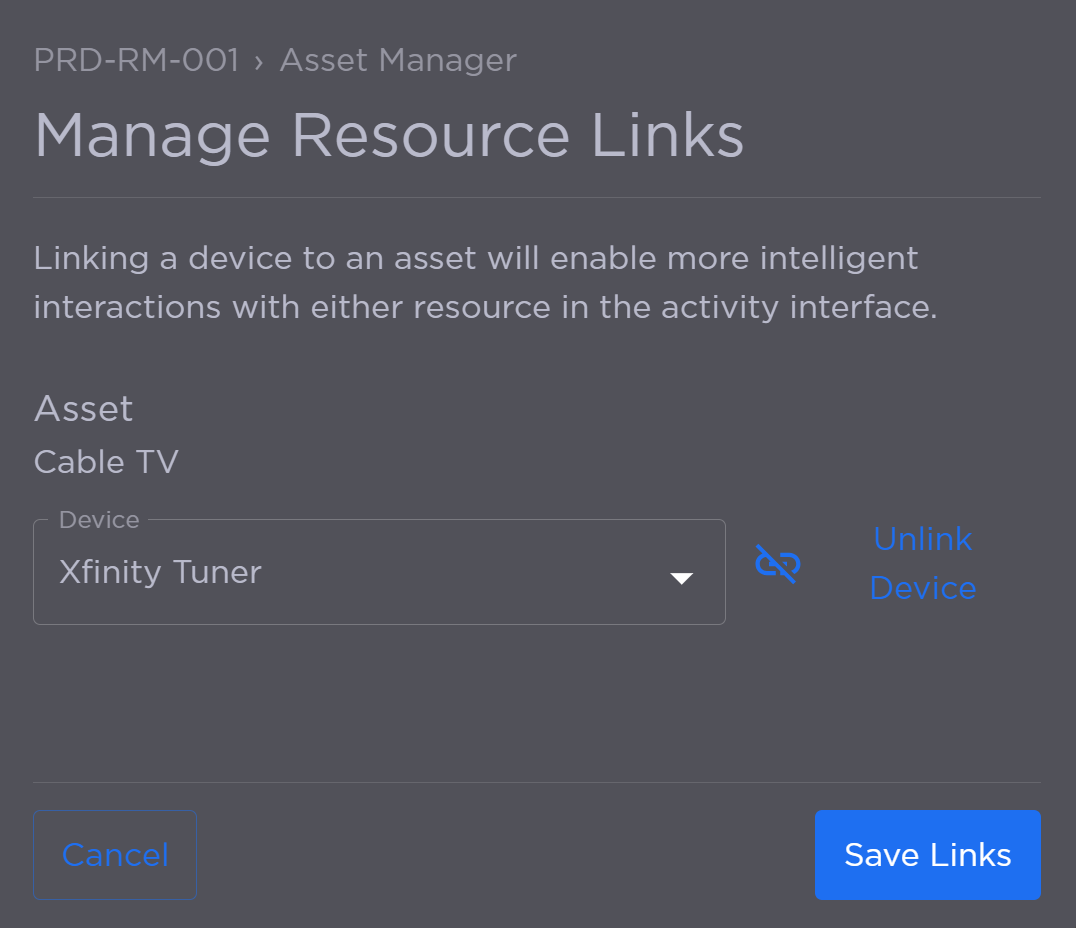
Manage Resource Links Panel
Select a Device from the drop-down.
Click Save Links when finished.
Add to Rooms/Activities
Click the Add to Rooms/Activities option to edit which Rooms and Activities the asset is available to.
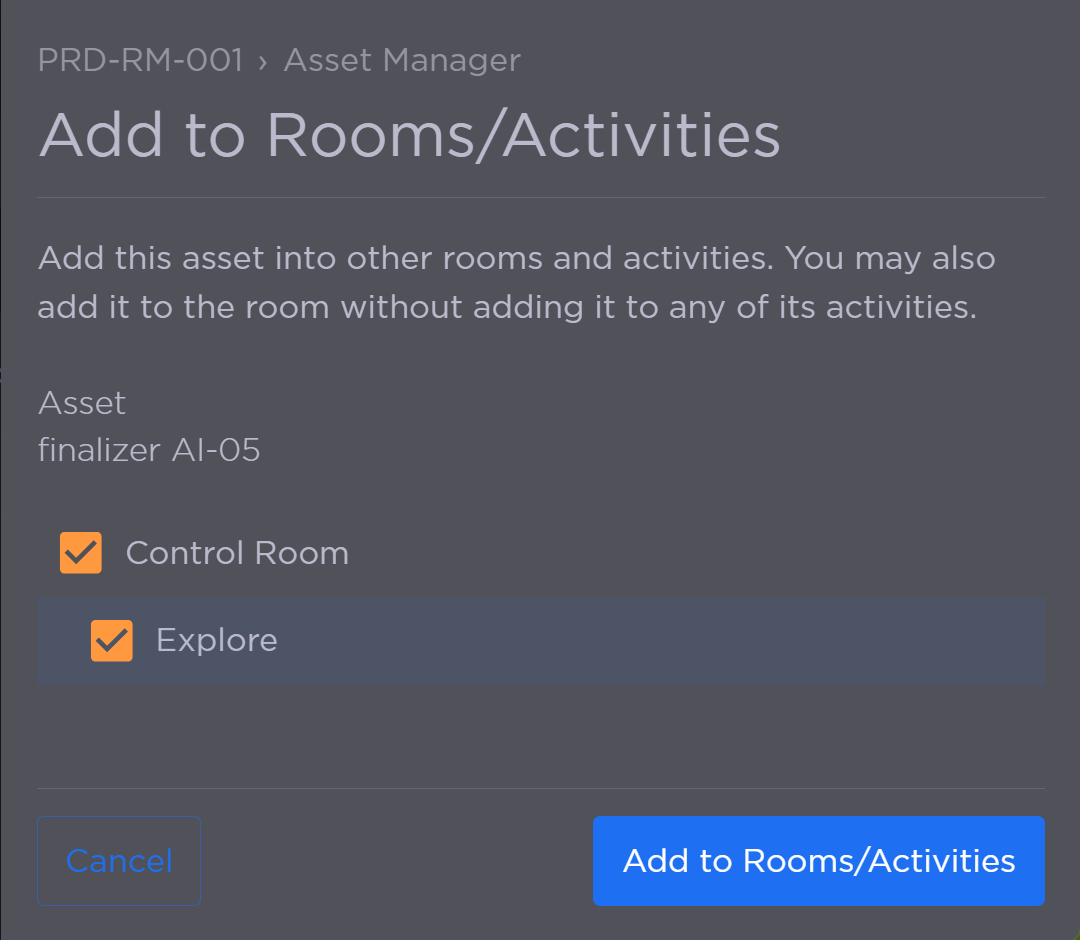
Room and Activity Selection
Click the checkbox next to each Room or Activity the asset should be available in.
Click Add to Rooms/Activities.
Manage Audio Mapping
Click the Manage Audio Mapping option to route the asset audio to a Room.