
Deleting a Control Point
To delete a control point:
Click the user icon in the top right corner and select Admin.
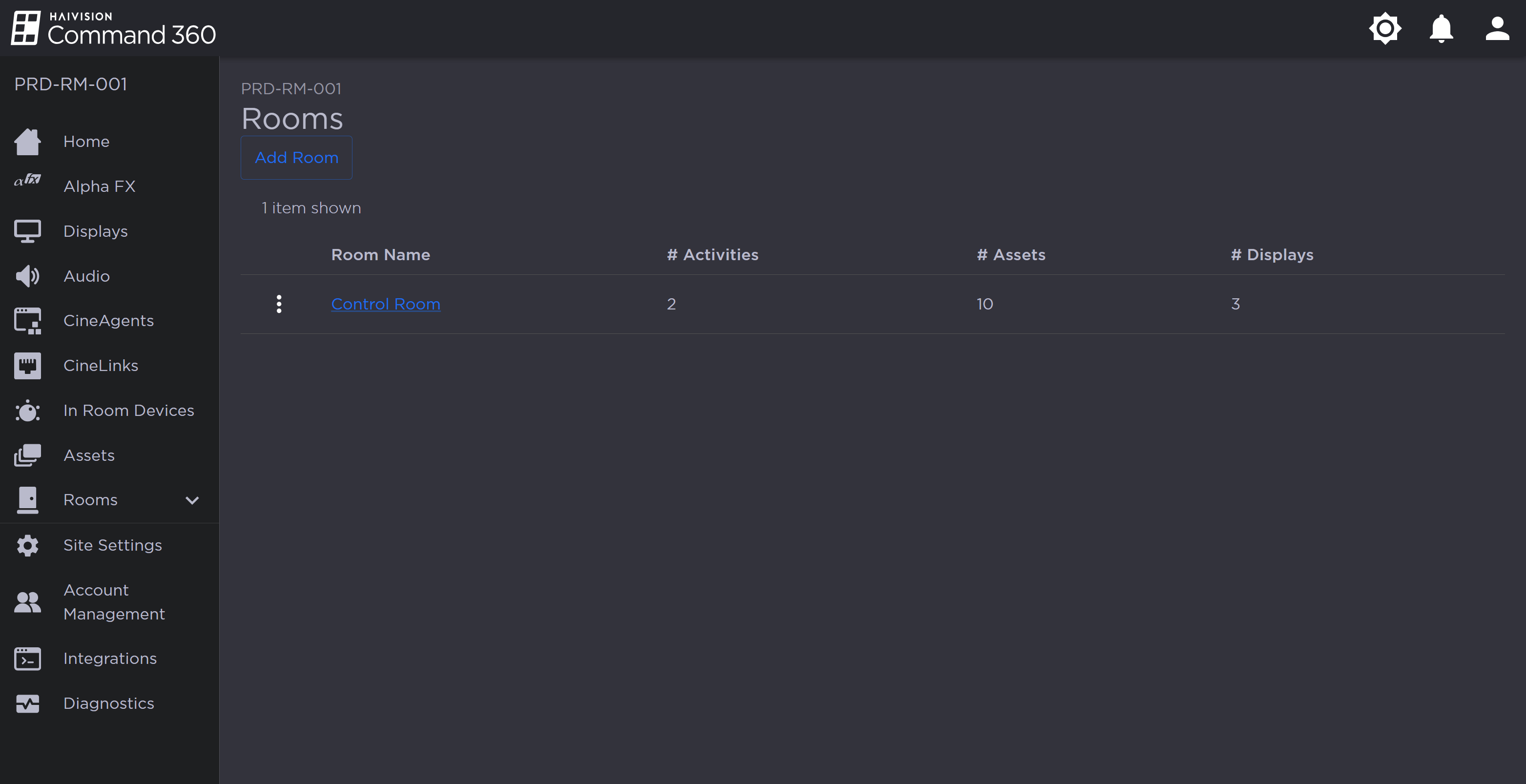
On the side menu, click Rooms.
Click the Room containing the control point you wish to edit.
In the Resources section, click the
 icon on the Control Points resource.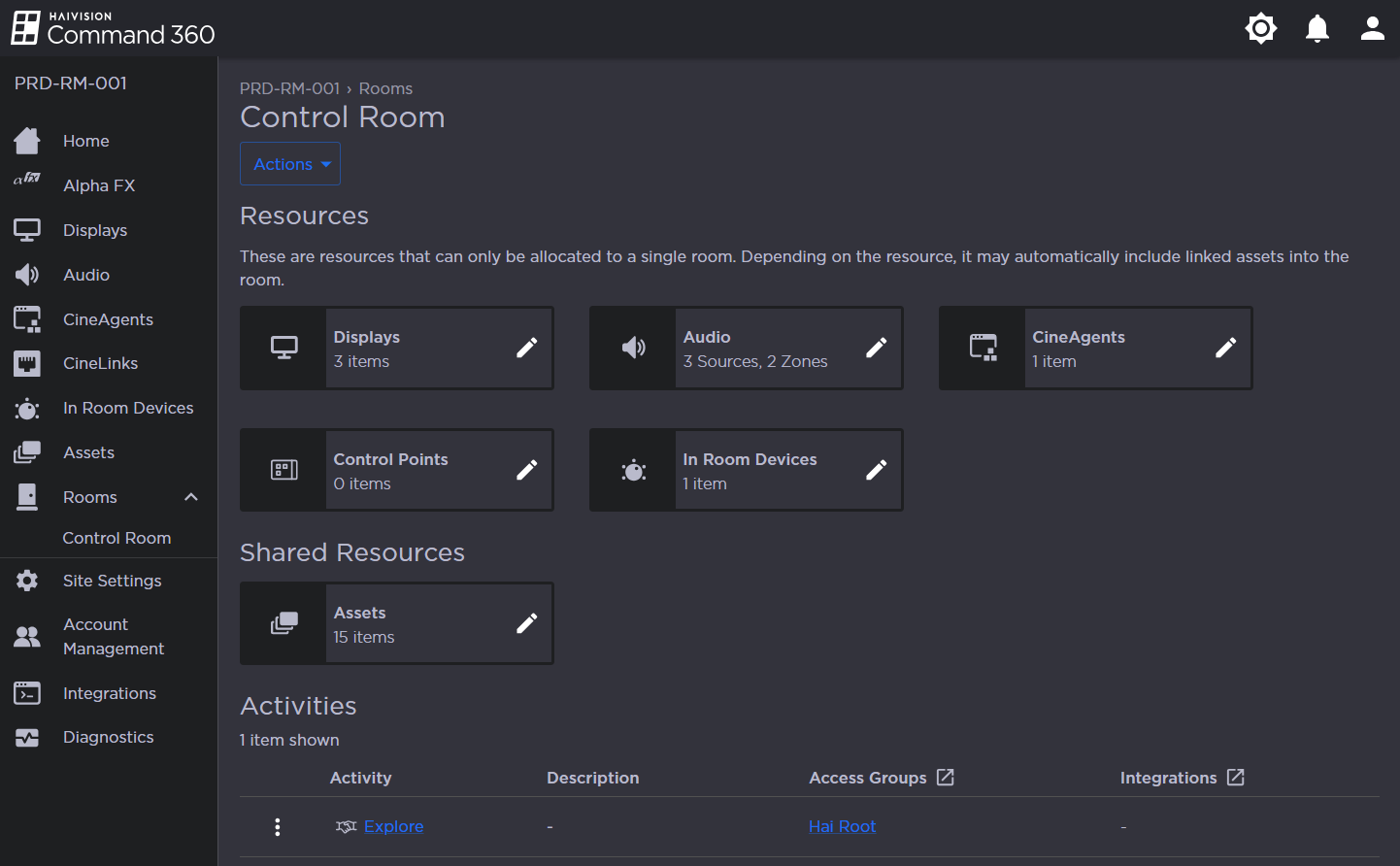
Next to the desired control point, click the
 icon and select Delete Control Point.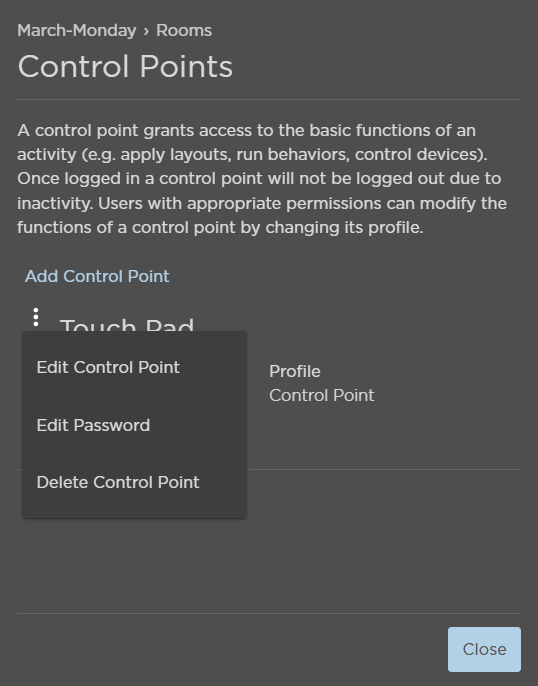
Control Point Options
When prompted, click Yes, Delete to confirm.
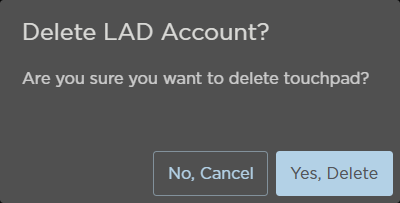
Delete Control Point Confirmation Prompt