
Installing Macrium Reflect LTSC

Note
This task requires a valid Macrium Reflect license key.
To install Macrium Reflect LTSC:
Launch Macrium Reflect LTSC using Windows Explorer.
Click Next to continue the wizard.
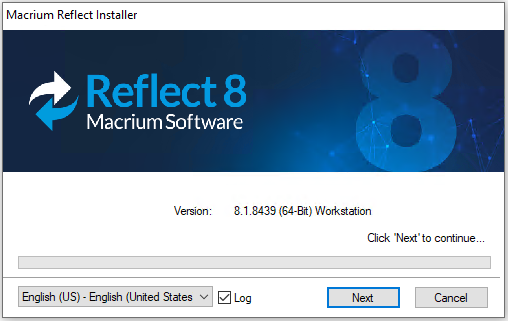
Macrium Reflect Installer Language Select
Click Next on the Welcome screen.
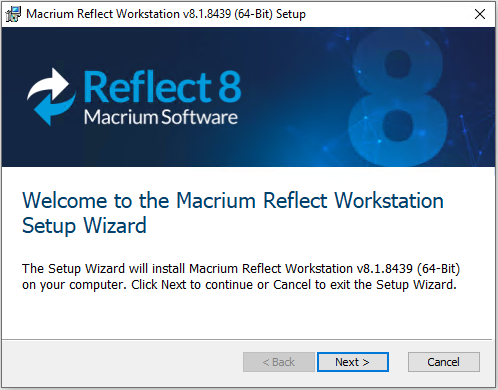
Macrium Reflect Installer Welcome
Accept the license agreement and click Next.
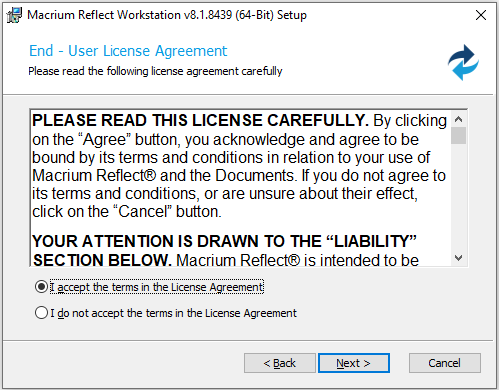
Macrium Reflect EULA
Enter your Macrium license key and click Next.
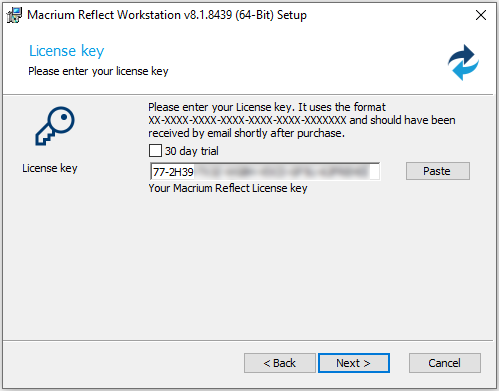
Macrium Reflect License Key
Click Next on the License Information step.
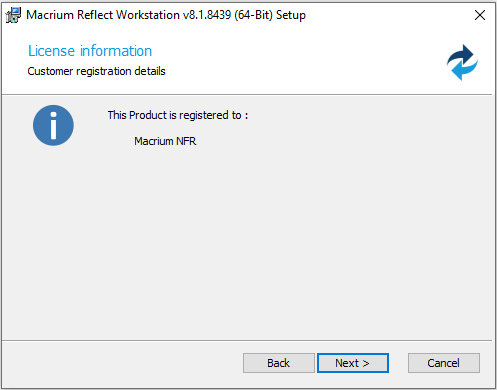
Macrium Reflect License Information
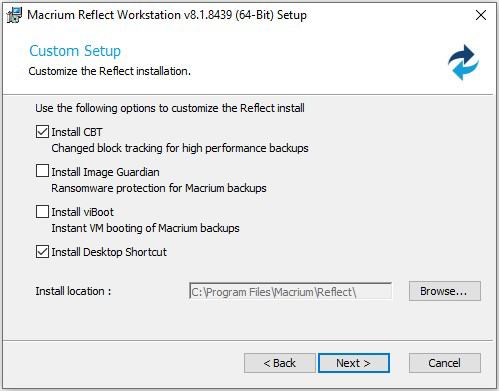
On the Custom Setup step, uncheck the box next to Install Image Guardian and click Next.
Click Install.
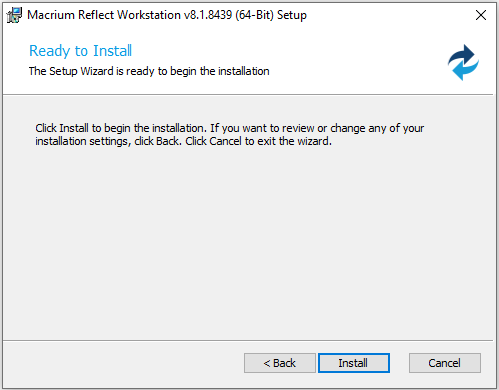
Macrium Reflect Ready to Install
Click Finish to complete the wizard.
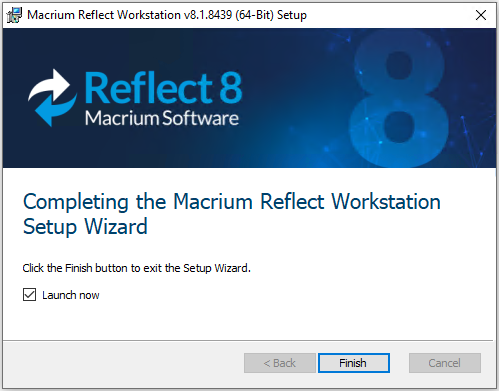
Macrium Reflect Installer Finish