
Assigning Resources to Activities

Note
Like Displays, a CineAgent resource can only be added and used in one room on the system. It must be removed from one room in order to use it in another.
Resources can be assigned to activities and used in behaviors.
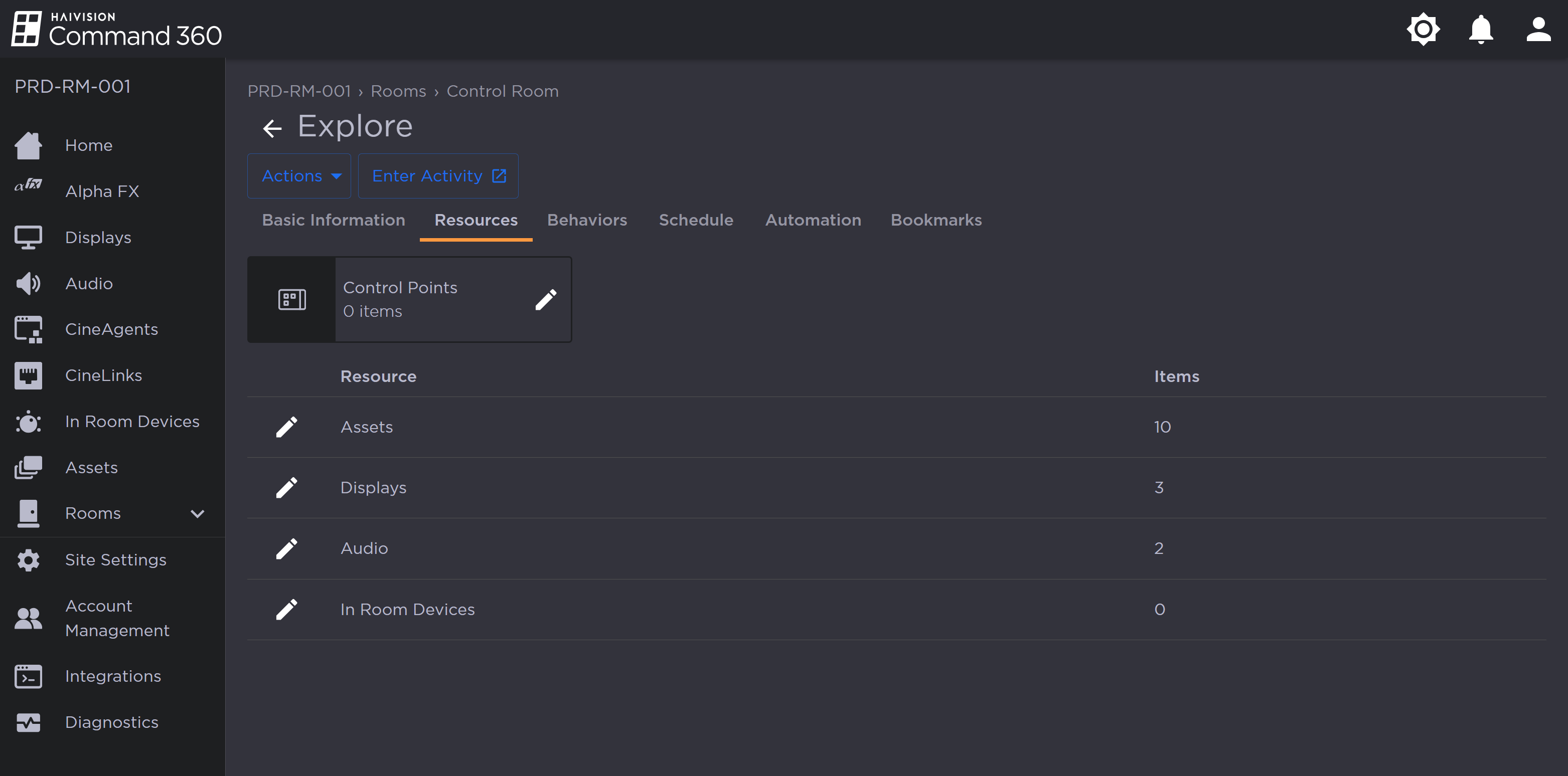
Activity Resources Tab
To add a resource to an activity:
Click the user icon in the top right corner and select Admin.
On the side menu, click Rooms.
Click a Room name from the summary table or on the side menu.
In the Activities section, click the Activity to edit.
Click the Resources tab.
Click the
 icon next to the resource type to add. The Manage Assets panel opens on the right.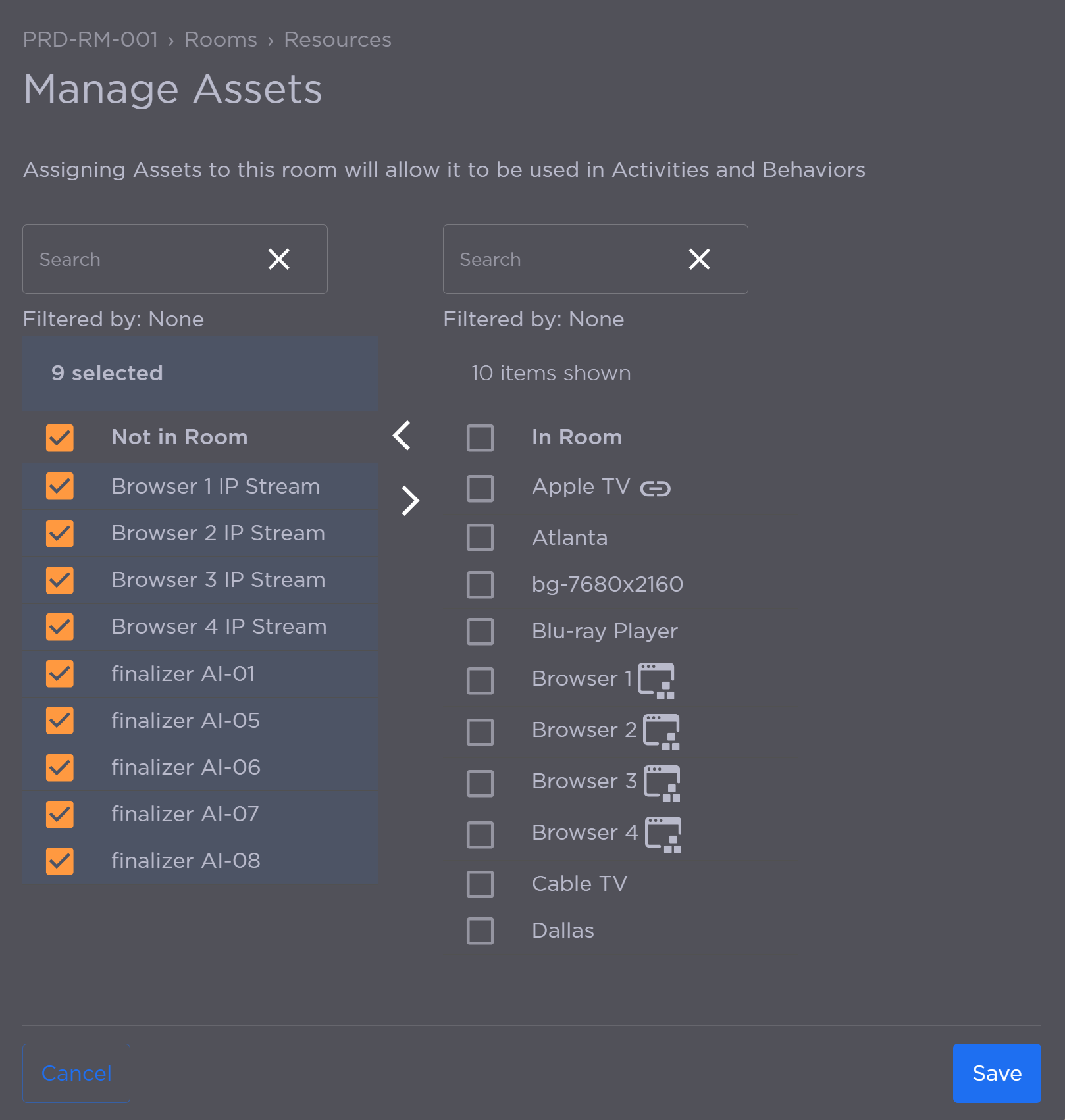
Selected Assets
Under the Not In Room column, click the checkbox next to each resource you are adding.
Click the
 icon to add the selected resources to the In Room column.
Click Save.
Related Topics