
Adding Roles
To add a new role:
Click the user icon in the top right and select Admin.
On the side menu, click Account Management.
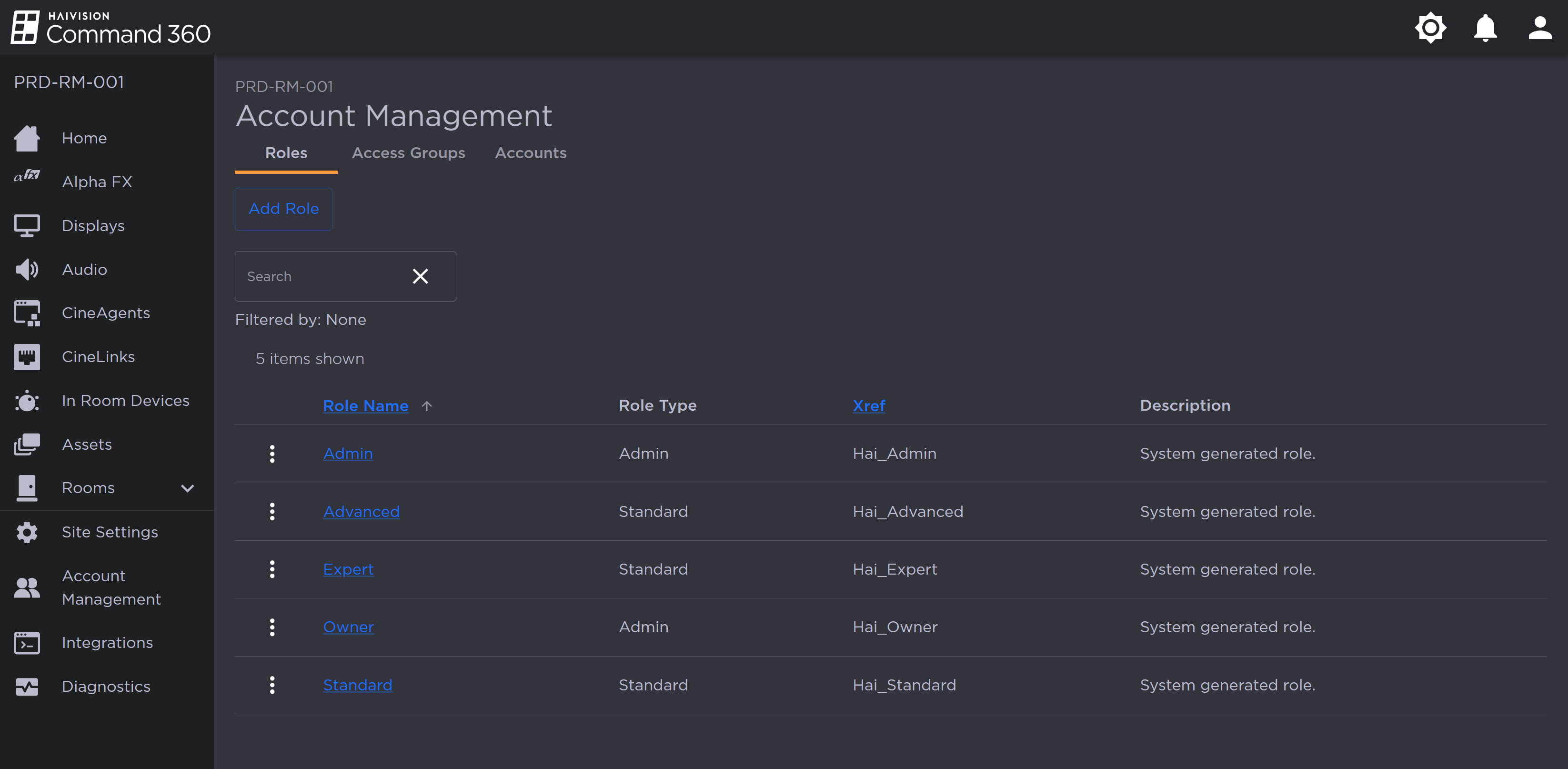
Account Management Roles Tab
Click the Add Role button.
Enter a unique, required Role Name in the space provided. The Description and Xref fields are optional.
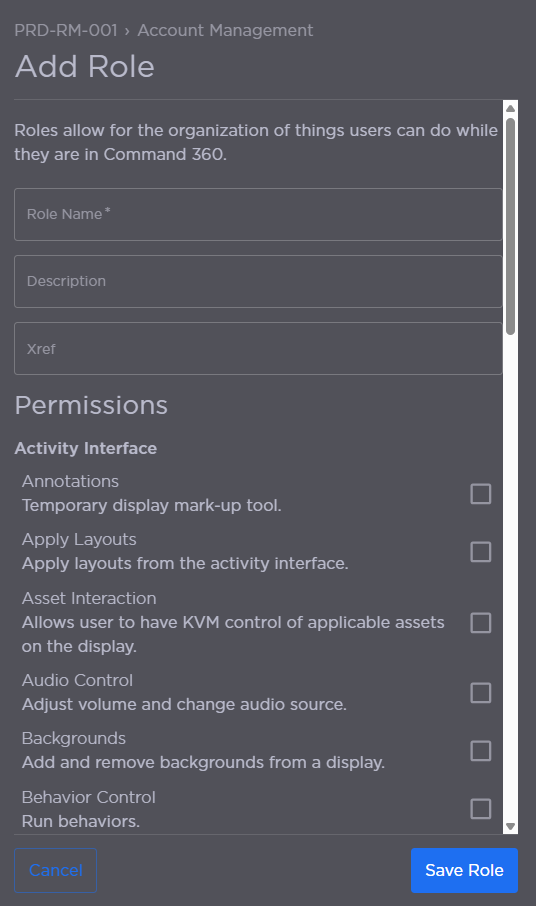
Click the checkbox next to each permission you wish to assign.

Note
To see a complete list of permissions and their descriptions, see Roles and Permissions.
When finished, click Save Role.
The new role now appears under the Roles tab on the Account Management page. If necessary, changes can be made through the Editing Roles option.