
Adding Activities
To add an Activity:
Click the user icon in the top right corner and select Admin.
On the side menu, click Rooms.
Click the Room in which to add the Activity.
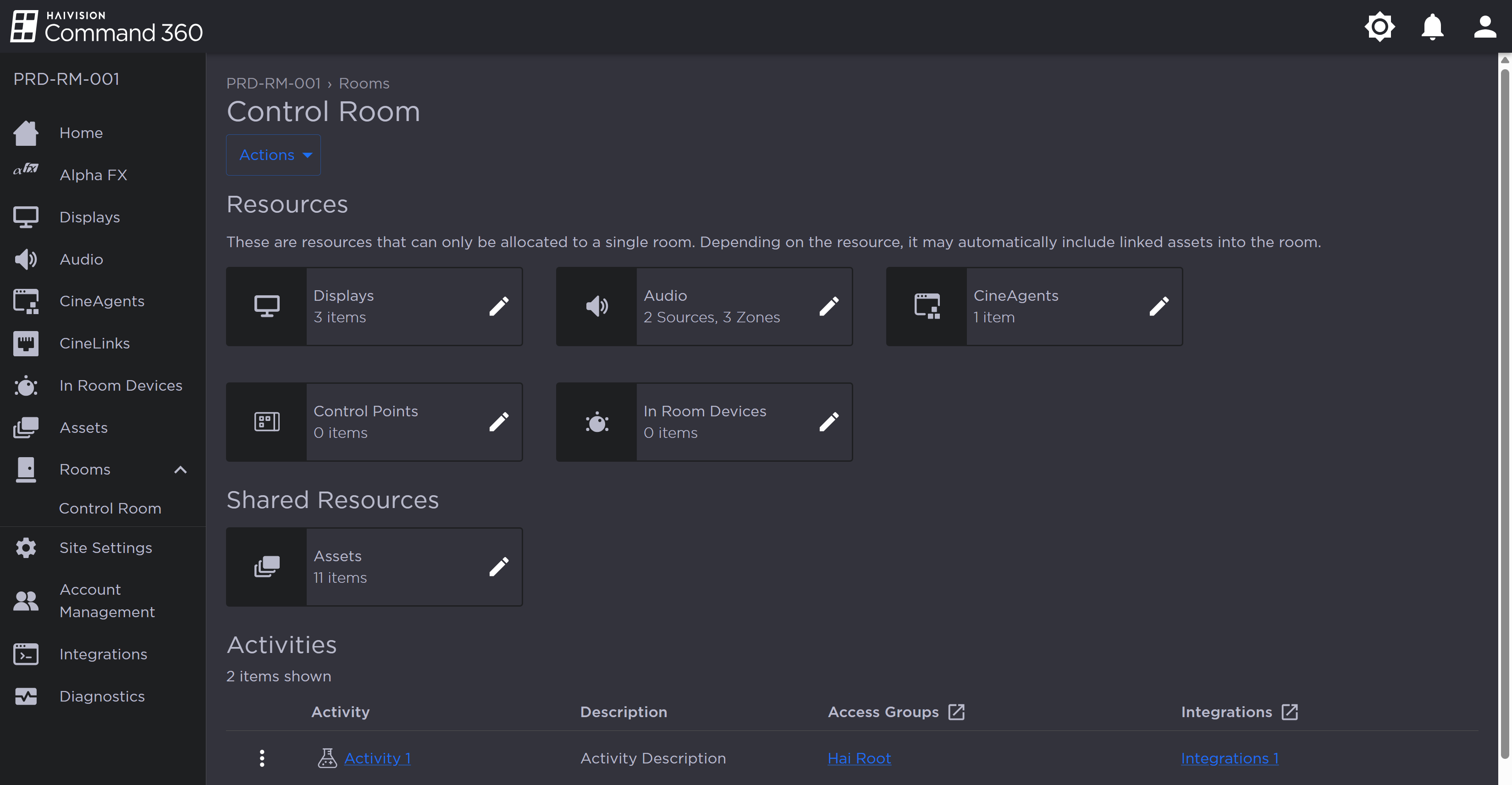
Room Resources and Activities
Click the Actions button and select Add Activity from the drop-down.
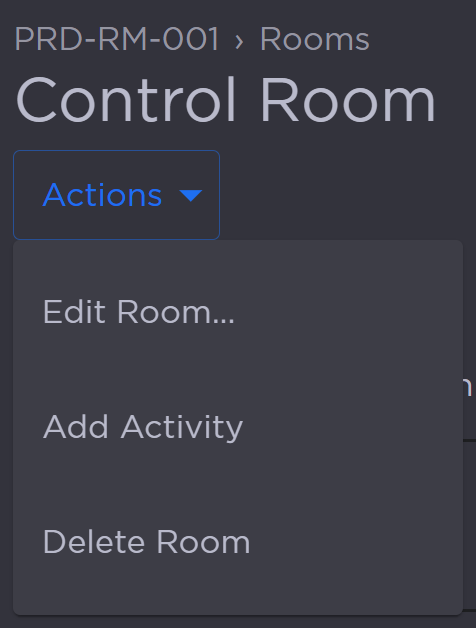
Room Actions Button
Complete the Add Activity fields:
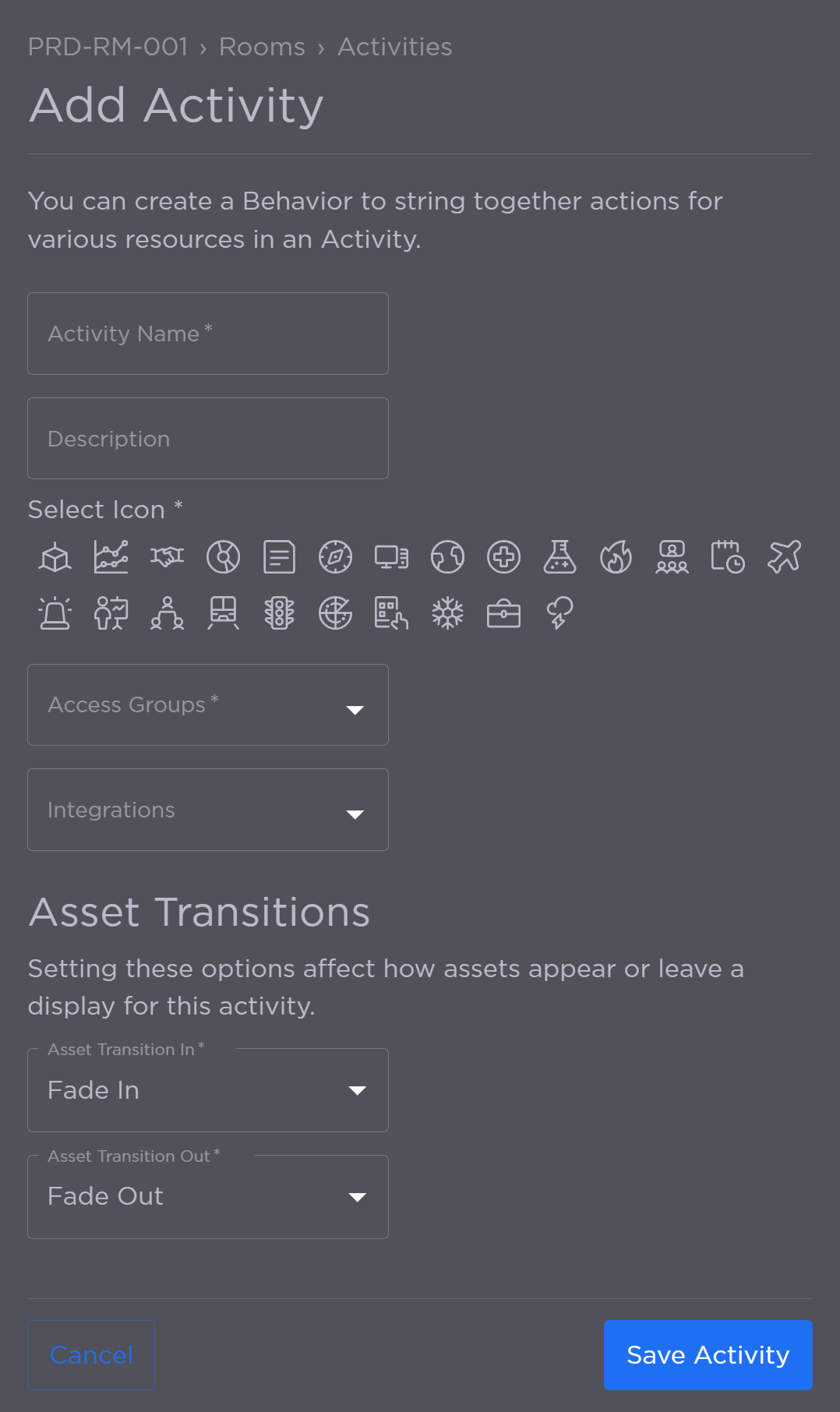
Add Activity Panel
Enter a unique Activity Name.
Enter an optional Description.
Select an icon.
Select the Access Groups with permission to view the activity.
Select any Integrations with access to the activity.
Use the Asset Transition In and Asset Transition Out drop-downs to change how the assets appear or leave the display for this Activity.
Click Save Activity.
The new Activity appears in the summary table.