
Activity Schedule
Once a Behavior has been created, it can be scheduled to run automatically.
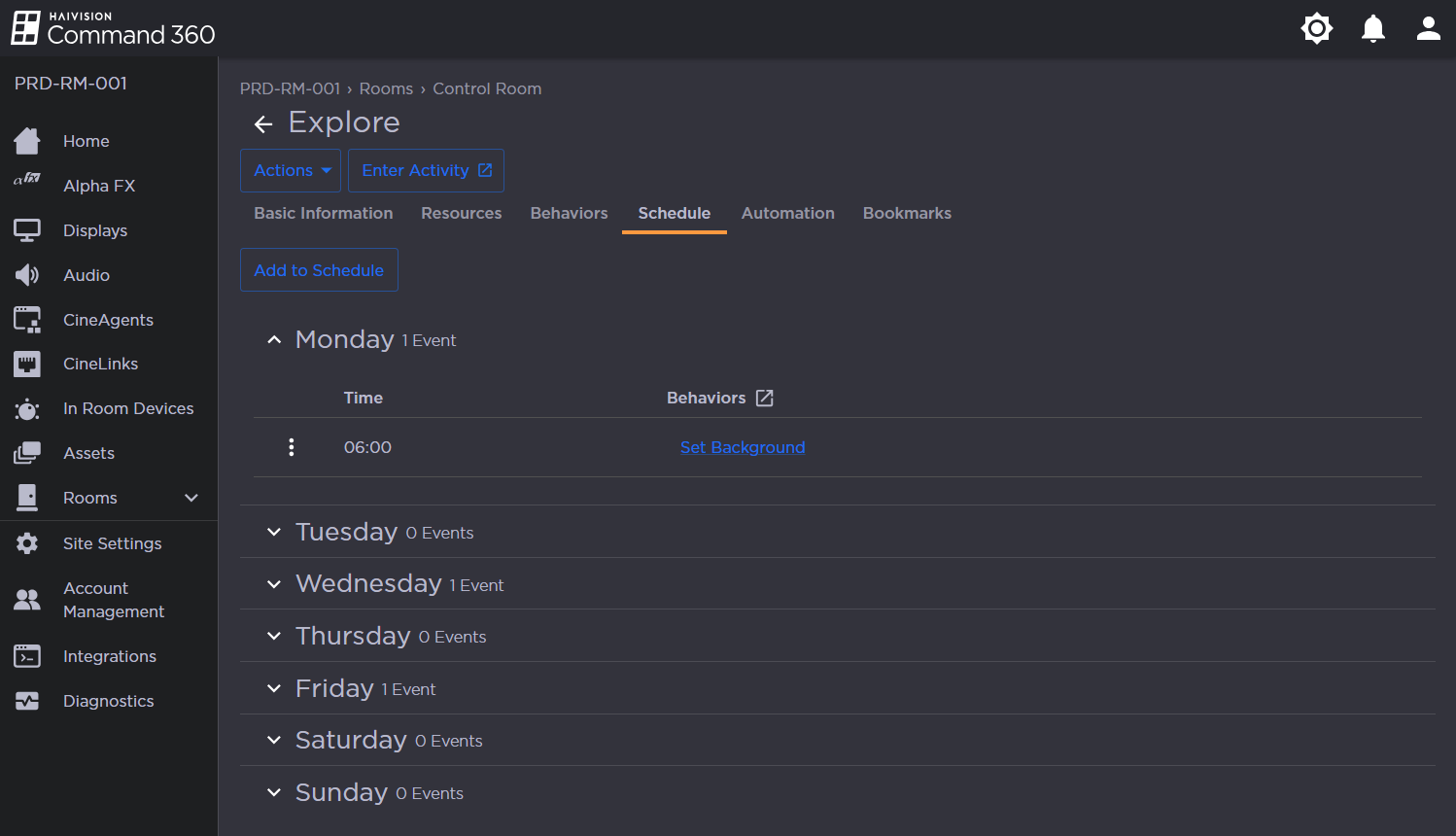
Activity Schedule
To schedule a Behavior:
Click the user icon in the top right and select Admin.
On the side menu, click Rooms.
Click the Room containing the Activity you wish to edit.
In the Activities section, click the Activity you wish to edit.
Click the Schedule tab.
Click the Add to Schedule button.
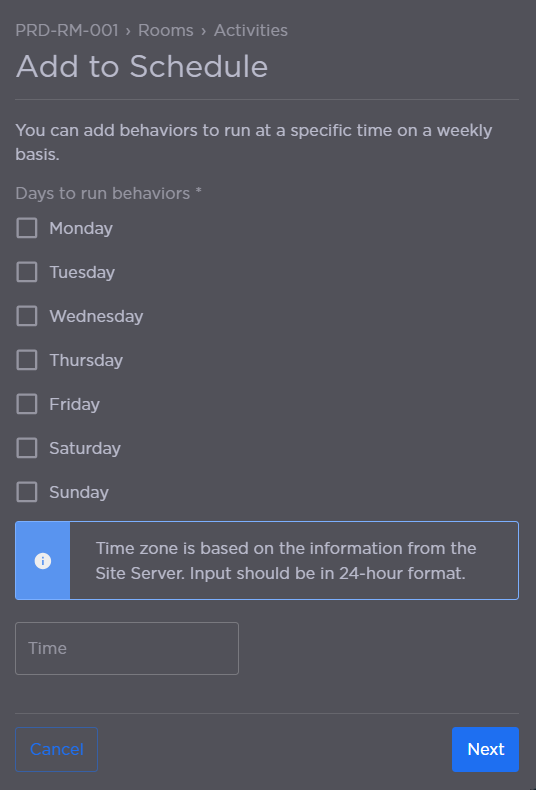
Behavior Schedule Day and Time
Click the checkbox next to each day the Behavior will run.
Enter a Time the Behavior should launch.

Note
As noted in the Add to Schedule panel, the time zone is based on the information from the Site Server and should be entered in 24-hour format.
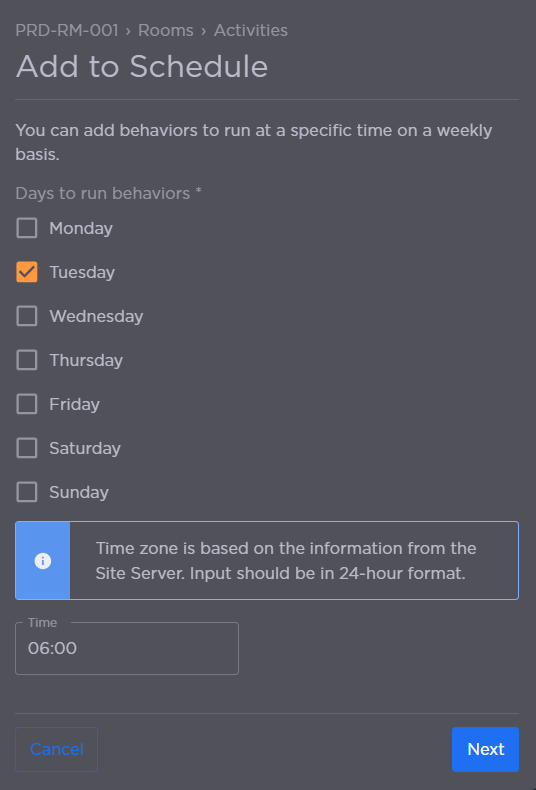
Selected Behaviors
Click Next.
Click Add Behavior.
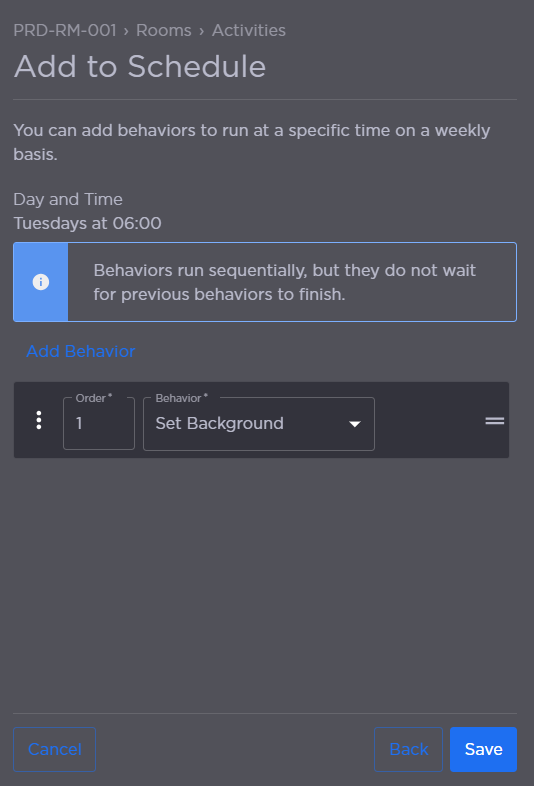
Add Behavior to Schedule
Click the Behavior drop-down to select a Behavior.
Repeat steps 10 and 11 to add more Behaviors.
Note
Looping behaviors cannot be added to the schedule.
Enter a number in the Order field to change the order in which Behaviors run.
Note
Click the  icon to move or remove behaviors, as shown in the following example:
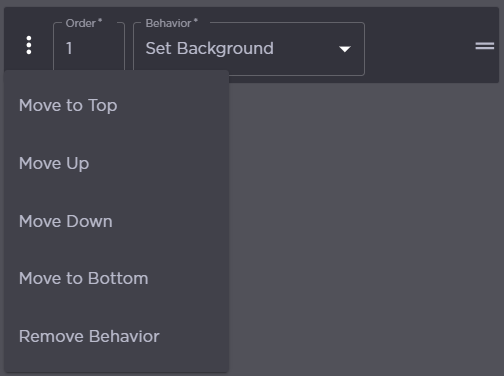
Behavior Order Options
Click Save.